

Edit your customer letters on one page and ask for a review after a visit
Every letter your site sends is now on one page, where you can change its words. Events send a reminder, you can ask for a review after a visit, and the new Inbox shows everything new in one list, also from a phone's home screen.
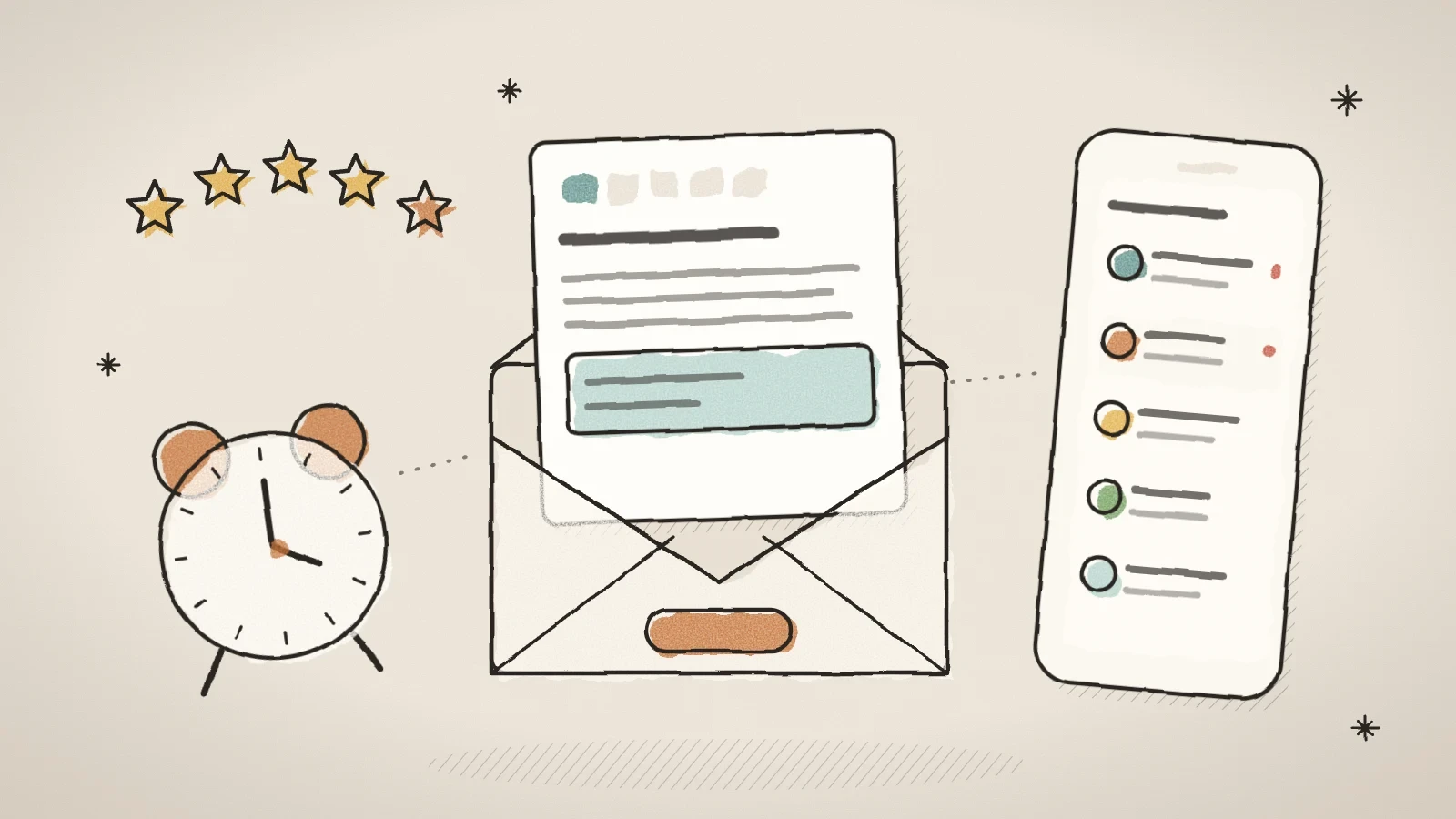
What this batch of updates covers
On 31 October five updates reached the admin, all about how your site talks to its customers. Every letter your site sends is now on one page, and you can change its words yourself. Events got a reminder letter. After a visit Husly can ask the customer for a review, and the reviews come to your own site and into a new table. The new Inbox shows everything new in one list.
Letters that Husly did not send before start switched off. The review request and the event reminder go to nobody until you switch them on. Your existing letters go out as before, until you change their words or their timing.
Change the words of any letter on one page
The new Letter templates page is under Settings in the menu. It has two tabs: To customers and To you and staff. The list shows the letters of your site's modules in groups: Appointments, Events, Rentals, Reviews, Subscriptions, and Payments and invoices. The rental letter editor moved here from Rentals settings, and your saved texts stayed as they were.
You edit a letter where it reads. The subject is at the top, the heading and the message sit on the letter itself, and the booking details are around them as the customer gets them. The message has a formatting bar: bold, italic, underline, strikethrough, lists and links. The Placeholders button shows what each placeholder means, such as the customer's name or the date, and puts it where your cursor was. Each language has its own text.
Only the words change. The time, the price, the address and the other booking details stay under your message, so an edited letter cannot lose them. A part you leave as it was keeps following the default, and Restore the default takes a letter back to the start.
The switch at the end of a row turns a letter off or on without opening it. A lock marks the letters that always go out, such as a gift card's code, an invoice, a payment link and a failed payment notice. A clock marks the letters whose timing you choose: reminders can go from 6 hours to 3 days before, and review letters from 3 hours to 3 days after.
Open Letter templates
Pick Settings in the menu, then Letter templates. Find the letter in the list or with the search box.
Change the words
Write a new subject, heading and message. Add placeholders with the Placeholders button.
Send a test letter
Send me a test letter asks for an address. Leave it empty to get the letter in your own mailbox.
Remind event attendees before the start
Events can now send a reminder before the start, the same way appointments do. The letter is on the Letter templates page, in the Events group, under the name Reminder. Choose when it goes: 6 or 12 hours, or 1, 2 or 3 days before the start. The usual time is 1 day before. The letter carries the event details, the attendee's link to view or cancel the registration and the calendar file, and it is written in the language the attendee registered in.
Only a confirmed registration for an event that still runs gets a reminder. A cancelled registration, a registration that still waits for its payment and an event that was called off get none. Someone who registers inside the chosen time gets no reminder, because their confirmation is only hours old. No reminder goes out in the last 2 hours before the start.
The letter starts off on every site. Switching it on does not send a burst of letters about events that are nearly here, and attendees of later events get their letter as usual. When you give an event a new start time, attendees who already had their reminder get one more for the new time.
Ask for a review after a visit
Feedback in the menu has a new tab, Ask for reviews. Switch it on and add one thing: the link to your review page. To get the link, type your business name and pick it from the Google list. You can also paste a link to Facebook or another review page. Then choose When the letter goes: 3 hours, 1, 2 or 3 days after the visit.
When an appointment or an event ends, the customer gets one letter with a button to your review page. Rentals already sends a letter after a rental, so the link goes inside that letter and the renter does not get a second one. Customers who did not come are not asked: that means a no-show, a booking that was never paid, or a person who was not checked in at an event that used check-in.
The tab shows, for the last 90 days, how many letters went out, how many people opened the link and how many asked to stop, and it lists the latest letters. You can send yourself a test letter. Letters start with visits that end after you switch this on, so nobody gets a letter about an old visit.
Every customer gets the same letter, and the letter neither picks out happy customers nor offers a reward. One person gets at most one letter in 180 days, and each letter has a link that stops these letters for good. Do not offer a gift or a discount for a review.
Collect reviews on your own site and see them in a table
Every booking and every event attendee now has a personal review link. Make a form under Feedback > Forms and say what it is for: appointments, events or rentals. The attendee's row menu in Events and the booking menu in Appointments then have Copy review link and Send review letter. When the form exists, the Ask for reviews letter opens it too, and a Google link is no longer needed to switch the letters on.
The link opens a form on your site, inside your own header and footer. The form already knows who the person is and what the visit was, so they do not type their name again. The last question is always the same: may we show this on our website? The answer starts at no. After sending, everyone sees your public review link, whatever they answered. A name goes public only with the person's word, and if they chose first name only, only the first name shows.
The Feedback page is now a table: name, rating, answer, type, status, booking and date. You can choose the columns, filter by rating, form and date, change the status on the row, select many rows, and add a review by hand from a list of recent bookings. A row opens in a side panel, with every answer under its own question. Export gives an XLSX, PDF or CSV file. On a phone the table turns into cards.
See everything new in one inbox, also from a phone's home screen
New form answers, chats, feedback, appointments, event registrations and rental bookings used to wait on six different pages. The Inbox shows them in one list, newest first, right under the Dashboard in the menu. Each row says who it is from, what they wrote, where it came from and when. A dot marks what still waits: an unread answer or chat, new feedback, or a booking request with no answer yet. The Source filter keeps one source.
A row opens that module's own page, because the work is done there. A chat and a booking open the exact item. Each person sees only what their role may open: someone who handles only forms sees only forms. A form answer over the plan's monthly limit stays locked here too, and its row shows only the sender's name and the date.
The admin can now be added to a phone's home screen. It then opens in its own window, straight on the Inbox. When you come back to the app it reads the list again, and a Refresh button sits beside the filter, because an installed app has no browser reload button.
Open the admin in your phone's browser and pick the option to add it to the home screen from the browser's own menu. The admin does not show an install prompt of its own yet.
Frequently asked questions
No. A letter you do not change goes out with its default text, and your current timing stays until you change it. The texts saved in Rentals settings moved to the new page as they were.
No. The closest number is how many people opened the link. A mail filter can open a link too, so you see the real count of reviews on Google.
Not yet. There is no SMS in this update, and you cannot add a new letter to the list. You can change the words of the letters that are there.
No. The Inbox has no read state of its own. A row stops being new when its module says so, for example when you have answered the booking.
Try Husly on your own business
Start free, no card needed. If you have questions first, write to us and we reply within one working day.