

Manage your site's payments, invoices and gift cards from one Finance page
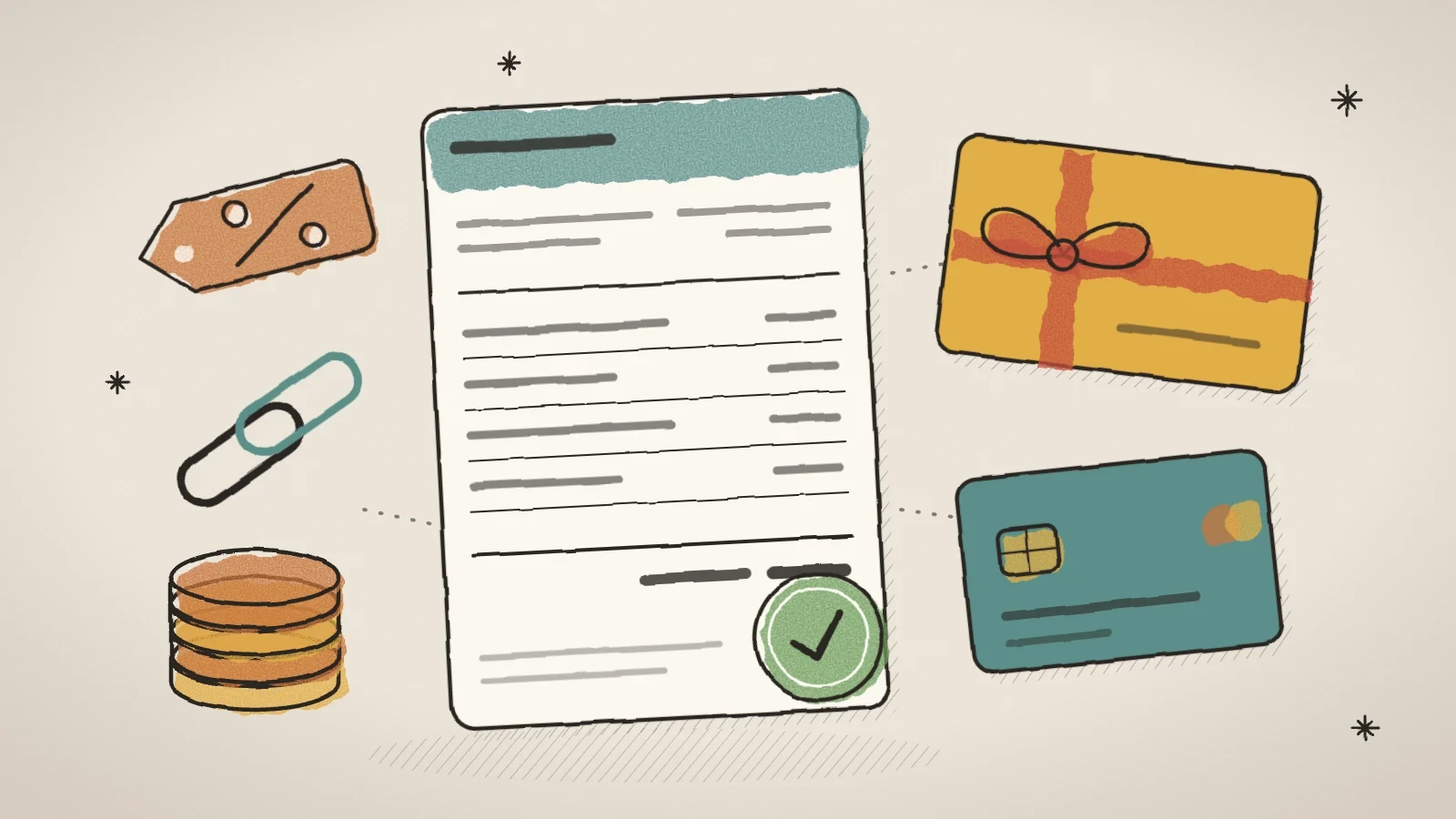
The admin has a new Finance module: every payment in one list, invoices and credit notes that make themselves, payment links, one list of discount codes for rentals, appointments and events, and gift cards you can also sell on your own site.
What this batch of updates covers
On 28 and 29 October the admin got a new module, Finance. It is one place for all the money your site takes: payments for rentals, appointments and events, invoices, payment links, discount codes and gift cards. In the sidebar, Finance opens its own submenu with five sections: Payments, Invoices, Payment links, Discount codes and Gift cards. On a phone they are tabs under the title.
Finance comes with every paid plan, for people whose role may manage payments. The new things that send or sell something to a customer wait for your decision: no invoice is made until you have filled in your company details, and selling gift cards on the site stays off until you switch it on.
Below are the five updates one by one: the list of payments, invoices, payment links, one list of discount codes, and gift cards.
See every payment and its totals on one page
The Payments tab shows the payments for rentals, appointments and events in one list, newest first. Each row has the time, what it was for (with the booking reference), who paid, how (card, Klarna, PayPal or bank link), the amount and anything that was given back. A row leads to its booking and to the payer's own receipt.
At the top are the totals for the chosen period and month by month: what arrived, what was refunded and what you kept. A payment that is still waiting or failed does not count. The filters pick the period (this month, last month, this year, last year or your own dates), the status, the module and the payer's email.
- Refund gives money back from any rental, appointment or event payment that still has money in it. It asks for a reason, the same money cannot be refunded twice, and it never offers more than is left. The button only gives money back; the booking stays.
- Download CSV gives your accountant a file in Estonian format (a semicolon and a decimal comma) or in English format, with times on your site's own clock.
- If one of your payment ways is in test mode, the page says so at the top. Test payments are not real money, but they are in the totals.
Let invoices and credit notes make themselves
The invoice settings are under Settings > Invoices in the menu, and behind the Invoice settings button on the Finance page. Fill in your company details there once, and every invoice prints them. Invoices are made only once the name, registry code and address are filled in, and the settings card says what is still missing.
From then on, every online payment gets a sales invoice, saved as a PDF and emailed to the payer in their own language. When money is refunded, a credit note is made for the refunded amount, and the original invoice is never changed or deleted. When someone registers for an event and picks a bank transfer, they get a pro forma invoice with the bank account, the amount, the due date and the reference. When the organizer marks the transfer as paid, a normal invoice follows.
The Invoices tab lists invoices, pro formas and credit notes, with a search and a type filter. Each document can be downloaded as a PDF or sent to the payer again. A row on the Payments tab shows its invoice number, or a Make invoice button when it has none yet. A payment made in test mode gets no invoice, so trying things out does not use up real invoice numbers.
Company details
Fill in the name, registry code, VAT number, address, contacts, IBAN and, if you like, a note for the foot of the invoice.
VAT
Pick your country and the rate that applies to you, or type your own. If you are not VAT registered, say so and the invoice says it too.
Numbering
Pick one number series for the whole site, or one each for rentals, appointments and events. A series can start from 1, from a number you choose, or again every new year.
What happens by itself
Look over the invoice after an online payment, emailing the PDF to the payer, the pro forma and the credit note. Switch off what you do not need.
The suggested rates come from public tables, with the date they were checked. Prices include VAT, so the customer pays the price shown and the invoice shows the VAT part. Check your rate with your accountant.
Ask a customer for money with a link
On the Payment links tab, the New payment link button makes a link a customer can pay through even without a booking. Two things are required: the amount and what it is for. You can add the customer's name, their email, the language of the page and the Valid until (optional) field. Left empty, the link does not expire; with a date, it works until the end of that day.
The link opens on your site's own address. The customer sees who is asking, what for and how much, and one button for each payment way the site has switched on: card, PayPal, a bank link or Klarna. After paying, the page says the money arrived. The payment shows on the Payments tab, is in the CSV, can be refunded, and gets its invoice like any other online payment when invoices are on. A site with no online payment way switched on cannot make a link, and the tab says where to switch payments on.
- Send by email in the link's menu sends the link to the customer under your business name. Husly never sends a link by itself, only when you press the button.
- Change the last day moves the link's last day. A later day opens an expired link again.
- Many customers can pay makes a link that stays open after each payment, for example for a class or an entry fee with one price. Every payer gives their own name and email, and the list shows how many paid and how much came in.
- Several lines swaps the single amount for rows: what, how many and the price of one. A link can have up to 20 lines, and each line is its own line on the invoice.
Use one list of discount codes in rentals, appointments and events
Discount codes are now one list for the whole site, on the Discount codes tab. Each code shows what it takes off (a percent or an amount), its days, how often it was used, whether it is valid now and where it works. A new code works in every module you have switched on. Under Works in you can take a module away, and inside a module limit the code to some listings, services or events.
The appointment booking form and the event registration form now have the same "I have a discount code" link that the rental form already had. A code that works lowers the shown price at once, and a deposit or an online payment is counted from the new price. A code that does not work says why: it has not started yet, it is over, it is used up, or it is not for this service or event. The server checks the code again when the booking is made.
The booking list and the calendar card show the code beside the price. When you later change a booking's time or service, Husly prices it again with the same discount. Codes made in Rentals before keep working in Rentals only, until you tick more modules for them. Rentals settings no longer have a list of their own; a card there leads to the new tab.
Sell gift cards and take them in a booking
On the Gift cards tab, the Make a gift card button makes a card by hand, for example one sold at the counter or given as a prize. Only the amount is required. You may add a name for the person, a last day and a note; without a last day the card never expires. Husly makes a 12-character code with no letters that look alike, and the list shows what is left of the amount and how many bookings used the card.
The customer types the card into the same field that takes a discount code, in the appointment, event or rental form. When the site has gift cards, the link reads "I have a discount code or gift card". The discount comes off first, then the card pays from what is left, up to its balance, and the form shows what is still to pay. A rental's damage deposit is never paid by a card. When a booking is cancelled or left unpaid, the card's part goes back to the card.
The Sell gift cards on your site switch opens a page on your site where customers can buy a card. Pick the amounts the page offers (25, 50 and 100 to start with) and whether a customer may type their own. After paying, the buyer sees the code, and it goes by email to them and, if they wish, to the person it is for. The VAT on gift cards choice decides whether VAT is counted On sale or On use.
The customer's letters and pages show only the last four characters of a card's code, because a letter can be forwarded. Your own admin screens show the whole code.
Frequently asked questions
Every row on the Payments, Invoices, Payment links and Gift cards tabs has a trash button that asks first. Deleting a payment moves no money. If you delete test invoices from the top of the list down, the number series goes back to its start and your first real invoice gets number 1. Real records can be deleted too, so keep your accounting documents.
Not yet. An invoice comes as a PDF by email for now. E-invoices to business customers were not part of this update.
No. Refund only gives money back. You cancel the booking on that module's own page, as before.
Try Husly on your own business
Start free, no card needed. If you have questions first, write to us and we reply within one working day.