

Step-by-step forms now skip steps, count a price and take payment
Step-by-step forms got a big update: an answer can skip the steps that do not apply, answers carry a price and a quantity, the visitor can pay at once and come back to a form they left half way. Everything new starts switched off.
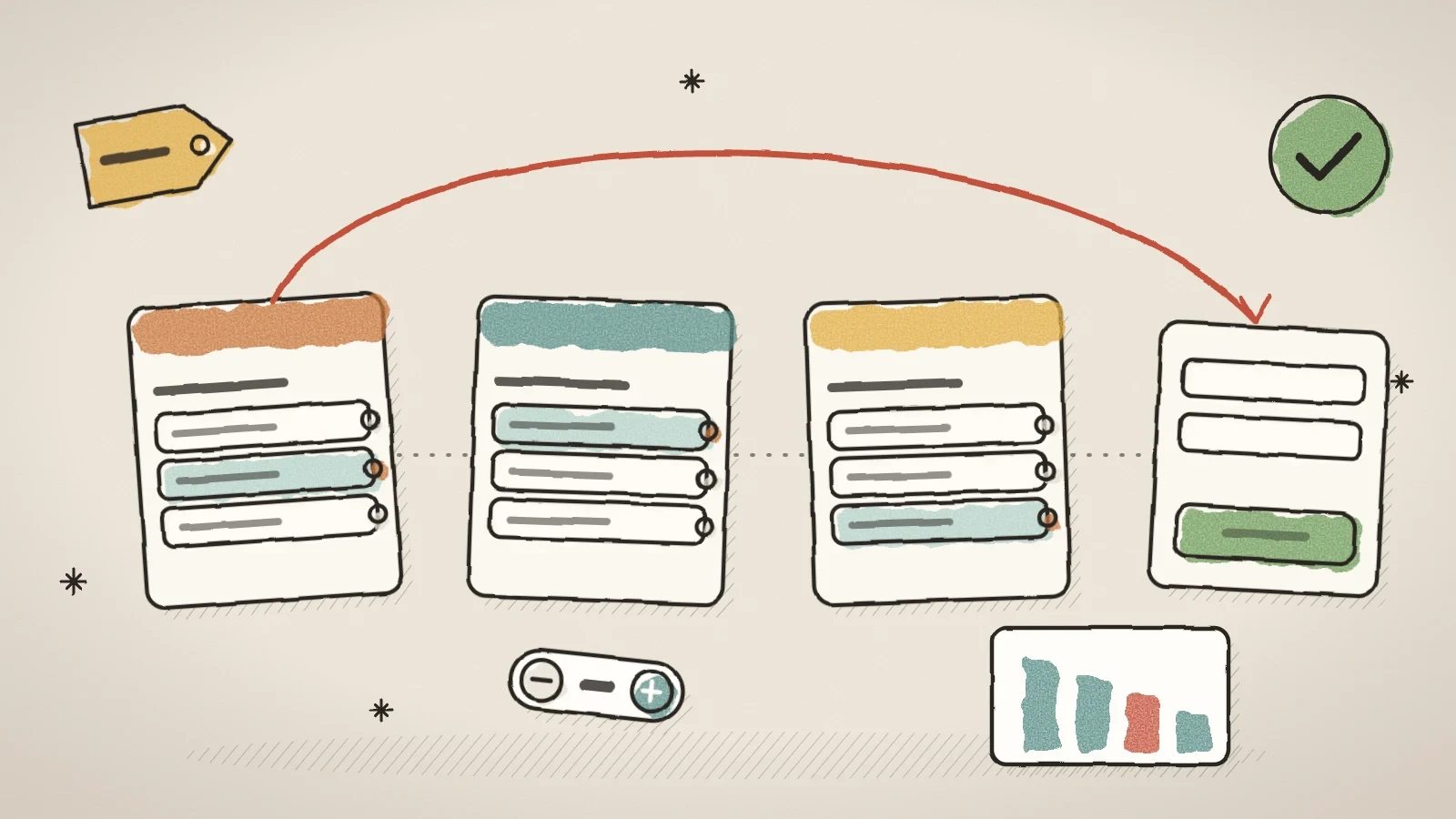
What this round of updates includes
On 23 November a larger update went live for forms with the Step by step layout. That is the layout where the visitor answers one question at a time, picks picture cards and leaves their contact at the end. You can now turn such a form into a price calculator that asks only what matters, shows the price all the way and, if you want, takes payment right away.
It all lives in the form editor, under Forms. A form now has the tabs Fields, Flow, Calculation, Actions, Layout and Statistics. Every new option starts switched off, so your existing forms work exactly as before. You switch on only what a given form needs.
Below are the seven updates one by one: skipping steps by the answer and the picture of the form, a several-choice question as its own step, prices and quantities, payment and discount codes, sending the answer into other modules, the drop-off count, and continuing a form that was left half way.
Skip the steps that do not apply to the visitor
An answer can now take the visitor straight to a later question or to the contact step. Someone who picks "Just a logo" no longer clicks through the questions about pages and a shop. A skipped step behaves like a hidden question: it is not asked, it does not count in the progress bar and its answer is not sent. A jump only ever goes forward, so a form can never loop.
The new Flow tab draws the whole form as one picture: every question is a box with its answers, then the contact step and a box with the actions that run after sending. A grey dashed line is the normal order, a coloured line is a jump. On the canvas you can also add, edit, copy and delete questions, and drag them into a new order. A right click (a long press on a phone) opens a menu for whatever is under the pointer. On a phone a plain list under the canvas shows clearly where each answer goes.
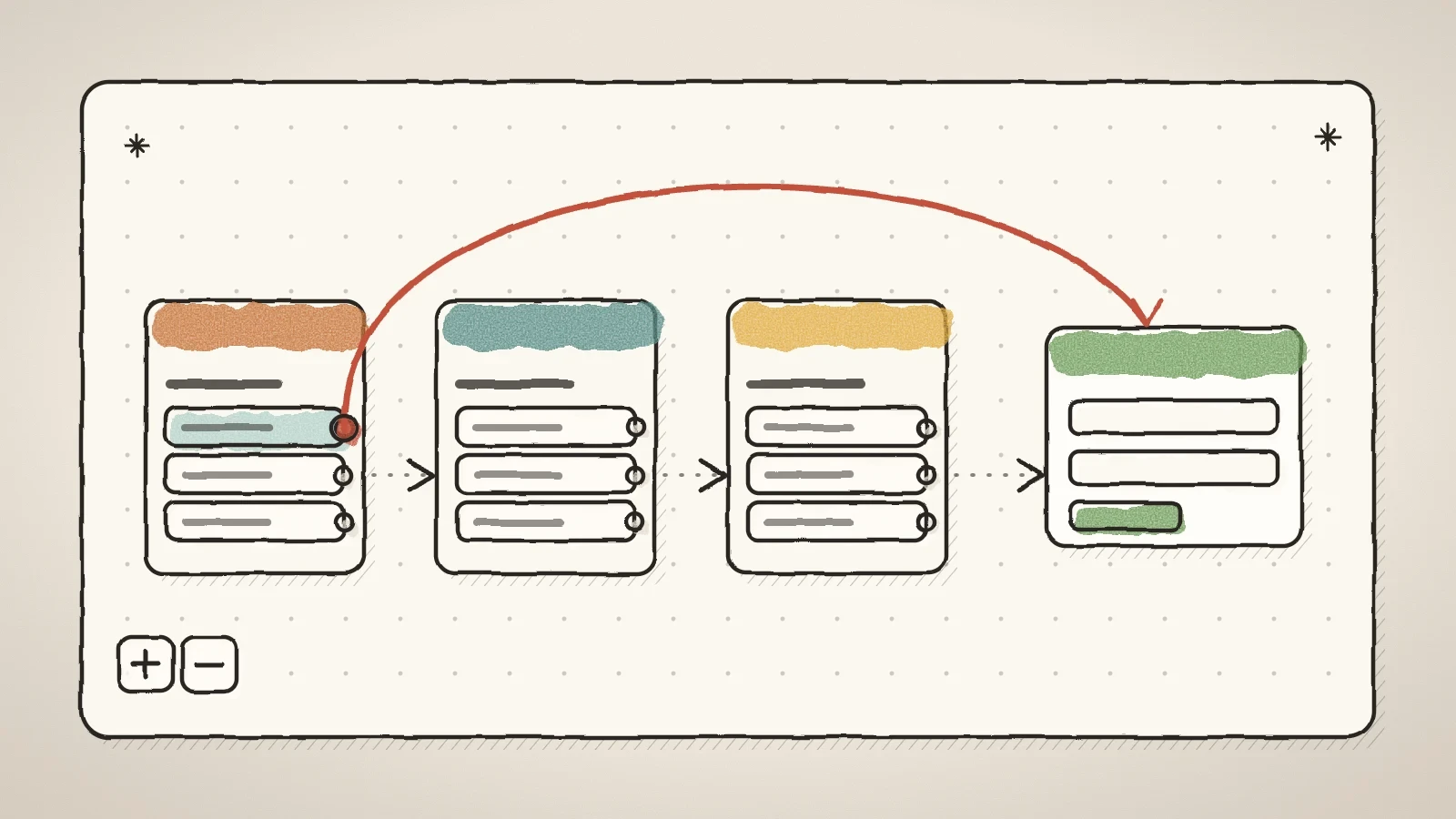
After this step
Open a choice question on the Fields tab. In the "After this step" box, pick the next step, a later question or the contact step beside each answer.
Flow
Or drag from an answer's dot onto a later box on the canvas. To remove a jump, click its line and press Delete or "Back to the next step".
Preview
The preview next to the editor follows the jumps at once, so you can try every path before you save.
Save
Canvas changes are saved with the normal Save button, like everything else in the editor.
Ask a several-choice question as its own step
Until now only a single-choice question (radio buttons or a dropdown) became a step of its own. A checkboxes question always waited on the last step next to the name and the email. Now a checkboxes field on the Fields tab has the switch Ask as its own step. It shows when the form uses the step-by-step layout.
Switched on, the visitor gets a step of its own with ticking cards, pictures too when the answers have them. A line under the question says "Pick one or more." and the visitor presses Next themselves: such a step never moves on by itself, because one tick may not be the whole answer.
As there is no single answer to jump on, such a step has one shared target, "Whatever was picked". Every ticked answer that has a price counts into the total. The form's recommendations still read single-choice questions only.
Give answers a price and show the total
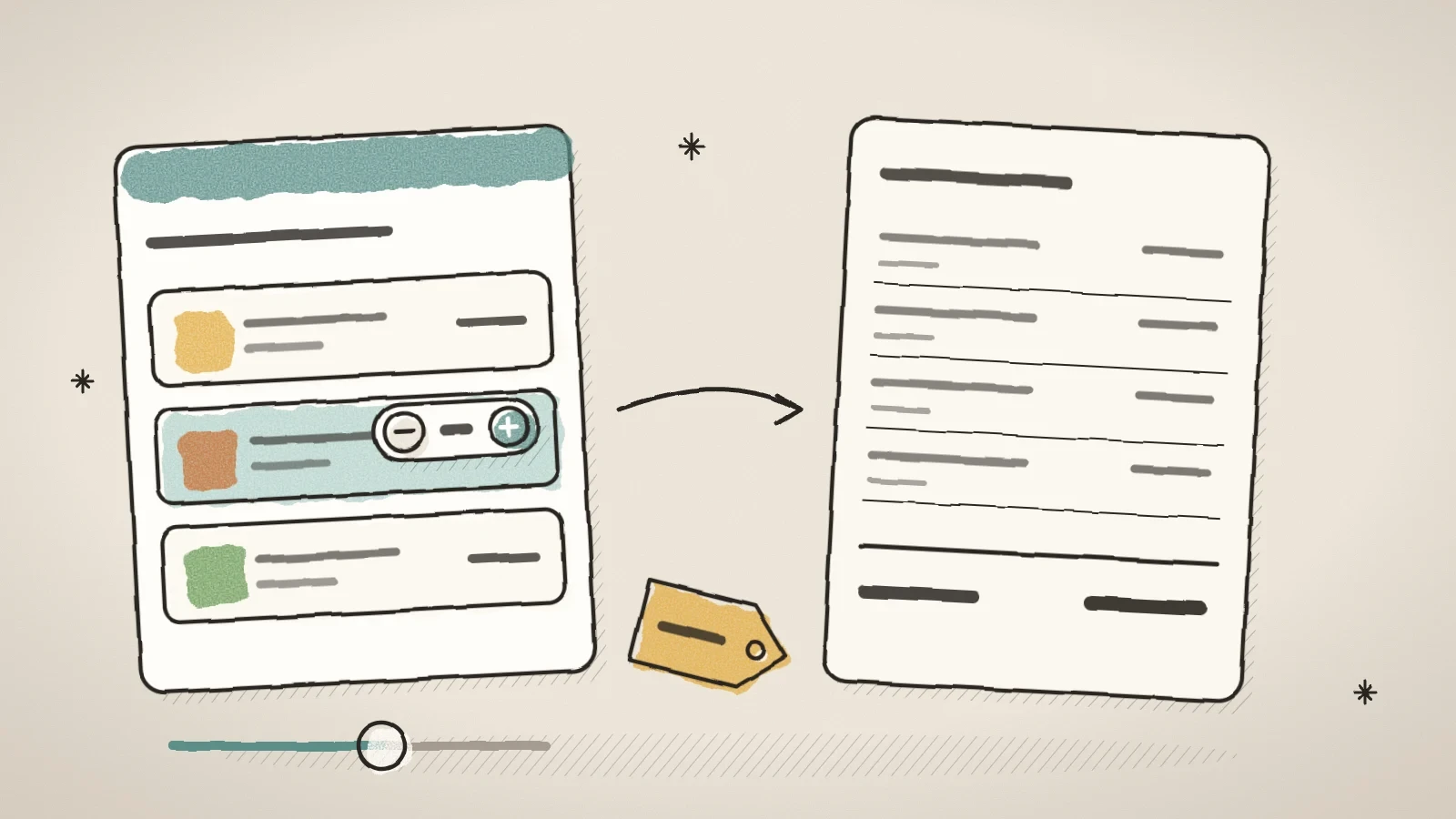
The Calculation tab now has Answer prices: every answer of a choice field (dropdown, radio buttons, checkboxes) can carry a price. The form shows the total all the time while the visitor picks answers. Without a formula of your own, the total is simply the sum of the picked answers' prices. In a formula, a field's name stands for the price of the picked answer, so area times finish works.
- Slider is a new field type. The visitor drags to pick a number, for example a floor area from 10 to 200 m2. You set the range, the step, a unit and, if you like, a Price per unit that is multiplied by the picked number.
- The switch Visitor picks a quantity gives a priced answer a small counter with a minus and a plus button. You set the least and the most a visitor may take. In the inbox and the letter the answer stays readable: "Extra page x 3".
- On the Layout tab, Summary before sending adds a review before the contact step: every answer, its price and the total, with a Change link straight back to that question.
The server counts the total again from the sent answers and never trusts the number the browser sent. The letter and sentence layouts do not draw the slider and the counter yet.
Let the visitor pay at once and use a discount code
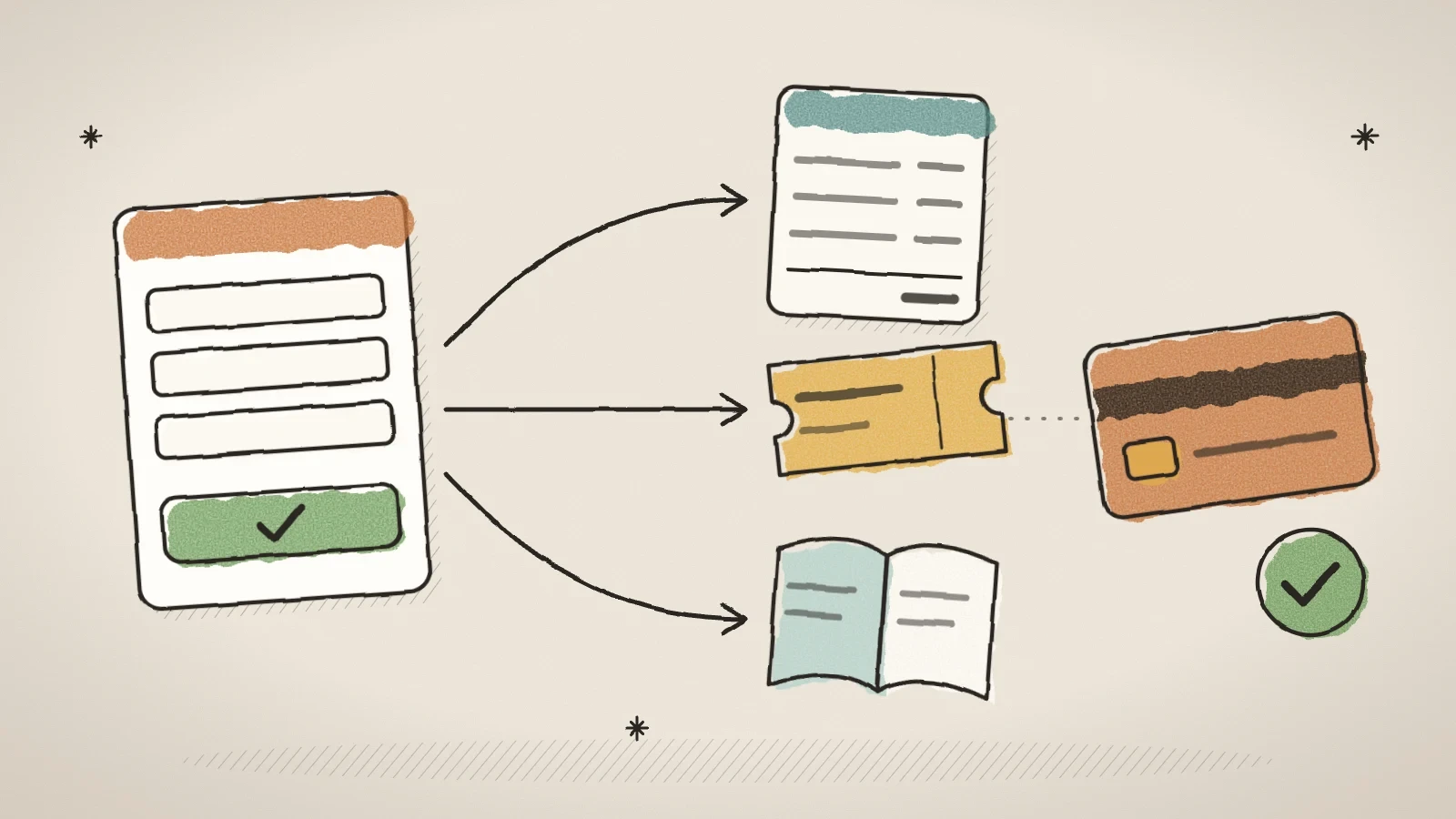
The Actions tab has a new action, Payment after sending. When it is on, the visitor sends the form and goes straight to your site's payment page. The amount is the form's total, the value of a number field or a fixed amount. The payment goes through your site's own payment methods, the same ones the other modules use. After paying, the visitor comes back to the same page and sees a short line saying whether the payment was received or not finished. The inbox shows each answer's payment: waiting, paid or failed, with the amount.
The answer is always stored before the payment. If the site cannot take money yet, or the amount is zero, the visitor gets the usual thanks and nothing else changes. You choose the send button's text yourself, for example "Send and pay".
A form with a total can now take a discount code too. There is no second list of codes: in Finance > Discount codes a code has a new place, Forms. The visitor opens "I have a discount code", types it and presses Apply. The server checks the code again when the form is sent.
Codes made before this update do not work on forms until you tick the place Forms on them. A code works on every form of the site; it cannot be limited to one form.
Send the answer into Finance, Events and Courses
The Actions tab puts a form answer to work in your site's other modules. You choose which form field fills which field there. A field you leave unmapped falls back to the same guess the Customers register makes from the field names for name, email and phone.
- Draft quote in Finance makes a quote whose price comes from the form's total, a number field or a fixed amount. The whole answer goes into the quote's internal note. With the switch Send to the customer at once the quote goes out right away with its number, its own page and the PDF letter. The switch starts off.
- Registration to an event makes a pending registration on the chosen event and ticket. The event's own checks apply and you confirm it.
- Place on a free course gives the visitor a place on a course that has no price.
The inbox shows what the action did for each answer: Done with a link, or failed or skipped with the reason, for example when no seats are left. You can add actions only for the modules that are on for your site.
See which step visitors leave on
On the Statistics tab a step-by-step form has a new part, Where visitors leave. Every step is listed in the order the visitor sees it: the questions, the recommendation, the summary and the contact step. Beside each step you see how many visitors reached it in the chosen period and how many stopped there. The step where most people leave is marked, with a hint that a shorter question there may help.
On the Flow tab the same count is a small number on each box, for the last 30 days. So you see the drop-off right on the picture of the form.
To count, the form sends only the form's name and the step's name when a visitor reaches a step. Husly keeps one number per form, step and day. No cookie, no visitor id, no IP address and no answers are stored.
Let the visitor continue where they left off
The Layout tab has a new switch, Continue where you left off. When it is on, the visitor's answers to the questions stay in their own browser. If they reload the page or come back later, the form first asks "Continue where you left off?". Continue takes them to the same step with their cards and counts still picked. Start again forgets the saved answers.
Only the answers to the questions are kept, and each one is checked against the form as it is now, so a removed answer is dropped. A form left more than 30 days ago is not offered. Once the form is sent, the saved answers are cleared. A continued visit is not counted as a new start in the statistics.
Name, email, phone, the message and files never stay in the browser. Nothing goes to the server before the visitor sends.
Frequently asked questions
No. Jumps, prices, the summary, payment, the checkboxes step and continuing are all off at the start. A form changes only when you switch one of them on and save.
Partly. Answer prices, the slider, the quantity counter, discount codes, payment and actions also work on the classic form on your site. Jumps, the flow picture, the checkboxes step, the summary, the drop-off count and continuing are for the step-by-step layout only.
The Change link takes them to that question. From there they walk forward through the following questions again, because a new answer may change which steps come next.
Try Husly on your own business
Start free, no card needed. If you have questions first, write to us and we reply within one working day.