

Turn your Figma design into Husly pages and keep them in step with it
Husly now reads a Figma file and makes draft pages of your site from it. A course, booking or events page becomes a working module page, and later you can take in the design's changes while your own edits stay.
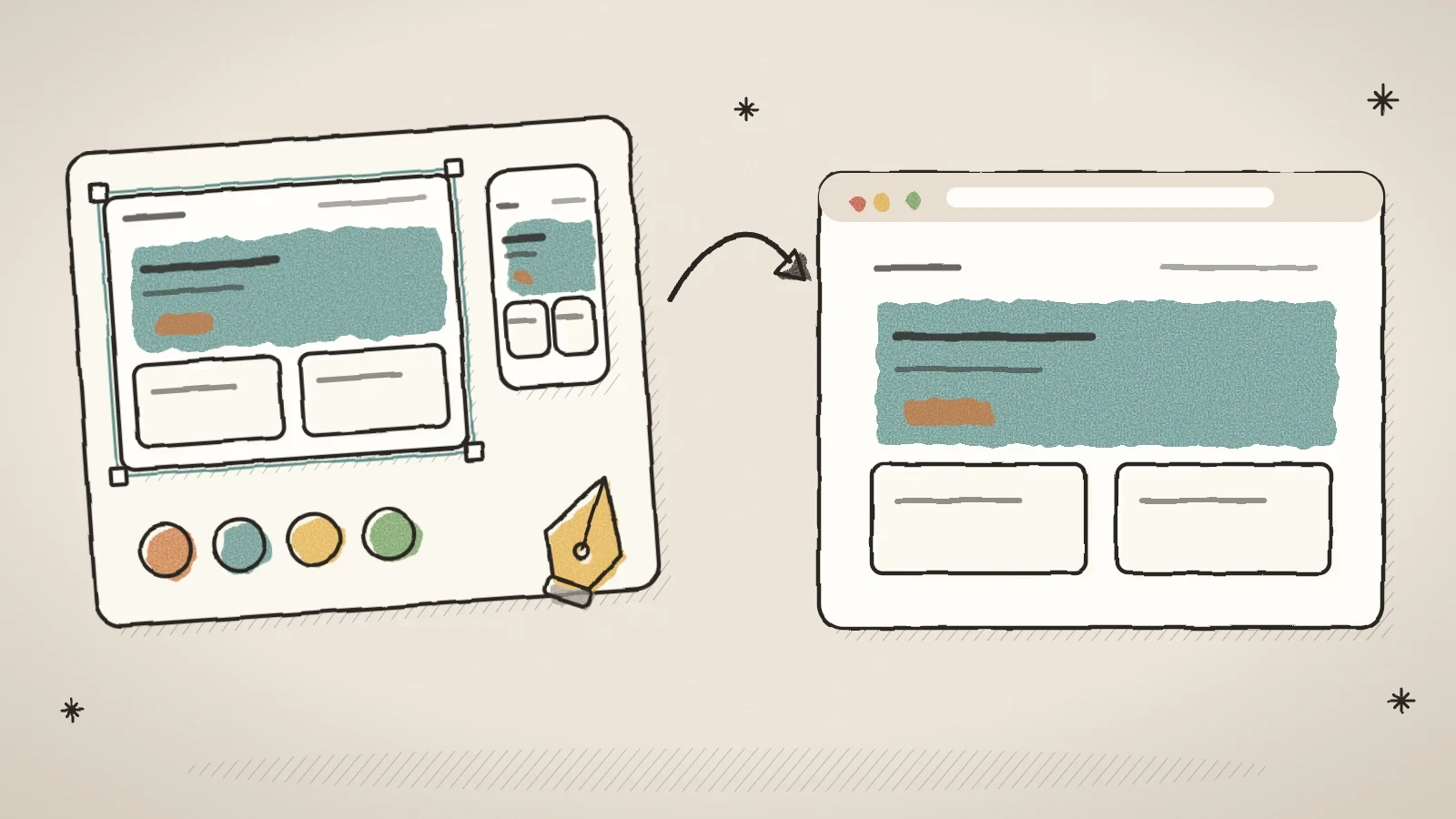
A Figma design can now become a Husly site
Many websites start in Figma: a designer draws the homepage, the services page and the phone view there. Until now you had to build that design again by hand in Husly. Now Husly reads the Figma file itself and makes the pages of your site from it.
The pages come in as drafts, and every part sits where the design has it. A course, booking or events page becomes a working module page, not only a picture. When the design changes later, you can take in the changes and decide what to take.
Figma import is in every plan, the Free plan too. It is for the people who may manage pages on the site. Below is everything that came on 19 and 20 November.
Import a Figma design as draft pages
In the admin menu, open Tools > Import/Export and pick Figma. Everything that comes from Figma is there. First you connect your Figma account. Husly can only read your files, it cannot change them. Figma Design files work; FigJam, Slides and Make files do not yet.
Before you start, the page shows how many free imports are left this month. Every site gets free imports each month; after that an import uses AI credits, and the page tells you the cost first. An import that fails does not use a free import and takes no credits.
Husly first makes a restore point and then saves every page as a draft. Photos and logos are saved in the site's media library, in the folder "/figma", so a page does not depend on Figma's addresses. A font Husly cannot serve is swapped for the closest free font. The report shows the pages it made, the fonts it swapped and what it had to approximate.
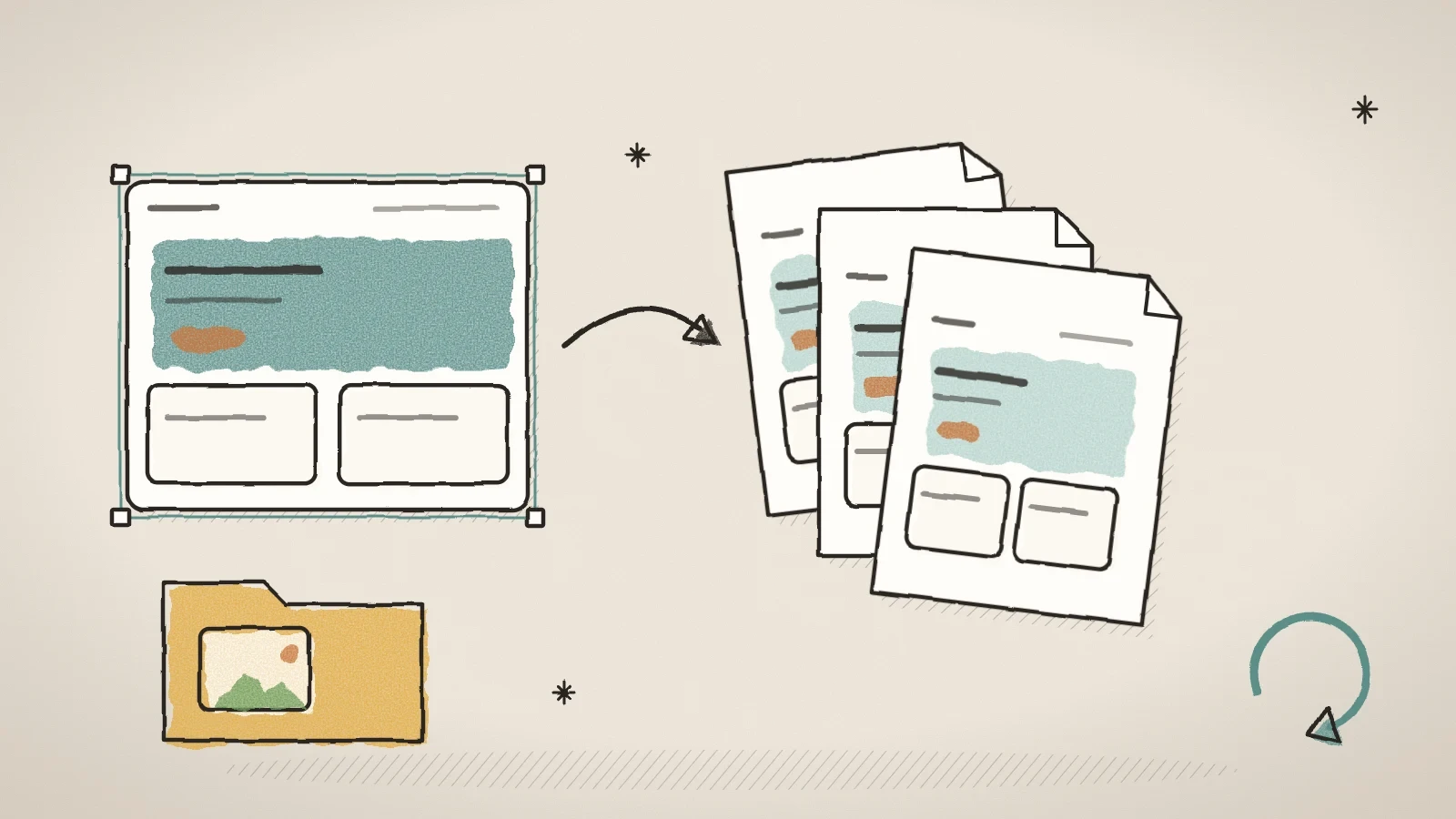
Open Tools > Import/Export, pick Figma and click Connect Figma
Sign in to Figma in the small window and let Husly read your files.
Paste the file link and click Find frames
Copy the link in Figma with Share > Copy link. A list opens with each page of the design on its own row.
Pick the frames
The desktop and phone frames of one page sit side by side and are ticked together. The switch Use these colors and fonts is off at first, so the site keeps its own theme.
Import and read the report
The page follows the import and then shows the report. Each draft page has an Open page button.
An imported page looks like the design
Husly puts every section of the design on the builder's grid of 24 columns. Each heading, text, button, picture, big icon and card sits where the design has it. When a Husly text is longer, it pushes what is below it down instead of covering it. You can drag every part in the builder afterwards, like in any grid section.
What the design draws behind the content comes in too:
- a gradient or a picture behind the whole page;
- a box with rounded corners and free room around it, and the design's content width;
- the site header inside that box, when the design has the header and the hero in the same box. When the visitor scrolls, the header becomes the site's normal header again;
- big icons beside headings, a button together with the text link next to it, and the space between sections as in the design.
The import adds no shadow or glow that the design does not draw. On a phone every part is full width and in reading order: a side column comes after the main column, and a picture keeps its shape. The import does not bring in everything yet: buttons get the site theme's main colour, not each button's own colour, and the design's grey picture places are left out.
A course or booking page becomes a working module page
The import also reads what a page is about. When a page is, for example, a course, booking or events page, Husly builds it with that module's own widget. When Husly is not sure, it uses its best guess and the report asks one question, such as "Is this a course page or an event page?".
- Courses: the course catalog, and a draft course from every course card with its lessons and cover picture.
- Forms: a form with the same fields in the same order. It takes answers only after the page is published.
- Appointments: the booking widget, and a service with a length and a price for every row, switched off.
- Events: the event list, and draft events with a date and a place, with registration closed.
- Artworks: the artwork grid, and unpublished works with their size and medium.
- Portfolio: the portfolio widget with the design's real projects.
- Blog and Rentals: blog categories with the post list, and the rental grid. The posts and rental items are listed in the report, and for now you add them yourself.
Nothing is published and no module is turned on. When a module is not in your plan or is turned off, you see its widget as a preview, and the report tells you how to turn the module on.
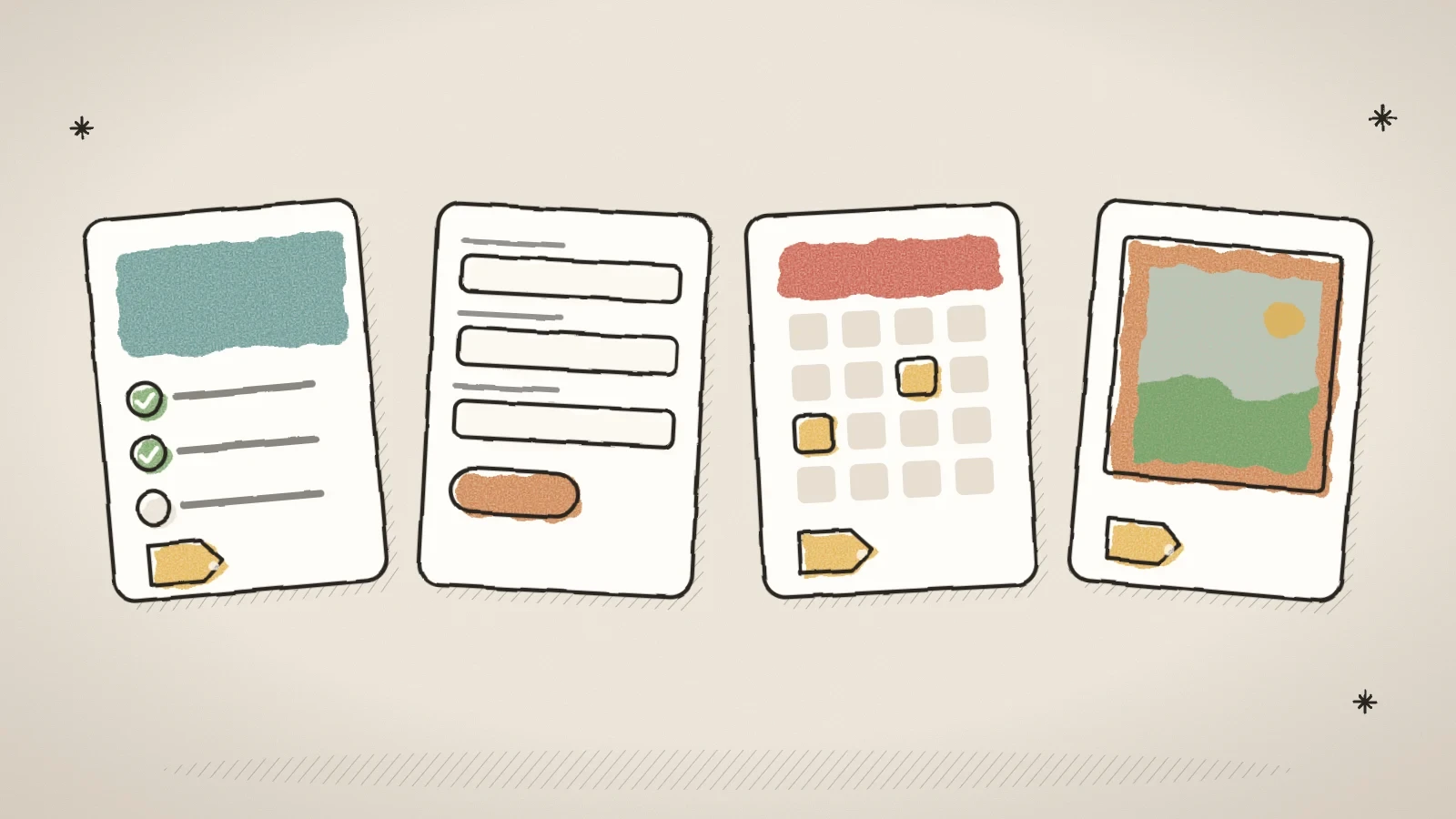
Prices come in as sample prices and payments stay switched off. Check the price and the other details on the module's own page before you publish a course, a service or a work.
Take in the design's changes while your own edits stay
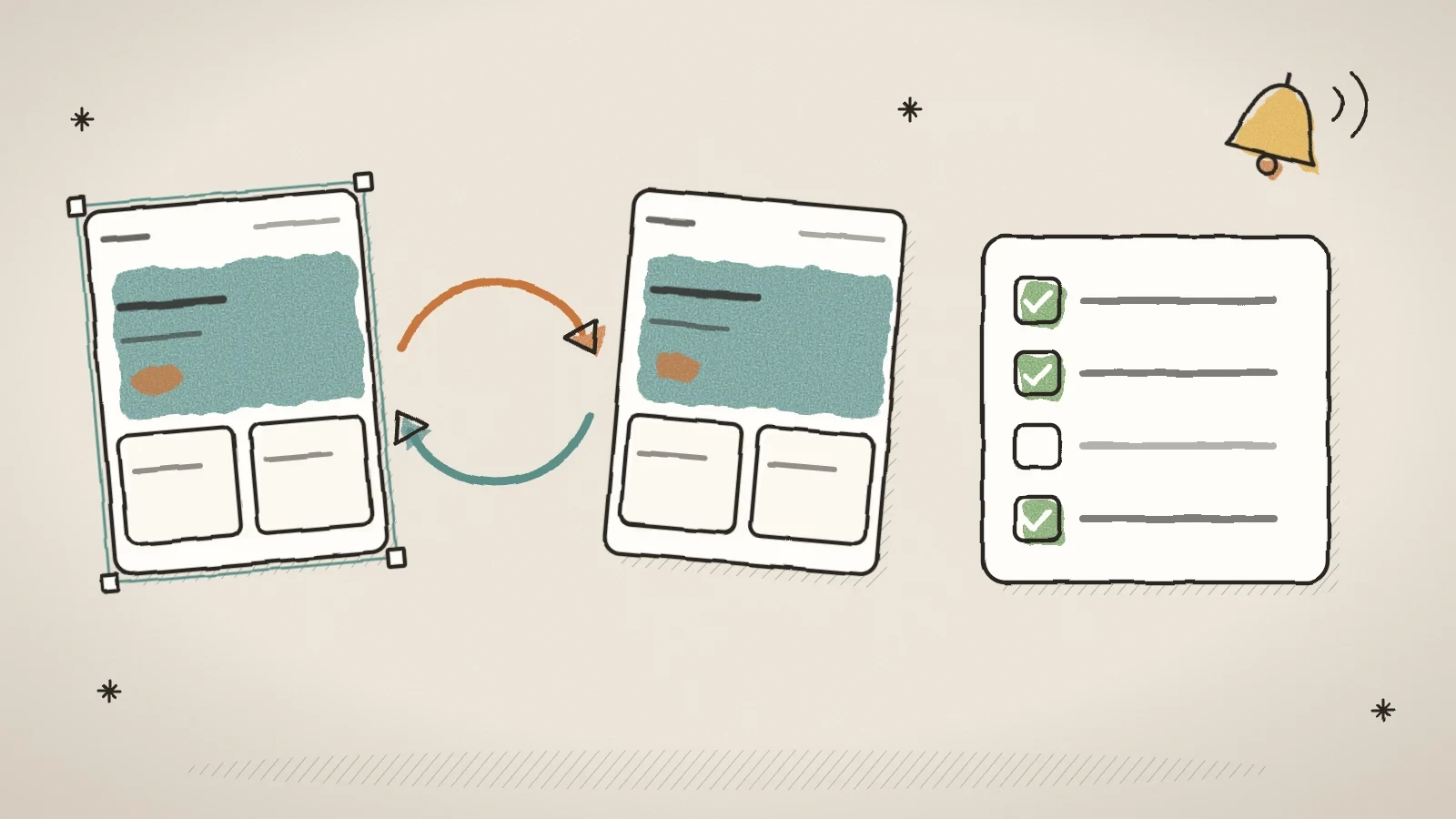
A design changes after the import too. In the list Imported works, every work has a Re-sync button. It reads the Figma file once more, never in the background, and shows page by page what changed in Figma: changed, new and removed sections, with their texts and pictures. Each change has a tick box.
- A section nobody touched in Husly is already ticked.
- A section that was changed in Husly has the label Edited in Husly and stays unticked. Your edit stays unless you tick it yourself.
- A section removed in Figma is not removed unless you tick it.
- A published page says Page is live, because the change reaches visitors at once.
When you click, for example, Take 3 changes, Husly makes a restore point first. A re-sync that uses only the rules does not count as an import. When it asked the AI about new parts, it counts like an import. Imports made before this update cannot be re-synced: import them again.
The switch Tell me when this design changes is off at first. When you turn it on, Figma asks for one more permission. When someone edits the file, the work gets the label Design changed in Figma, and the people who manage pages get an email and a push notice. Nothing on the site changes by itself.
Bring a Figma design in from your AI app's chat
When you have connected Claude or another AI app to your site, you can also bring a Figma design in through the chat. Paste a Figma frame link into the chat and write, for example, "import this Figma frame into my site". The app starts the same import as the Figma page in the admin: the pages come in as drafts, and a restore point comes first.
The app can also tell you how the import went and which draft pages it made, and it can re-sync the design. When a section was changed by hand in Husly, the app must ask you before it replaces it.
The app uses the site's own Figma connection and the same free imports and credits. When the site has no Figma connection yet, the app gives you a link to the page where you connect it. AI app connections are in the paid plans. The change alert switch stays on the admin's Figma page, because Figma may ask for a permission in a browser window.
Start a new site straight from a Figma design
You can start a new site from Figma too. On the Husly start page, choose Bring my old site over and then A Figma design. Connect Figma, paste the file link, and you see at once how Husly reads the design: a sample headline, text and button in the design's fonts and colours, the colours with their codes, and a card for every page.
Pick the pages and make your account. The new site gets the Figma connection, the import starts at once, and you land on the admin's Figma page, where you can follow it. It is a normal import, so it counts as one of this month's free imports. When you start from Figma, you make the account with your email for now, because the Google sign-in is hidden on this path.
Frequently asked questions
No. Husly can only read Figma files. The import, a re-sync, deleting an import or disconnecting changes nothing in Figma.
Figma gives users with a View or Collab seat only a few file reads a month. Finding the frames uses one read, and an import at most two. Running the same import again uses no new read. When the limit is used up, Husly says so plainly and shows Figma's plans.
In the list Imported works, click Delete on the work. A tick box, on at first, also deletes the pages of that import that are still drafts. Published pages, pictures in the media library and module records stay.
Only when the site has no published page yet. Then the menu items come from the order of the frames and the design's prototype links. On a published site the report lists them instead, so the header never links to a draft.

Try Husly on your own business
Start free, no card needed. If you have questions first, write to us and we reply within one working day.