

Price
Once, in parts or free
Sell a course at one price, or give it free with a sign-up. A dearer course can be paid in 2 to 6 parts by card: the first part now, the next ones once a month.
Product Courses
Videos, quizzes, hand-ins and live lessons in one course that students find on your site. They learn on a phone or a computer, and you see how far each one is and where people stop.
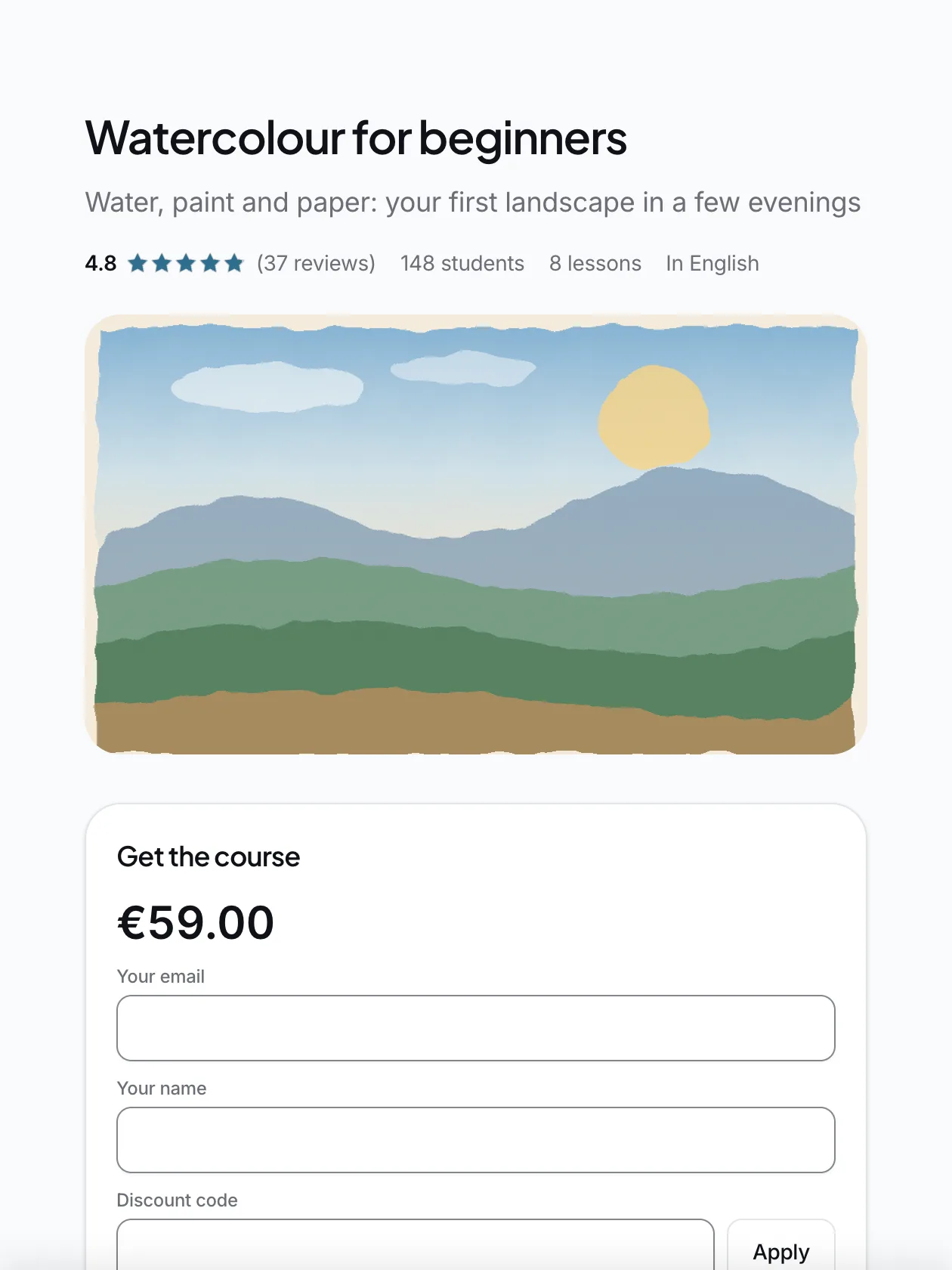
Your student's side
Every course gets its own page: the title and cover, the ratings, what you will learn, the outline, the teacher and the reviews. The buy card sits beside it. People pay by card, PayPal, Klarna or a bank link and can start at once.
The average rating, the number of reviews, students and lessons sit right under the title. Only the course's students write reviews.
The price, a discount code and the pay buttons are in one card. Card, PayPal, Klarna or a bank link, as you choose.
When you turn gifts on, a course can be bought as a gift for someone else.
The outcomes, who the course is for, what you need, the outline and the questions. Every field is optional.
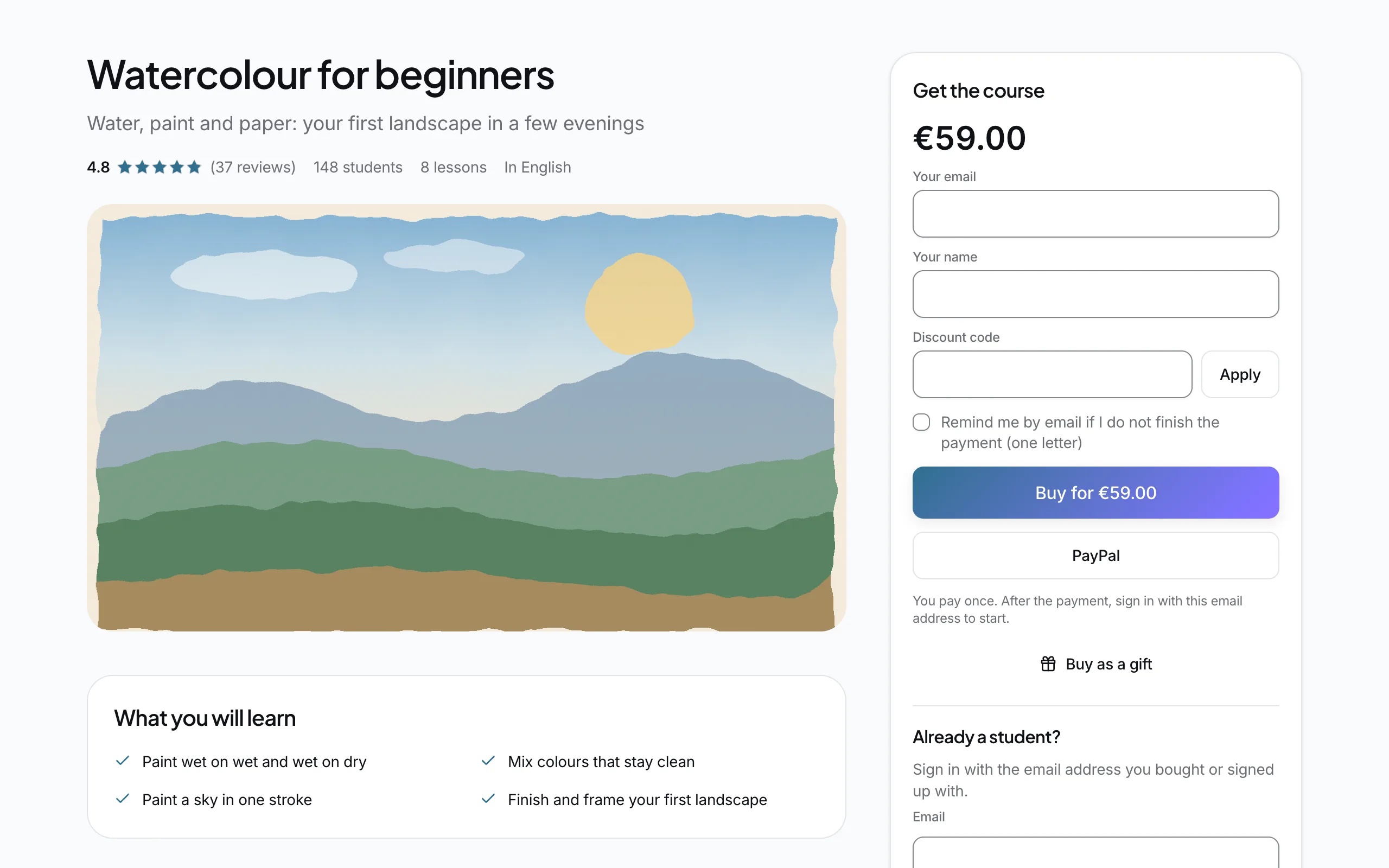
The lesson
The lesson page holds the video, the text and the files, with the outline beside it. The student taps "Complete and continue" and moves on. Lessons can open in turn or some days apart, as you set them.
The student sees how many lessons are done. The outline sits beside the lesson on a computer and behind a button on a phone.
The course's own space where students talk with each other and with the teacher.
The player wears the site's colours, remembers where the student stopped, and shows subtitles and chapters when you add them.
A lesson can wait for the one before it, or open some days later. The student sees when.
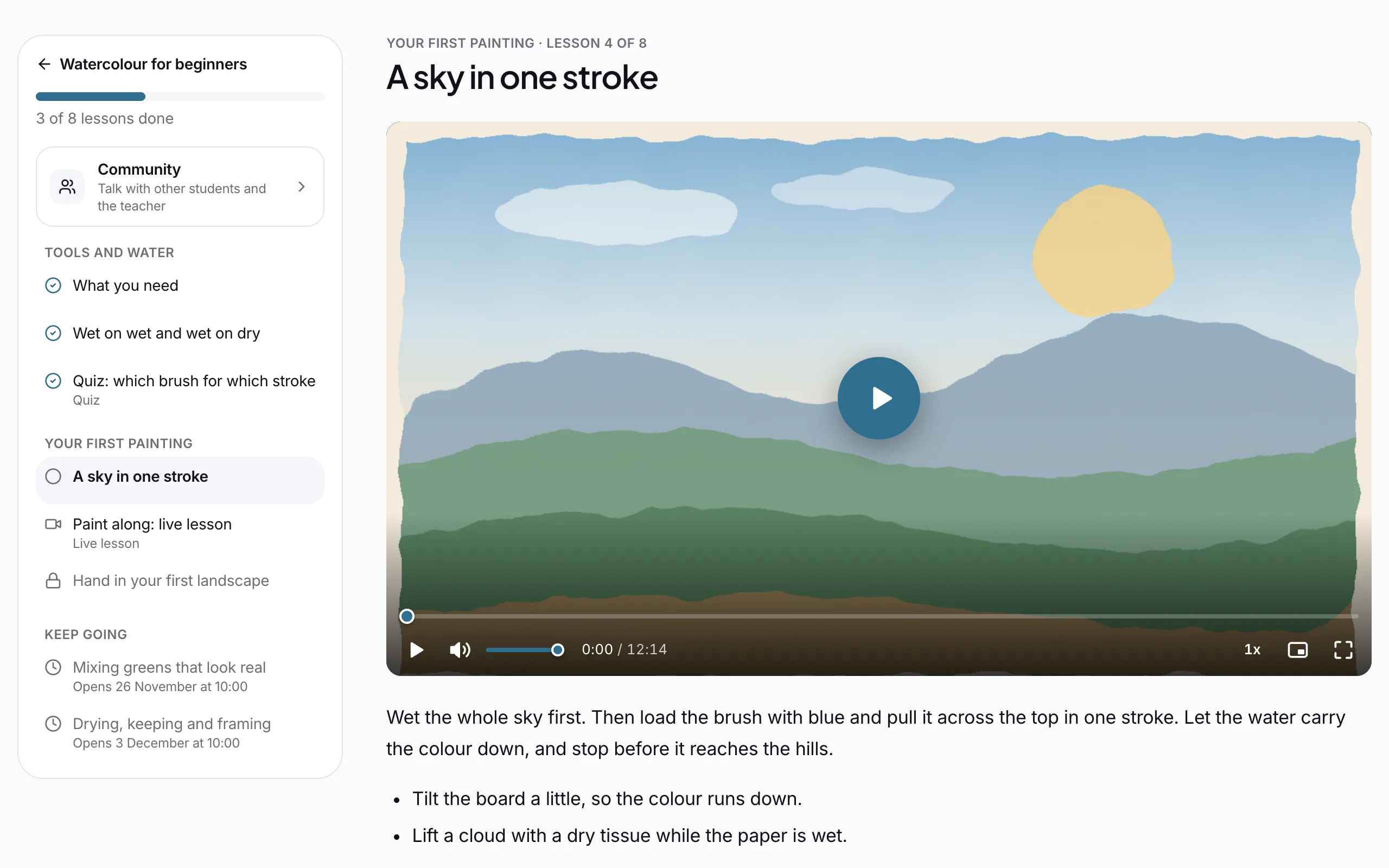
My learning
The student's own page holds all their courses and how far they are in each. The streak and the badges keep them going, and the certificate comes at the end. Students can put the page on the phone's home screen like an app.
How many days in a row the student has learned, and their best streak.
A first lesson, a clean quiz, half the course, seven days in a row. You can add a badge of your own too.
A student who finishes gets a certificate with its own code and adds it to the LinkedIn profile with one button.
Your side
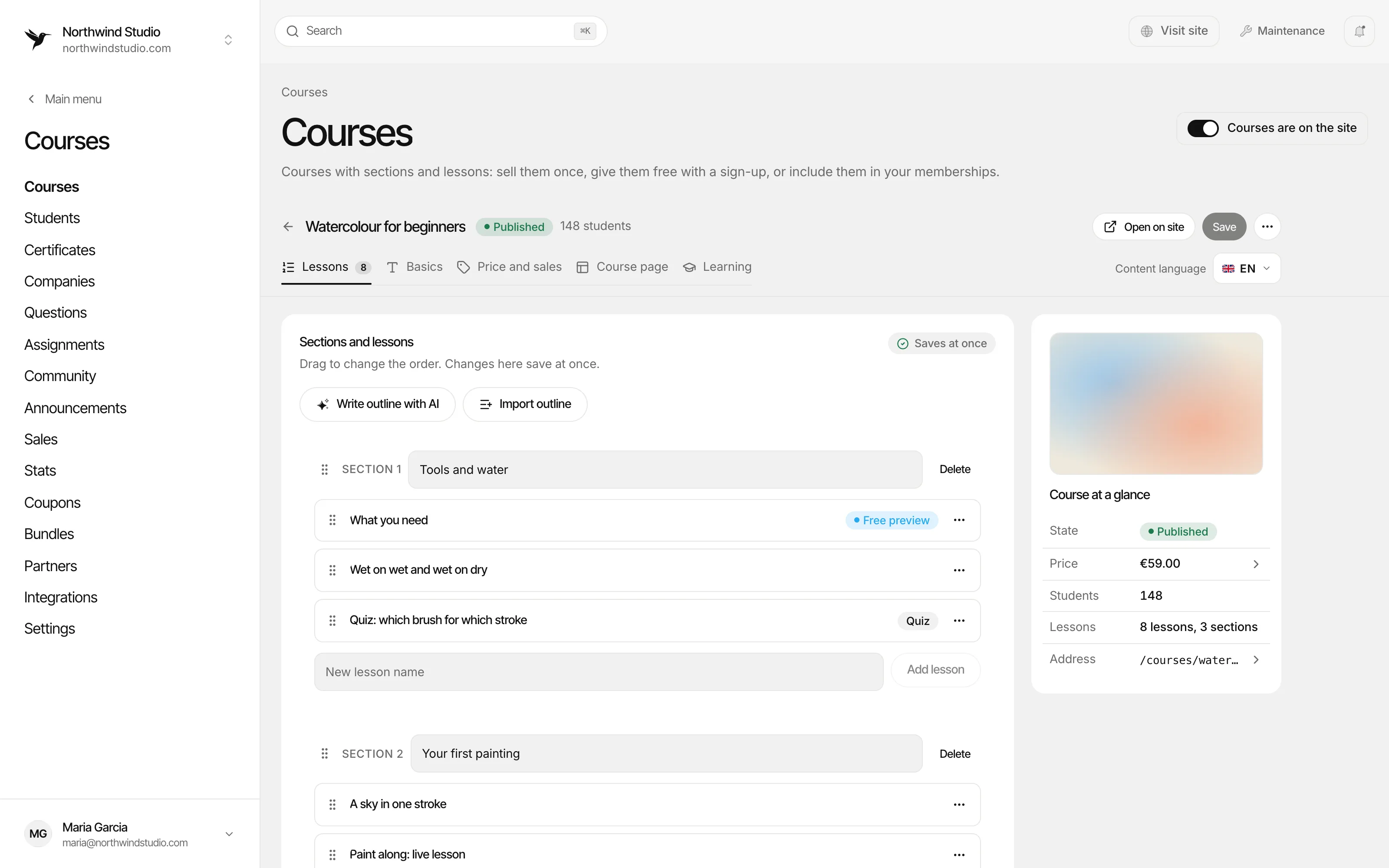
Add sections and lessons, drag them into order and pick the kind of each lesson. AI can write the outline, a lesson can come from PowerPoint or a PDF, and a good lesson can be copied into another course.
Lessons, basics, price and sales, the course page and the learning rules, each on its own tab.
Describe the course and AI writes the sections and lessons. Or paste your own list and import it.
Video, audio, text, quiz, hand-in, live lesson, interactive lesson or SCORM. A tag says which kind it is.
The state, the price, the students, the lessons and the course's address on the site.
Interactive lesson
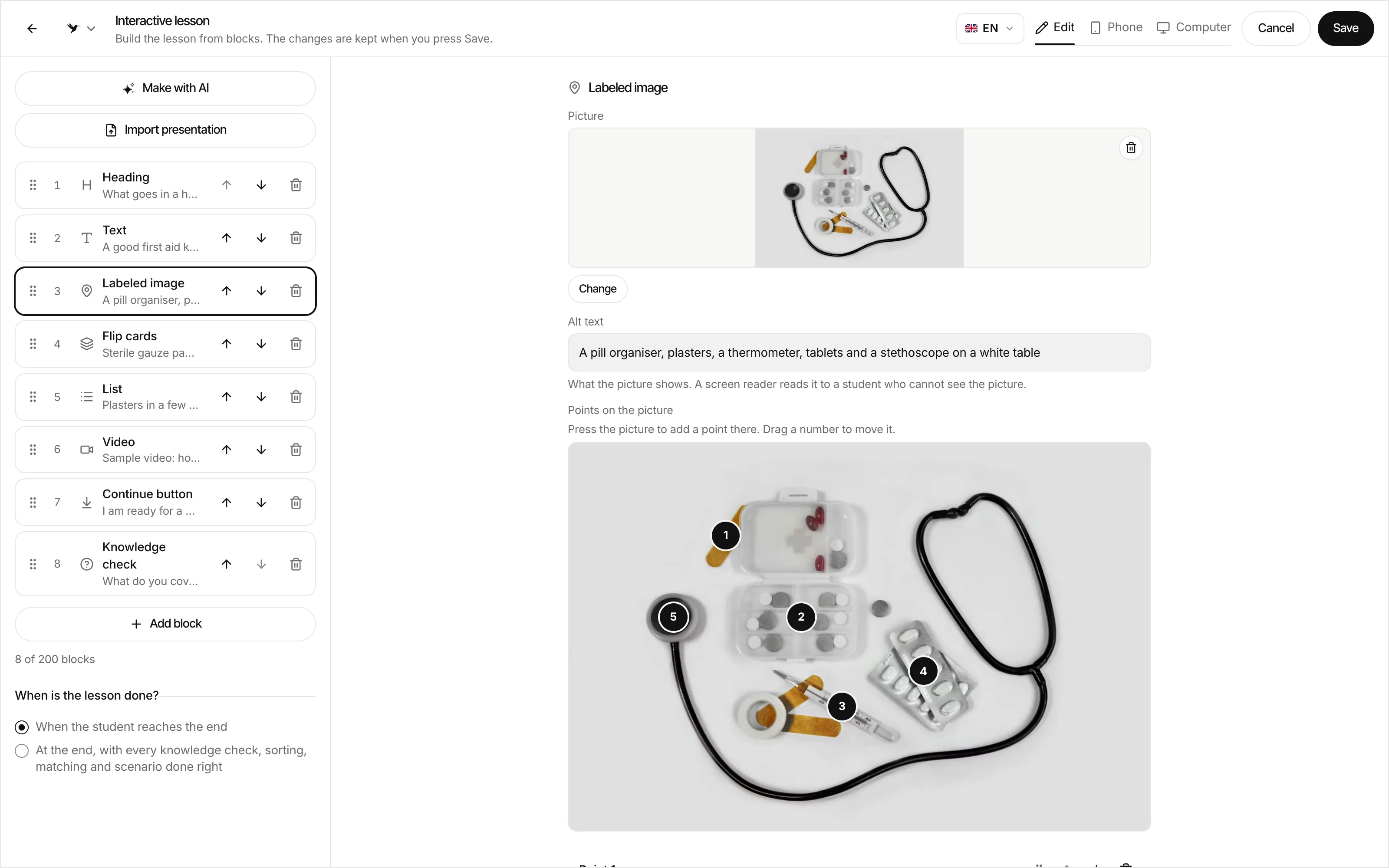
The lesson builder opens on the whole screen. Put the lesson together from blocks: a labeled image, flip cards, a timeline, sorting, matching, a scenario and a knowledge check. Import an existing PowerPoint or PDF so every slide or page becomes a part of the lesson, and let AI draft it from your text or file.
A heading, text, a list, a video, a labeled image, flip cards, a knowledge check and more. Drag them into order.
"Make with AI" drafts the lesson from your text, a Word file, a PowerPoint or a PDF. "Import presentation" turns every slide or page of a PowerPoint or a PDF into a part of the lesson.
Press the picture and a numbered point with its own text goes there. The student opens the points one by one.
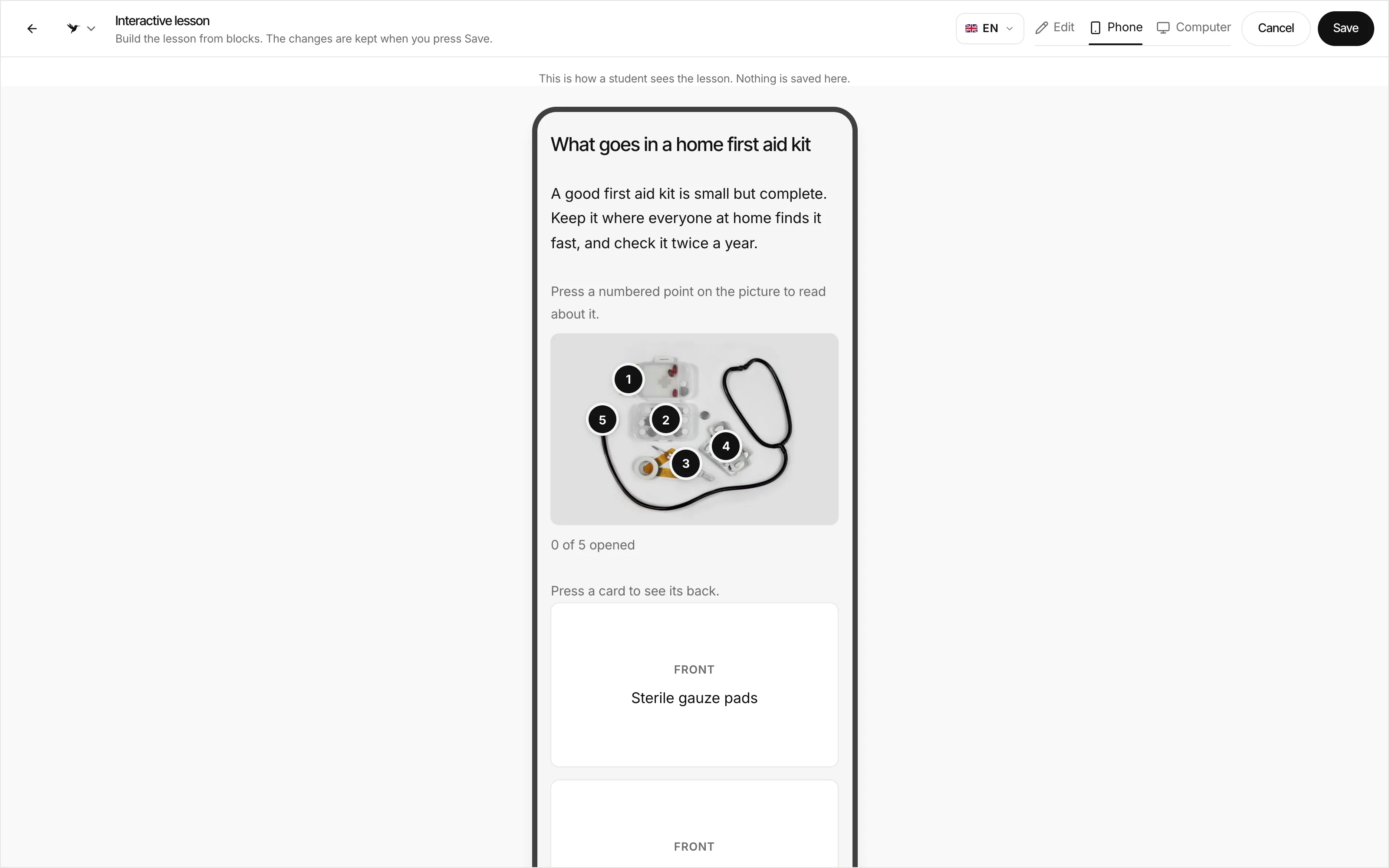
The phone and computer preview shows the lesson just as a student sees it. Nothing is saved here.
Stats
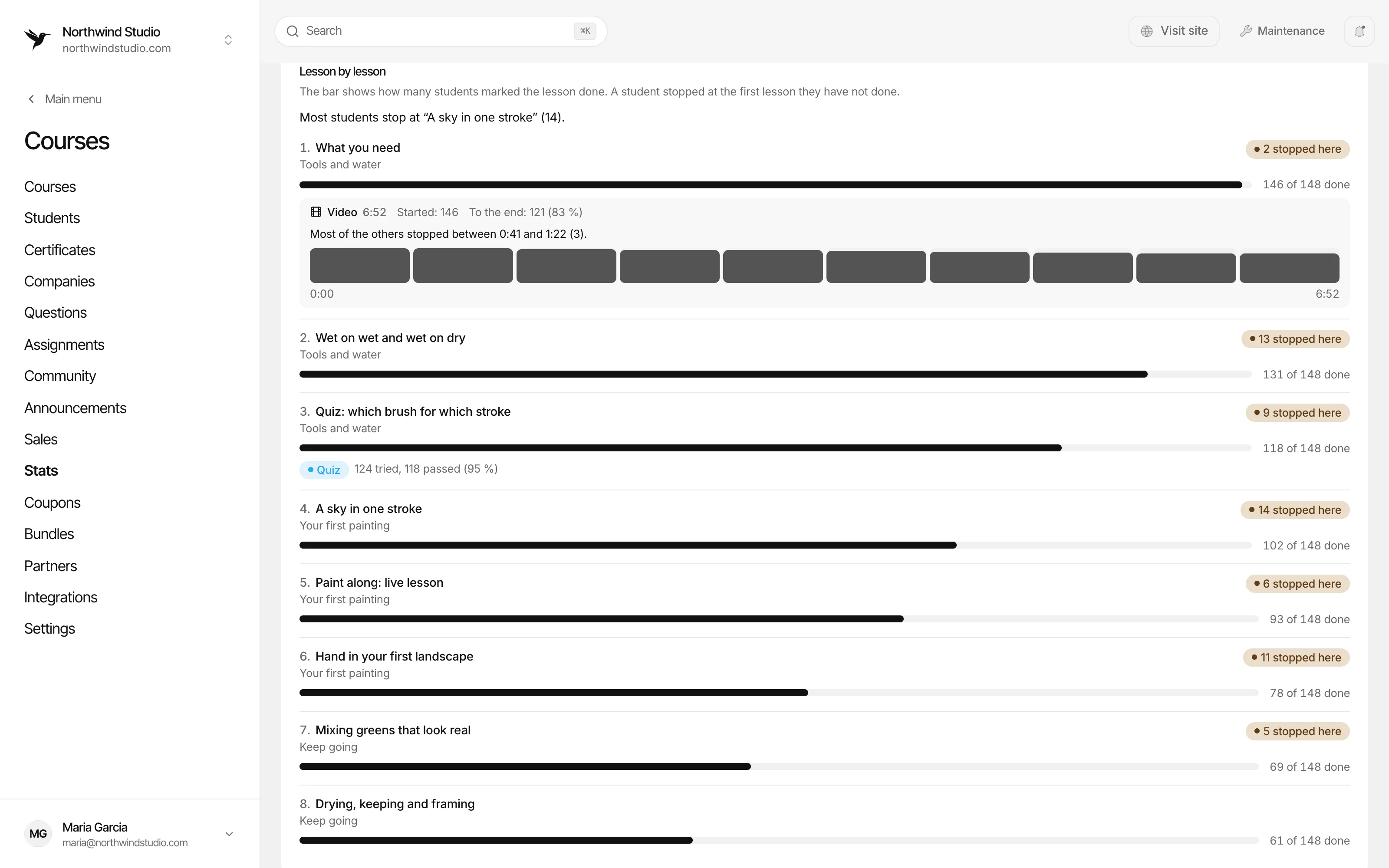
For each course: the students, the completion rate, the average progress and the revenue. Lesson by lesson you see how many students did each one, where they stopped, how long the video was watched and how the quizzes went.
The first line says at which lesson most students stopped.
For each video: how many started, how many watched to the end and where most of the others stopped.
How many tried and how many passed. The hardest questions show question by question.
At each lesson, how many students stopped there. So you know which lesson to improve.
One course, many ways in. Pick the ones that suit your students.
Price
Sell a course at one price, or give it free with a sign-up. A dearer course can be paid in 2 to 6 parts by card: the first part now, the next ones once a month.
Groups
Sell a course in groups: each group has its own start day and seats, and its own community if you want. It also works for a multi-day challenge.
Bundles
Put several courses in one bundle, or in a row as a learning path. A course can be part of a membership plan too, and the next course can be offered to those who finish.
Companies
A company buys many places on a course at once, and a bigger team gets a price step. The team's manager sees how far each person is and which skills people have.
Offers
Hand out a discount code, let people buy a course as a gift, and give a partner a share of the sales that came through their link.
Payments
Card, PayPal, Klarna or a bank link, each with its own switch. The money goes into your own payment account.
Integrations
Choose how students pay, where long videos live and where every new student goes next. It is all on one tab in Courses, and you connect the accounts once under Integrations in the admin.
Into your account
The student pays for a course by card, and the money goes to your own Stripe account. It also takes payment in parts.
To connectA Stripe account and its keys
Into your account
The student pays on PayPal's page, and the money goes to your own PayPal Business account.
To connectA PayPal Business account and its keys
Through your Stripe
The student pays with Klarna now, later or in parts, and the money reaches your own Stripe account.
To connectKlarna turned on in your Stripe account
Bank links
The student pays in their own online bank. The money reaches you through your own Montonio store.
To connectA Montonio store and its keys
Run by Husly
Long lesson videos are kept in the cloud, and students watch them in good quality on every screen. Husly runs the service for you.
Every new student
Every new student arrives as a message in your channel: the course, how the place came, the money and the student.
To connectA Slack workspace
Every new student
A new student arrives as a message in a Teams channel. Discord and Telegram work the same way.
To connectA Teams channel
Every new student
Every new student is a new row in the sheet. Airtable, Notion and Trello get a row, a page or a card.
To connectA Google account
Every new student
The student becomes a contact and the place a lead. Pipedrive and Salesforce do the same.
To connectA HubSpot account
The site connection
Ask your AI app how your courses are doing, who needs help and what students said, or let it draft a new course.
To connectThe Husly site connection in your AI app
Students are not sent to newsletter lists: signing up for a course is not consent to a newsletter. Each service's own fees are between it and you.
A course does not end with the purchase. These parts help students reach the end and save you hand work.
Learning together
Students ask under a lesson, send a hand-in that you grade, and join a live lesson whose link opens at the right time. A course can have its own community.
AI
AI writes an outline or a draft of an interactive lesson. When you turn on the study helper, it answers a student's question from the course's own content.
Students
A list shows the students who have not come for a while, got stuck or failed a quiz twice, and you can write to them. An announcement goes to all of a course's students.
Accessibility
A check finds pictures without alt text, video and audio without a transcript, and other things that stop a screen reader user. Alt text can be written with AI.
Teachers
Add teachers who see and change only their own courses. The money and the settings stay with you.
Other systems
Play SCORM lessons in your course and download a course as a SCORM, cmi5 or xAPI package. A new student can go to your connected services too.
Courses are a separate add-on. Add it in the admin under your plan's add-ons and turn courses on. Until you publish them, you can prepare your courses as drafts in peace.
No. Students sign in with their email address and get a sign-in link there. The same address they bought or signed up with.
Upload a video straight into the lesson, or add a YouTube or Vimeo link. An uploaded video plays in a player in your site's colours that remembers where the student stopped.
As long as you choose: for life or for a set number of months. The server checks it every time a lesson opens.
Yes. Design the certificate from three layouts with your colours and signature. Each certificate has a code anyone can check on your site. A certificate can run out after a set time and be renewed.
Paste the outline as a list, import students from a CSV file, and bring lessons in from PowerPoint, a PDF or a SCORM package. To try things out there is demo data you can remove later.
The course page and the lessons speak Estonian and English out of the box. You write the course's content in every language of your site.
Start from the demo data or write the outline with AI, add the first lessons and open the course. The first students can start today.


