

Find anything in the admin from one search, and the sidebar shows where you are
The admin got a new search that finds settings and the site's content alike, a sidebar that slides into a module's or a group's submenu, and the same header on every page. The addresses now say where a page sits in the menu too.
What changed and who it matters to
On 24 and 25 October we changed how you find your way around the admin. We did not move any pages or settings: the menu has the same rows in the same order. What changed is how you reach them and how you can tell where you are.
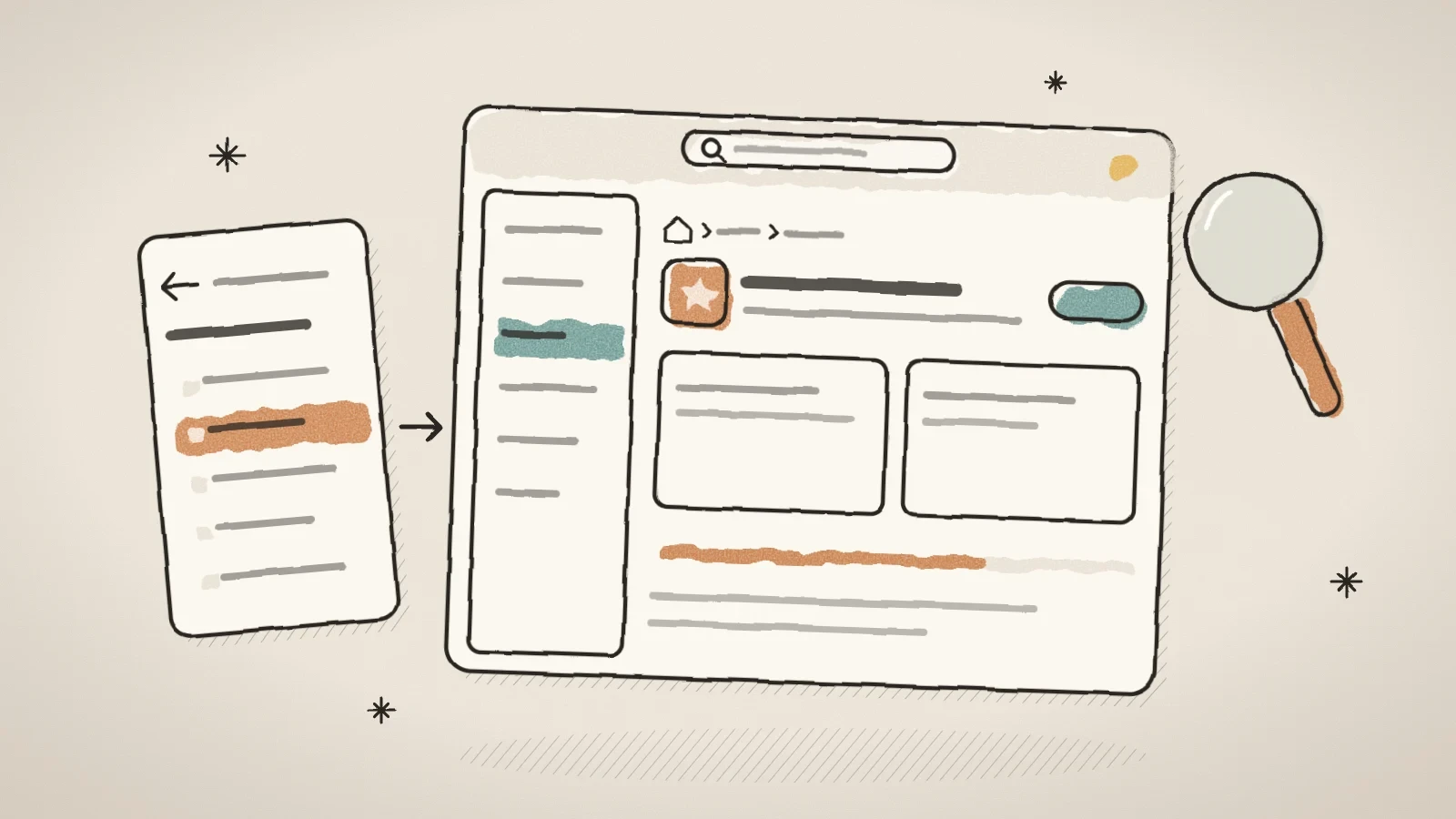
The top bar now has a search that finds places in the admin and the site's content alike. The sidebar opens a module's or a group's submenu by sliding the whole menu aside. Every page starts the same way: a breadcrumb, the page's icon, its title and one line about what the page is for. The addresses now say where a page sits in the menu as well.
This touches everyone who uses the admin, most of all those whose site has several modules and a lot of content.
Search for anything in one place
The middle of the top bar is a search box. Click it, or press Cmd+K (Ctrl+K on Windows and Linux) on any page, and the Search the admin window opens. On a phone the search is an icon next to the bell.
As you type, it finds two kinds of things:
- Places in the admin. Every menu row and every section of a module's submenu that you can see, for example "Bookings" under Rentals or "Fonts" under Themes. These match at once.
- The site's content. Pages, blog posts, forms, feedback forms, portfolio projects, rental listings, appointment services, media files and members. A page is found by its title in any of the site's languages, with or without letters such as ü and õ, so "muuk" finds "Müük".
Each kind is searched only when your role may open its list, so the search never shows you something the admin would not let you open. Results from a module that is switched off or not in your plan are left out too.
Open the search
Click the search box in the top bar or press Cmd+K (Ctrl+K).
Type what you are looking for
Type the name of a page, a setting or a piece of content. Places in the admin show at once, the site's content a moment later.
Open a result
Pick a result with the mouse or the arrow keys and press Enter. Esc closes the window.
The sidebar slides to where you work
Modules with sections of their own now have a submenu in the sidebar: appointments, rentals, blog, forms, feedback and portfolio. A module's row has a small arrow on its right. Click it, and the whole sidebar slides aside: at the top is a Main menu row, then the module's name and its sections, for appointments for example bookings, calendar, services and staff.
The four groups open the same way: Structure, Tools, Users & roles and Settings. A row that has sections of its own, such as SEO, Security or Integrations, opens one level deeper. The back row always says where it goes, so it is clear how deep you are.
The sidebar follows the page. When you open a page from a link, a bookmark or after a reload, the menu shows the right submenu with your page's row lit. The small icon sidebar and the phone menu work the same way. On a phone a tap on a group only slides; picking a row is what opens the page.
After a slide the focus moves to the new level's back row, and after going back it returns to the row that opened the level.
Every page starts the same way
Every page of the admin now starts with a breadcrumb: the home icon, the menu row and the open section, for example the home icon > Rentals > Bookings. Every step except the page you are on is a link, so from an editor under a list you are back at the list in one click. The Dashboard has no breadcrumb, because it is the top of the tree.
Under the breadcrumb is a small tile with the page's icon, the page title and one line about what the page is for. The icon is the same as the page's row in the sidebar, so the menu and the page always match. The page's own buttons sit on the right, and under the title on a phone. Where a back arrow went to the same place as the breadcrumb, the breadcrumb now does that job alone.
On a computer, the row of tabs at the top of a module page is gone, because the sidebar shows the same list. On a phone the row stays, because the sidebar is hidden behind the menu button there. A page's second row of tabs, such as on the Customize page, stays as it was.
Waiting looks the same on every page now too: a spinner in the brand colour with a thin progress line under it. The line moves fast at first, then slows down, and never claims to be done. On a fast load you see no spinner at all, because it only appears after 180 milliseconds.
Addresses say where a page sits
The pages in the four groups now have addresses that start with the group's name, such as /tools/seo, /settings/general or /structure/themes, and the open tab is part of the address. So a link you send a colleague goes straight to the right tab. The everyday pages outside the groups, such as pages, blog, media, forms, rentals and appointments, keep their addresses.
Every old address still works. A bookmark, a link in an older email or a saved tab takes you to the same page at its new address. The emails the platform sends and the links in the toolbar on your own site use the new addresses as well.
An example from a small business site
Take a car rental whose site has the rentals module, a blog and a contact form. The owner wants to change one car's listing. Before, that meant opening Rentals, finding the Listings tab and scrolling the list to the right car.
Now the owner presses Cmd+K, types the car's name and presses Enter. The listing's editor opens at once, and the breadcrumb Rentals > Listings leads back to the list in one click. Meanwhile the sidebar shows the rentals submenu, so bookings and the calendar are one click away.
What we deliberately did not do
- On a very large site the search looks through the newest items of each kind (500 of each, 1500 media files). The search window says so when that limit was reached.
- Some editors, such as the rental listing, form and portfolio project editors, do not have the new header yet. They keep the earlier breadcrumb, so the way back to the list is still there.
- The page and post editors, the template editor and the AI builder keep their own top bar as before.
Frequently asked questions
No. The groups hold the same rows in the same order, and the pages are the same. Only the way the levels open and the way a page shows where it sits changed.
No. The search looks through the active site's content. You still switch sites with the site switcher, which checks for unsaved changes before it switches.
On a computer those numbers now show only inside the page, because the rows of the sidebar's submenu do not show numbers yet.
Try Husly on your own business
Start free, no card needed. If you have questions first, write to us and we reply within one working day.