

Take registrations for workshops, courses and retreats on your own site
Husly now has an Events module: an event with its tickets, packages and program, registration on your site with a set number of seats, paying at the event, by transfer or by card, and the attendee list. Free events work on every plan, the Free plan too.

Events: one time, many people and a set number of seats
The module is for you if you run workshops, course days, retreats or other meetings where many people come together at one time and the seats are limited. In the admin it is in the sidebar under Events. The tabs are Events, Attendees, Integrations and Settings.
The module is in every plan, the Free plan too. Free events, registration, seat limits and the letters cost nothing. To sell a paid ticket you need a paid plan.
Above the list are four numbers: people against seats, the number of events, money waiting and money paid. Each event's row shows its date, its place, how full it is, what is still unpaid, and its own switch for registration. Every part, with pictures, is also on our Events page.
Create an event on five tabs
Press New event. The event opens in the page itself, and its state is Draft, Published or Took place. Only a published event shows on the site. The row menu also has Copy as a new draft, so the next run of the same course is ready after a few changes.
Details
The name and description in each site language, the start, the end, the place with an address search, the number of seats and a picture. Here you also choose when registration opens and closes.
Tickets and prices
The base price, custom prices, quotas and the deposit. An empty price means a free ticket.
Program
The days and what happens at what time. The program can also stay empty.
Form
The first name, last name and e-mail are always asked. Add the phone and your own questions, for example a food need or a T-shirt size, and a terms tick.
Settings
At how many people registration closes, whether the site shows the seats left, the Take registrations switch and the event's time zone.
Sell packages, rooms and early bird prices
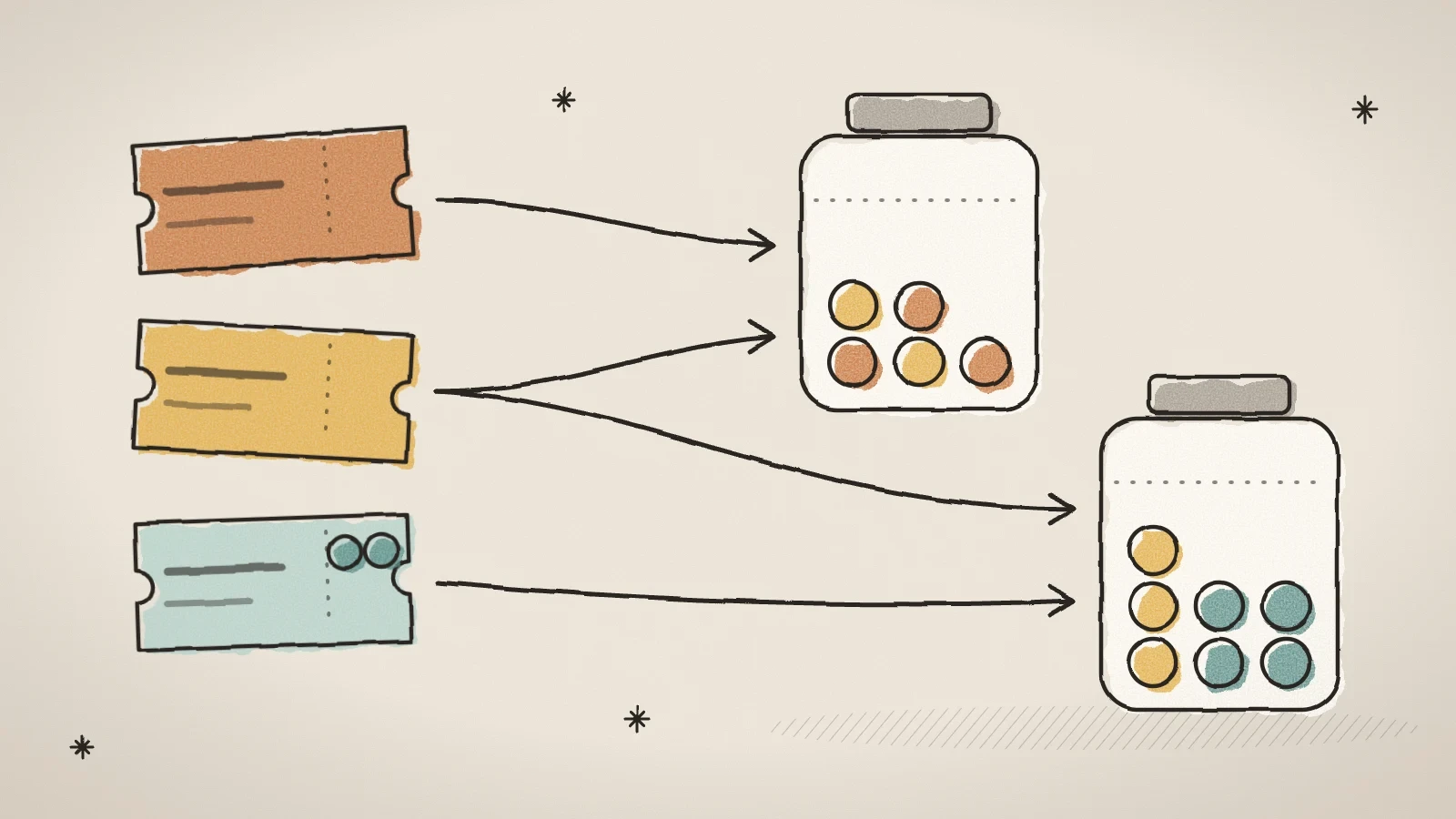
On the Tickets and prices tab, the Base price comes first: the price the customer sees first. Under it you add Custom prices: packages with another price, a room or a service. The site offers the packages in the same order as the admin, and you change the order by dragging.
- A Quota limits the places on one price. Shared quotas let several prices share one limit, for example 7 places in total for every package with therapy. A package can count towards several quotas at once, for example "With therapy" and "Shared room", and each one must have room.
- Places says how many places one registration takes. A couple package is 2 places, and its price is the price of the whole package.
- A Discount is a sale price or a percent off. The site shows the regular price crossed out.
- Prices by date give an early bird price or a late fee for set days.
- A Deposit is a set amount or a percent of the price, paid when registering.
The number of seats is a hard limit. When two people press at the same moment, the event cannot overfill, and the strictest limit always wins: the event's seats, a quota or a shared quota.
Show the events on your site and take registrations
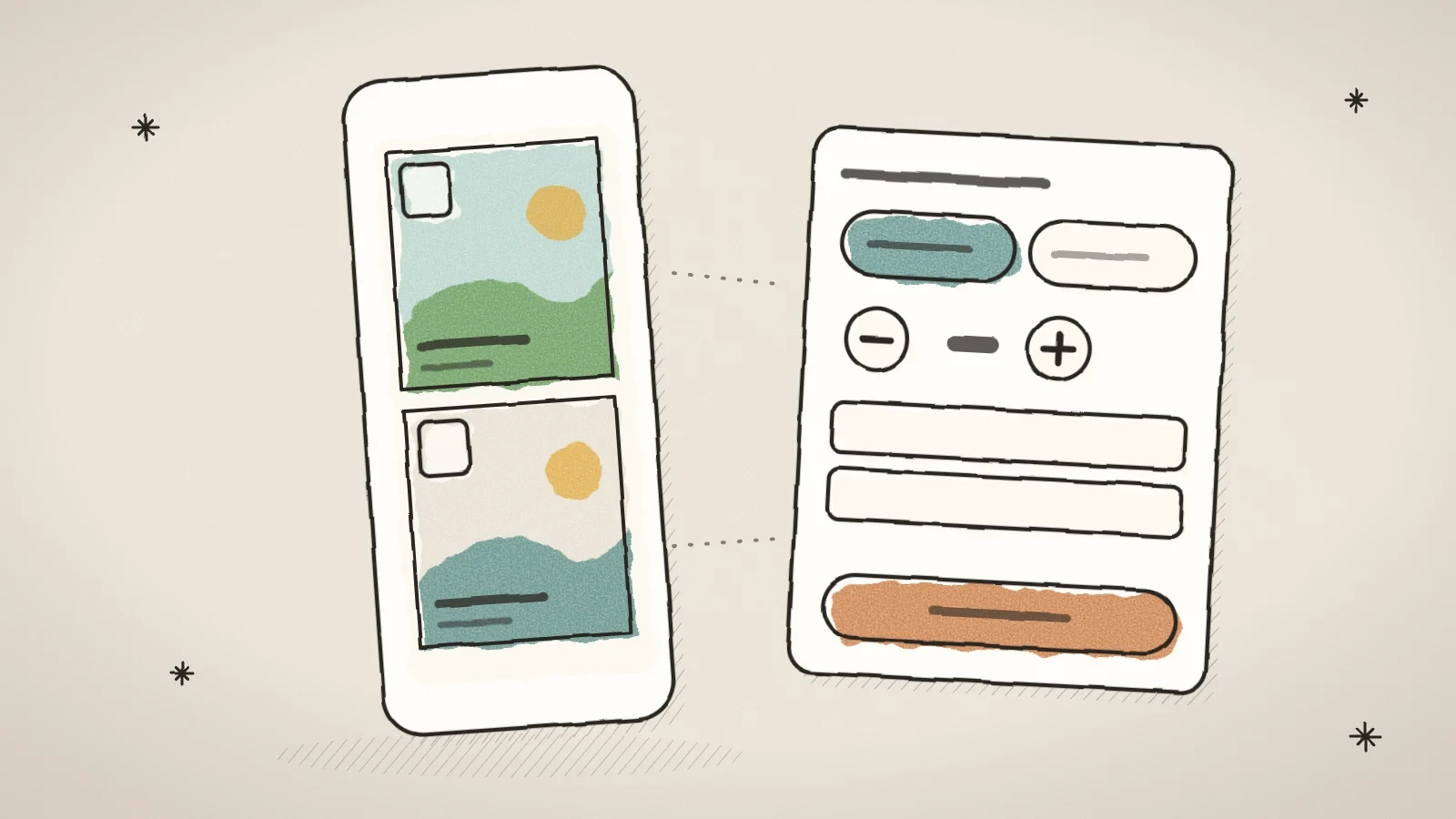
The page builder has the Events block, after Appointments. It shows the coming events as cards, the soonest first: a picture, the date, the title, the time and place, the lowest price or "Free", and the seats left when you switch on Show the seats left on the site. The Card look > Photo as background choice fills the whole card with the picture and puts the words at its bottom edge.
A click on a card opens the event's page with a large picture, the description and the program day by day. The page has its own address, so the link can be sent on. The visitor picks a ticket, says how many people come, fills in their details, answers your questions and chooses how to pay. The total follows every choice. When the event filled up in the meantime, the block says so above the button.
The confirmation letter has a calendar file and a link that opens the registration in the same block: the state, the ticket, the people and the money, and a cancel button while cancelling is still allowed. On a phone the event's details come first and the registration card follows under them.
Take money at the event, by transfer or by card
Under the module's Settings, on the Ways to pay card, you choose how a paid ticket is paid:
- At the event: the registration is confirmed at once, and the person pays when they come.
- Bank transfer: the registration waits until you mark it paid. The customer gets your bank details, the amount and the reference in the letter.
- By card online: the payment goes through your site's own payment account. For an event with a deposit, the card takes only the deposit and says what is left to pay at the event. If you allow it, the customer can also pay everything at once.
The attendee gets a confirmation, a letter with the bank details while the registration waits, and a letter when they or you cancel the registration, or when you call off the whole event. With a card payment, the confirmation goes only once the money is in. You get a letter about every new registration and every cancellation at the address you put in Send notices to.
Paying by card does not start by itself on any site. Switch it on, and set up your site's payments first. While the payments are in test mode, the switch says that no real money moves.
Manage the attendees and mark who came
The Attendees tab shows the registrations of every event in one list. Search by name, e-mail, phone or reference, and filter by event, state, way of paying, money and arrival. At the door you mark a person Arrived, confirm a waiting registration or mark it paid.
A person who registers by phone or at the door you add with Add an attendee. The seats count here too, so an addition by hand never takes the event over its limit. If you want, the person gets the same letter as a registration on the site.
Get the events into your calendar and the registrations into your chat
The Integrations tab has the Calendar link (iCal): a secret link with every event of the site for Google Calendar, Outlook or Apple Calendar. Each event has its time, place and the registered people against the seats, for example 12 / 20. Drafts and cancelled events are left out. You can replace the link or turn it off.
You can send every new registration as a message to Slack, Microsoft Teams, Discord or Telegram. The message carries the event, the ticket, the number of people, the total, the attendee and their answers. You connect the service once under Tools > Integrations. Registrations are not sent to a newsletter list, because registering for an event is not consent to a newsletter.

Frequently asked questions
Not yet. The module does not do repeating events, a waiting list for a full event, or an export of the list and name tags for now. You make the next run of a course quickly by copying the last one as a new draft.
By default one e-mail address can register once. When your event needs it, switch on The same person can register more than once.
No. The static export has no Events block, because there is no server to register with. The WordPress export keeps the block's heading and intro.

Try Husly on your own business
Start free, no card needed. If you have questions first, write to us and we reply within one working day.