

Take appointment bookings on your site, with home visits and deposits
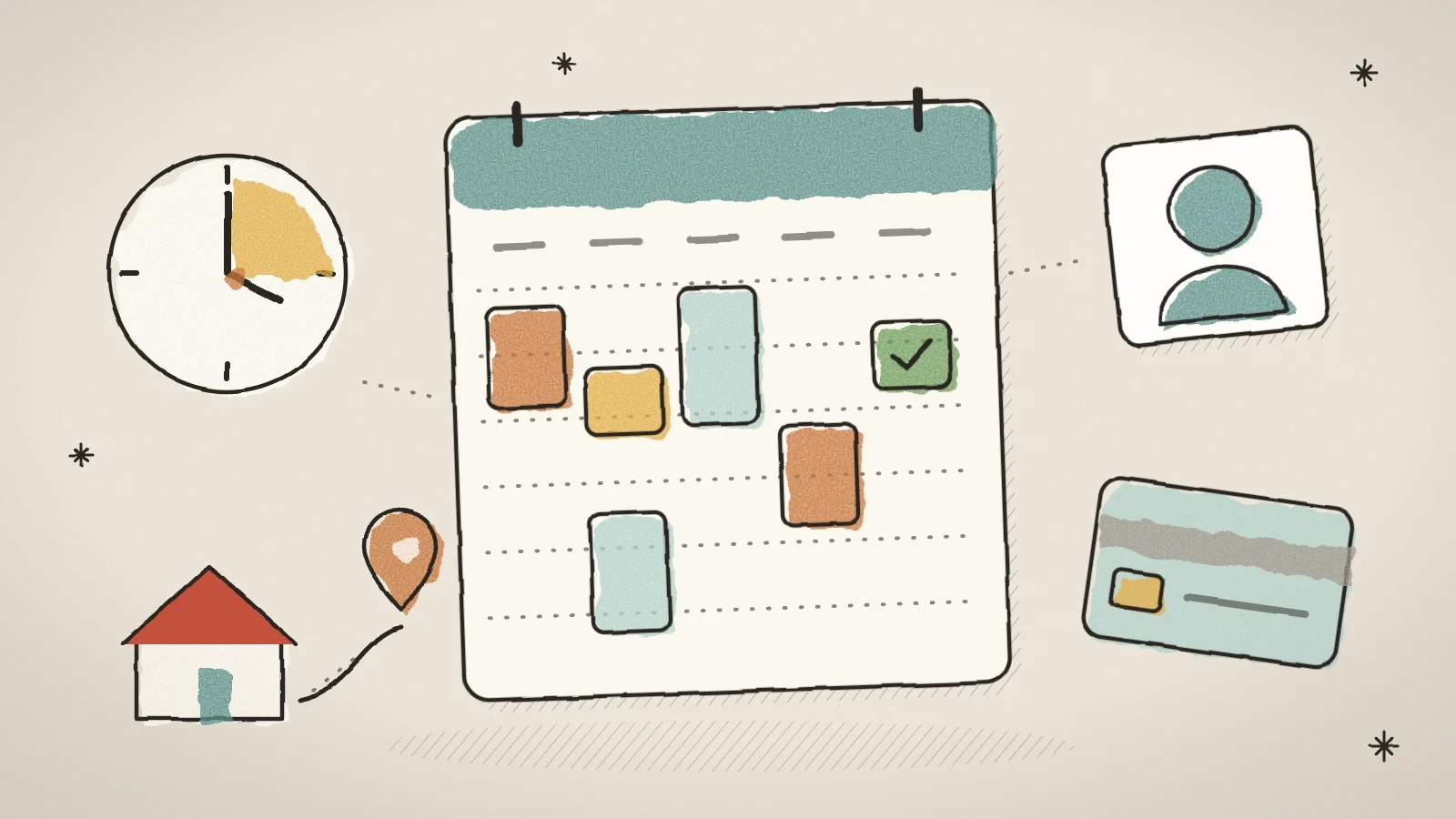
Husly now has an Appointments module. The customer picks a service, a person and a time on your site, and you see everything in one calendar. A service can have several lengths, extras, a home visit with its drive time, and a deposit.
Booking now happens on your site
A hairdresser, a massage therapist, a trainer, a cleaner or a consultant can now let customers book a time themselves. The customer picks a service, a person and a free time on your site, and you see the booking in the admin calendar and get an email.
The module is in the admin sidebar under Appointments. Under it are Bookings, Calendar, Services, Staff, Locations, Hours, Integrations and Settings. The module is in every paid plan, not in the Free plan. Each site switches booking on itself.
Below is everything that was added between 23 and 27 October.
Set up a service the way you really work
A service's length goes in quarter hours, from 15 minutes to 12 hours. Buffer before and Buffer after keep time for preparing and tidying up, so the next customer cannot book it.
- More lengths: the same service as 30, 60 or 90 minutes, each with its own price.
- Extras: extra time and an extra price, for example a hair mask with a haircut.
- People per booking: a group class or a couple, and the price can be per person.
- Prices by day and time: for example an evening or Saturday price, also between two dates.
- Limit per customer: one customer can book only so many times in a set period.
A service and a staff member can have a photo that the customer also sees when booking. Services have categories, and each service can get its own rules for cancelling and booking ahead.
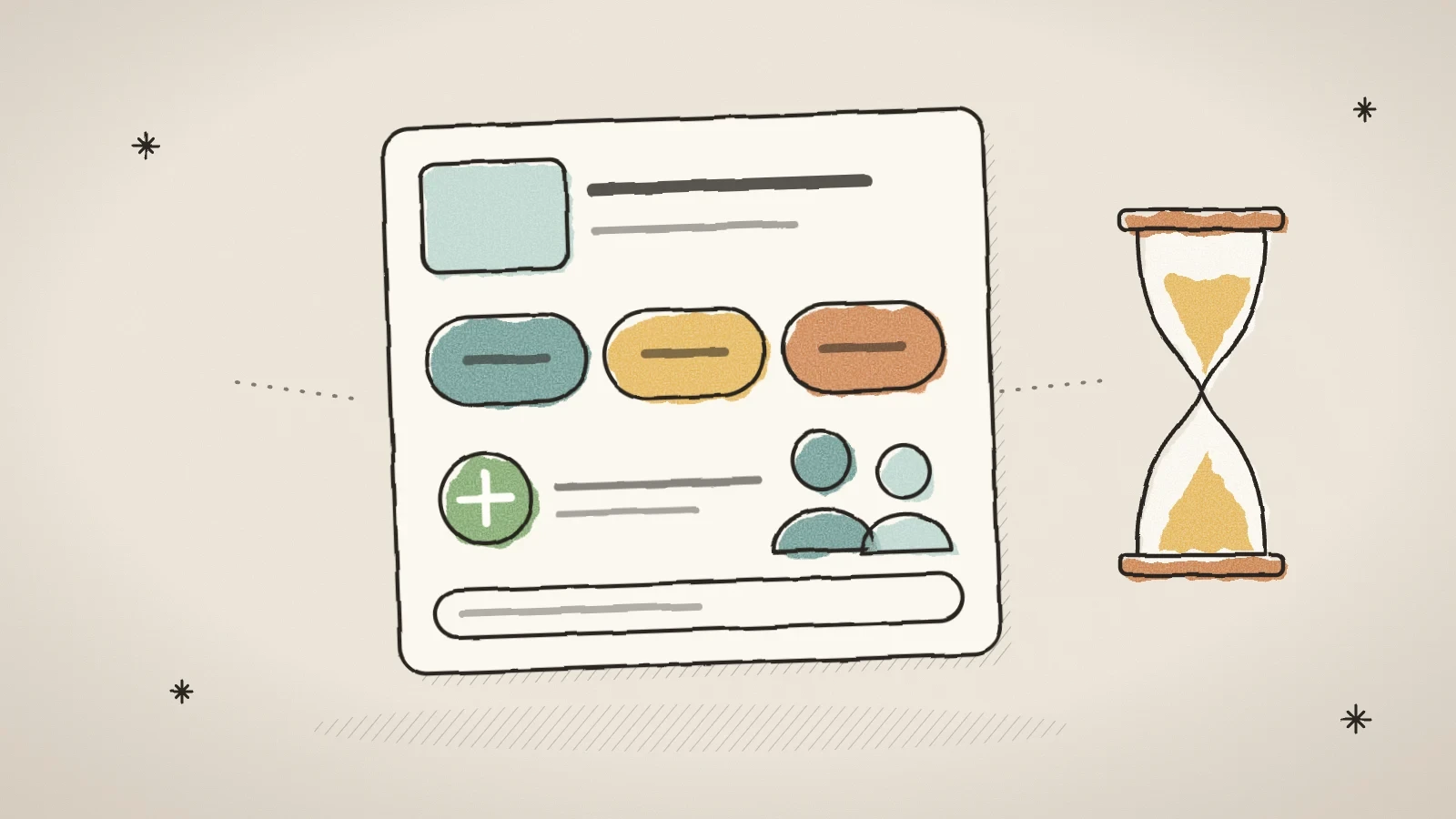
Open Appointments > Services
Make a new service and give it a name, a category and a photo on the General tab.
The Length and price tab
Choose the length, the buffers and the price. Add more lengths and prices by day and time if you need them.
The Extras tab
Add the extras and decide whether the customer must take at least one.
The Staff hours tab
Choose who does this service and when.
Visit the customer, the drive time is worked out for you
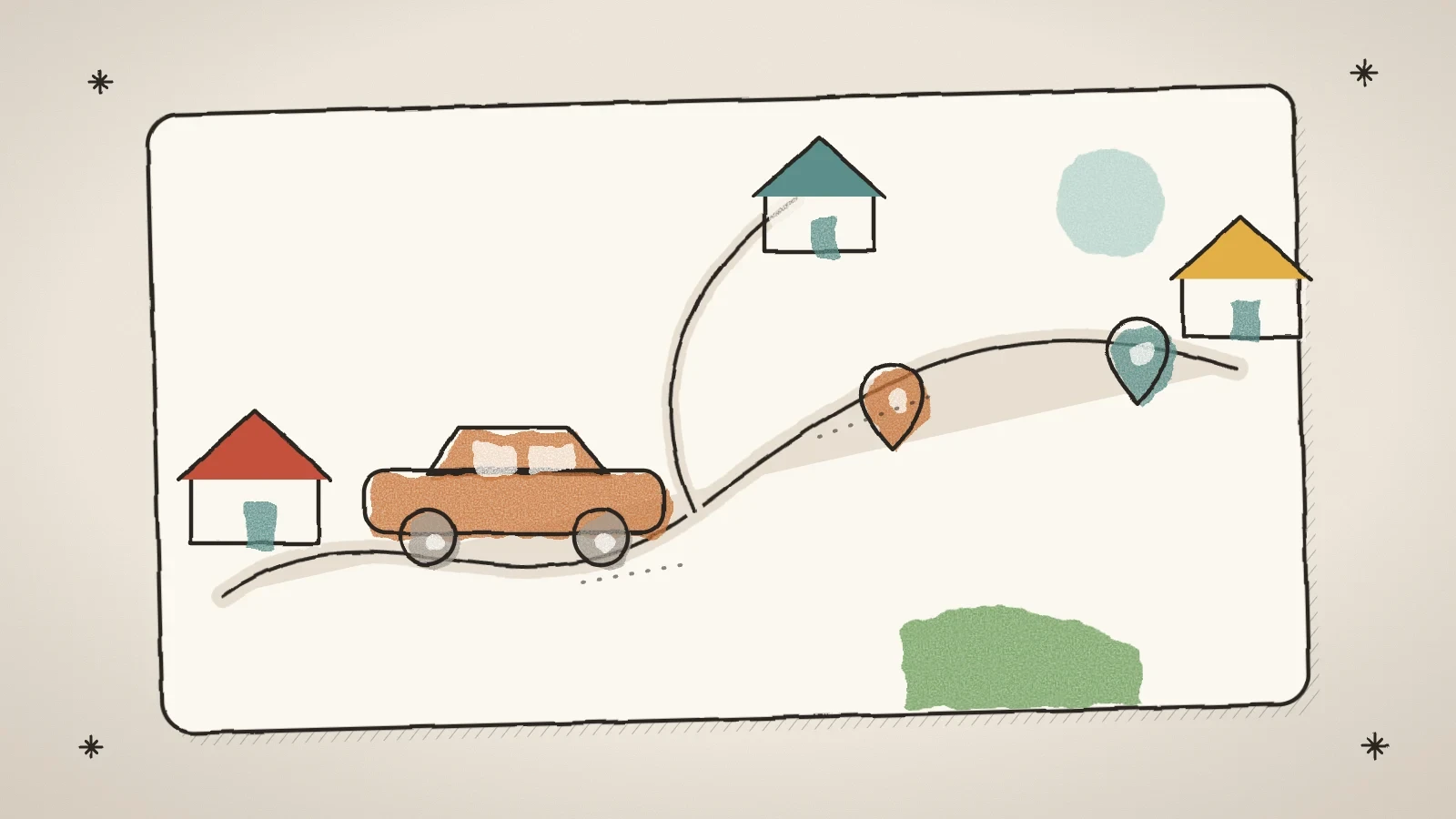
A service has the switch At the customer's address (home visit). You set where the drives start and the Longest drive. The customer types their address when booking, and Husly works out the drive time from Google's route. If Google does not answer, a straight-line estimate is used.
The drive time is held in the calendar, so the time to drive there and back does not go to another customer. Drive from customer to customer counts the drive from the customer before and on to the customer after, not always from the start point. The admin calendar shows the drive as its own band, and the booking shows the distance in kilometres.
If the customer may also come to you, switch on The customer may also come to you. Then the customer chooses where the service takes place.
The customer chooses, changes and waits on their own
When booking, the customer chooses the length, the extras, the number of people and the place. When they tap a free time, that time is held for them while they fill in the form. The setting for it is Hold the time while booking, 10 minutes to begin with.
- Customers can change the time of a booking: the customer moves their own time with the link in their email.
- Waiting list for full days: on a full day the customer can click Join the waiting list and gets an email when a time frees up.
- After booking, go to: pick the site page the customer reaches after booking.
Changing the time and the waiting list start switched off. Switch them on when they suit the way you work.
The calendar, locations, Zoom and your own calendar
The Calendar shows bookings by week or by day. You change a booking with Change: the reference and the customer's link stay the same, and Email the customer the new details sends the new time. A customer who calls you can be booked by hand, and you can pick an earlier customer from a search.
Each Location can have its own time zone and its own opening hours. For an online service, a Zoom meeting is made when the booking is confirmed. It moves with the booking and is deleted when the booking is cancelled.
On the Integrations tab you connect a Google, Outlook or Apple calendar. Bookings go into your calendar, and busy times in your calendar close those times for booking. There you can also send new bookings to Slack, Teams, Discord, Telegram, Pipedrive, HubSpot, Salesforce, Google Sheets, Airtable, Notion or Trello.
Take payment or a deposit when the customer books
Each service has Payment when booking. There you choose whether the customer pays at the visit, pays the whole price when booking, or pays a deposit. The time is held for 30 minutes during the payment. When you cancel a paid booking, the cancel window offers to give the money back.
The ways to pay are under Settings > Ways to pay:
- By card online (Stripe), in every paid plan;
- With PayPal online, to your own PayPal account;
- By bank link online, through your own Montonio store;
- With Klarna online, through your own Stripe. Klarna is not offered to buyers in Estonia.
You connect the account for each way to pay under Tools > Integrations.
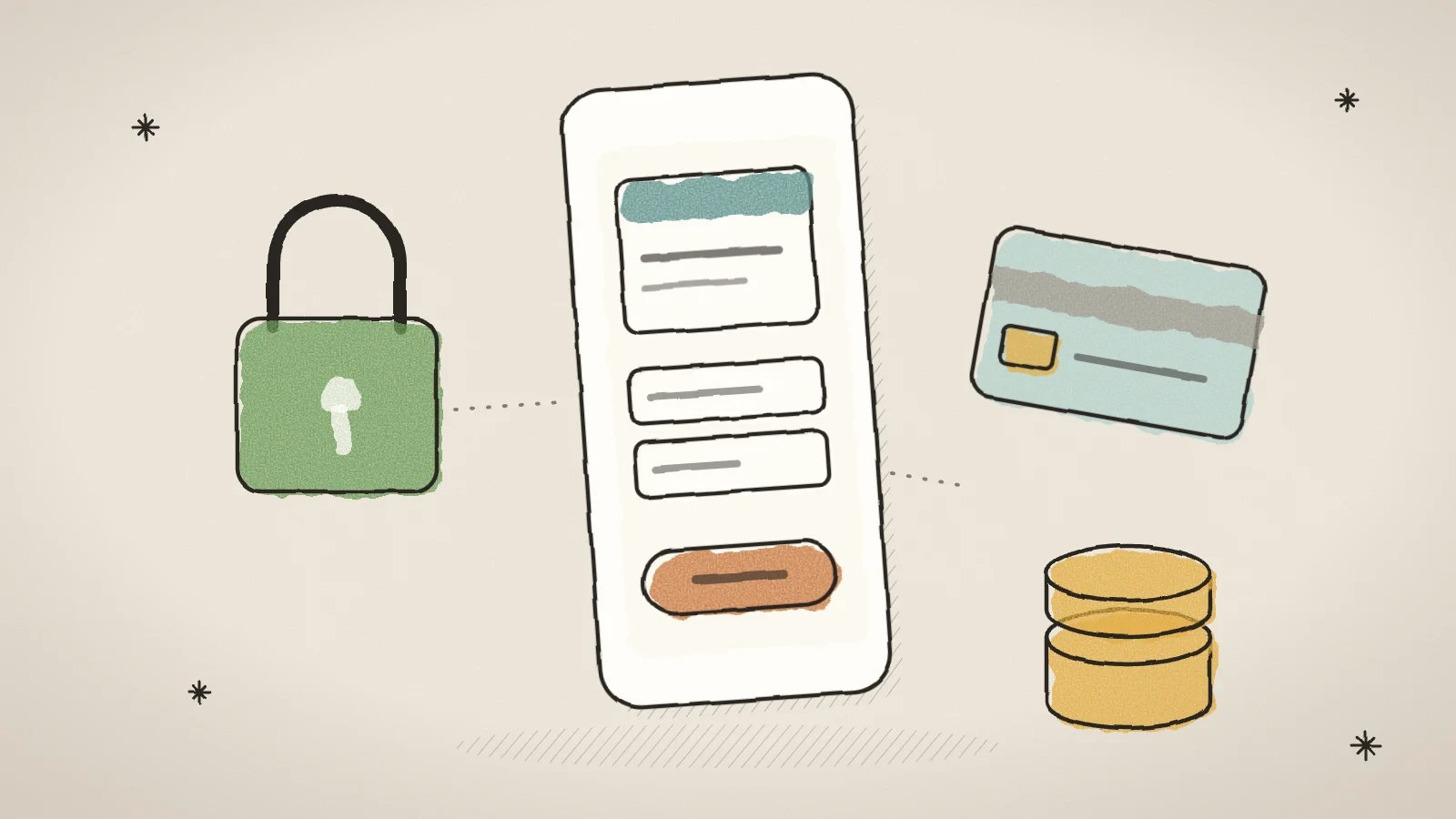
All four switches are off on a new site, and a service's payment is "Nothing, pays at the visit". Connect the account, switch the way to pay on, and make one test booking before real customers come.
Put booking on your site
The page builder has the group Appointments with four blocks: Book an appointment, Service list, Specialists and Opening hours. The builder shows your site's real services, not samples.
Services and specialists can show as a list or a grid, and a card can use the photo as its background. The time picker is a month calendar or a week in columns. The specialists block can show one person's services, and a service's own link opens the booking with that service already chosen.
Put a service's link in a social media post or an email. The customer does not have to look for the service again: the booking opens with it.
Frequently asked questions
No. The customer cannot change a paid booking online. They contact you, and you change or cancel it in the admin. When you cancel, you can give the money back in the same window.
No. For now only new bookings go to other services. You see the changes in the Husly calendar and in your connected calendar.
No. The static export and the WordPress export do not take the booking blocks along, because booking needs the Husly server. Booking works on your Husly site.

Try Husly on your own business
Start free, no card needed. If you have questions first, write to us and we reply within one working day.