

Show your paintings in 3D and on the visitor's own wall, and sell them by inquiry
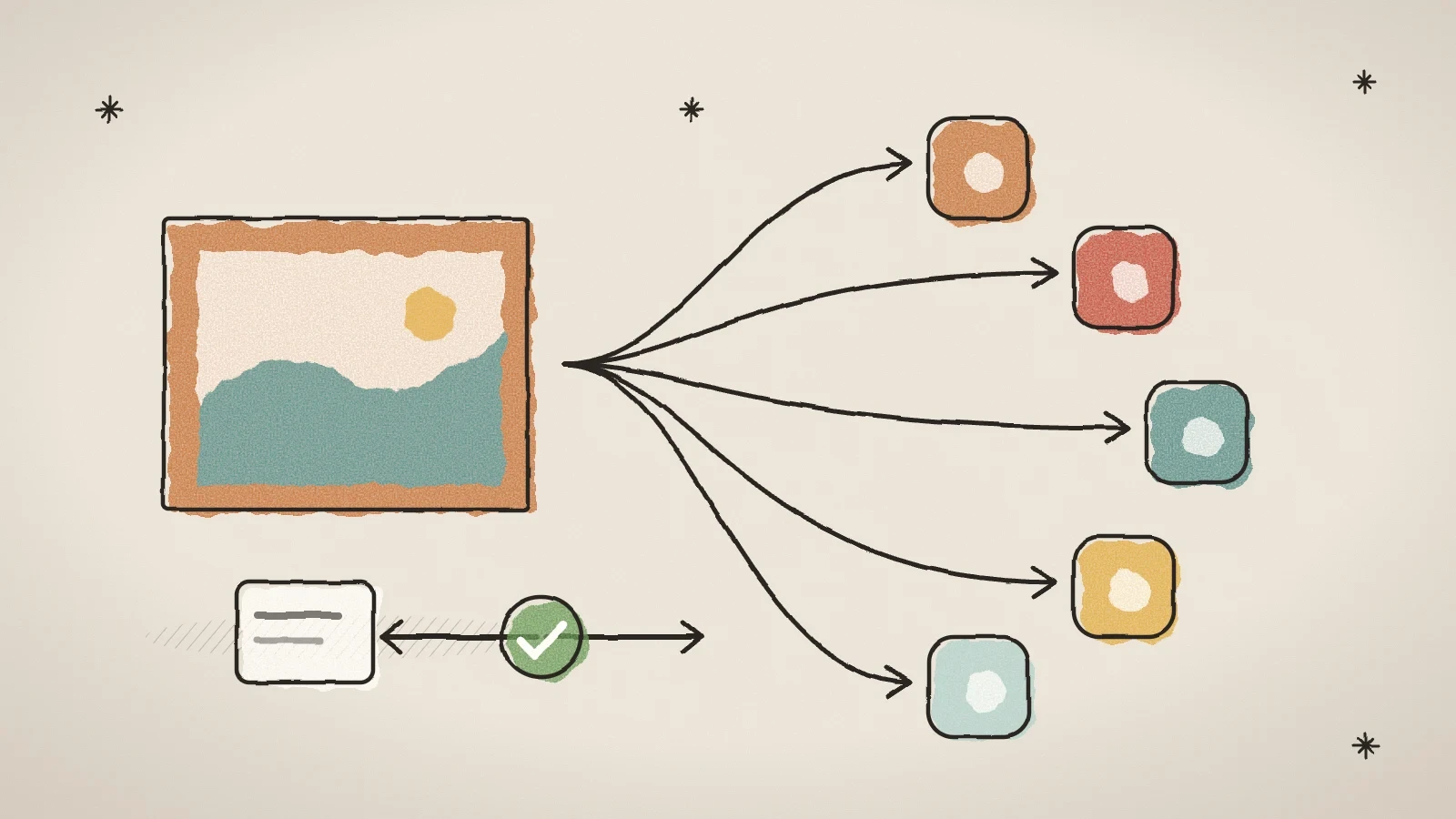
Husly now has an Artworks module for artists and galleries. Each painting gets its own page, a 3D view, a view on the visitor's own wall, and the buttons "Ask about this painting" and "Make an offer". A work can also be posted to Etsy, Instagram, Pinterest, DeviantArt and TikTok with one press.
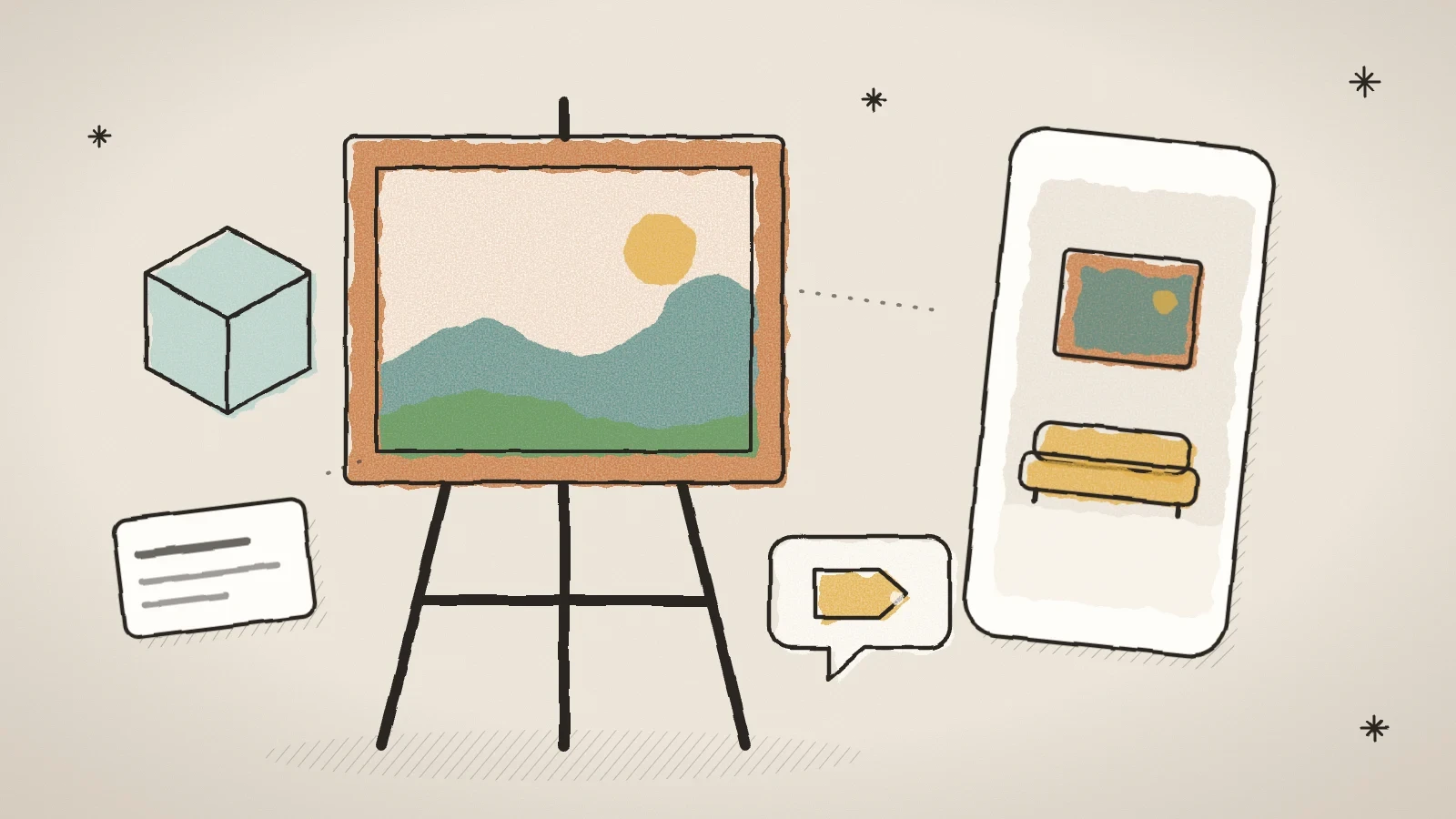
Artworks: paintings to show and to sell
The module is for an artist who sells their own paintings and for a gallery that shows the work of several artists. In the admin it is in the sidebar under Artworks, after Portfolio. The tabs are Works, Artists, Series, Exhibitions, Inquiries, Sales, Statistics, Work page and Settings. The module is in the Standard plan and every plan above it: Pro, AI and Agency. The Free plan does not have it.
When you first open it, Husly asks Whose works are here? Choose One artist (me) or Several artists (gallery). The work form then asks only what it needs. You can change the choice later in the settings.
There is no shop and no cart. A visitor asks about a painting or makes an offer, and you answer as you always do. Every part, with pictures, is also on our Artworks page.
Add a work: photo, size and price
A work has a title, a year, a technique, a description, its width, height and depth in centimetres, and a frame if it is sold with one. The price has three choices: Show the price, Price on request or Do not show. The price is never on the picture. The status is Available, Reserved or Sold. A reservation can have a Reserved until day, after which the work goes back on sale by itself and you get an email.
The front photo matters most, because on every save Husly makes the work's 3D file at real size from it and the size. When the photo is wider or taller than the painting, the admin says so at once. When Husly finds the painting's corners in a new photo, the crop window opens by itself in Four corners, with the corners already in place. Check them and press Crop and use. The photo is straightened, also when it was taken a little from the side. When you crop again, the original photo opens with the last frame, so every new cut comes from the full-size original.
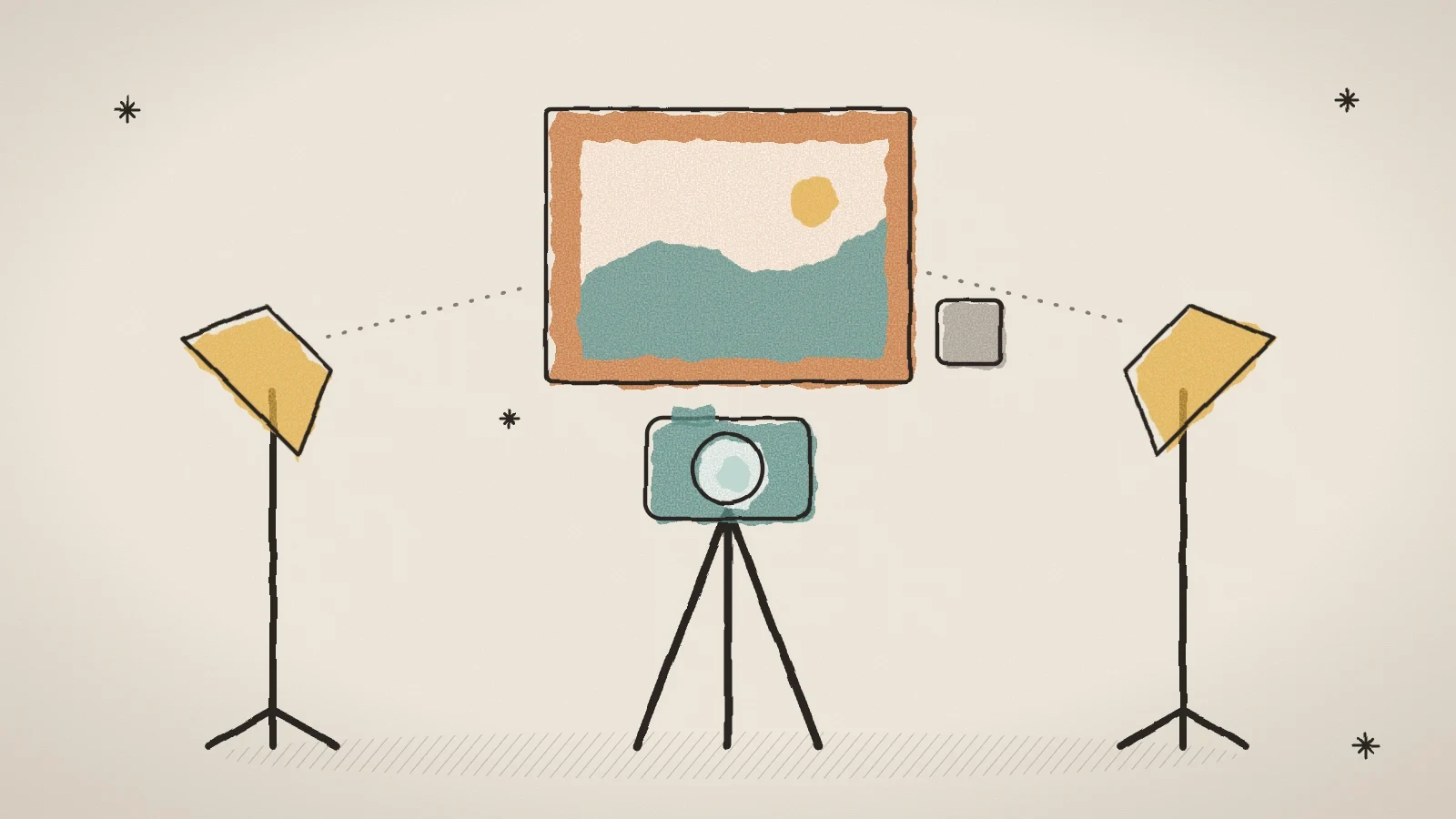
Soft light
Photograph on a cloudy day in the shade, or with two matching lamps at 45 degrees on each side of the painting. Do not use the flash.
Camera on a tripod
Put the camera's centre at the height of the painting's centre, with the lens parallel to the painting. On a phone, step back and use the 2x lens.
True colours
Put a grey card beside the painting in the first shot and do not make the colours prettier. The buyer must get the painting they saw on the screen.
Crop to the edges
Photograph a little wider and crop exactly to the painting's edges. The longer side should be at least 3000 pixels.
The visitor sees the painting in 3D, on their wall and in a room
The work page has four views, loaded only when the visitor presses their button, so the page itself stays fast:
- 3D: the painting turns with a finger or the mouse, with its edge and frame.
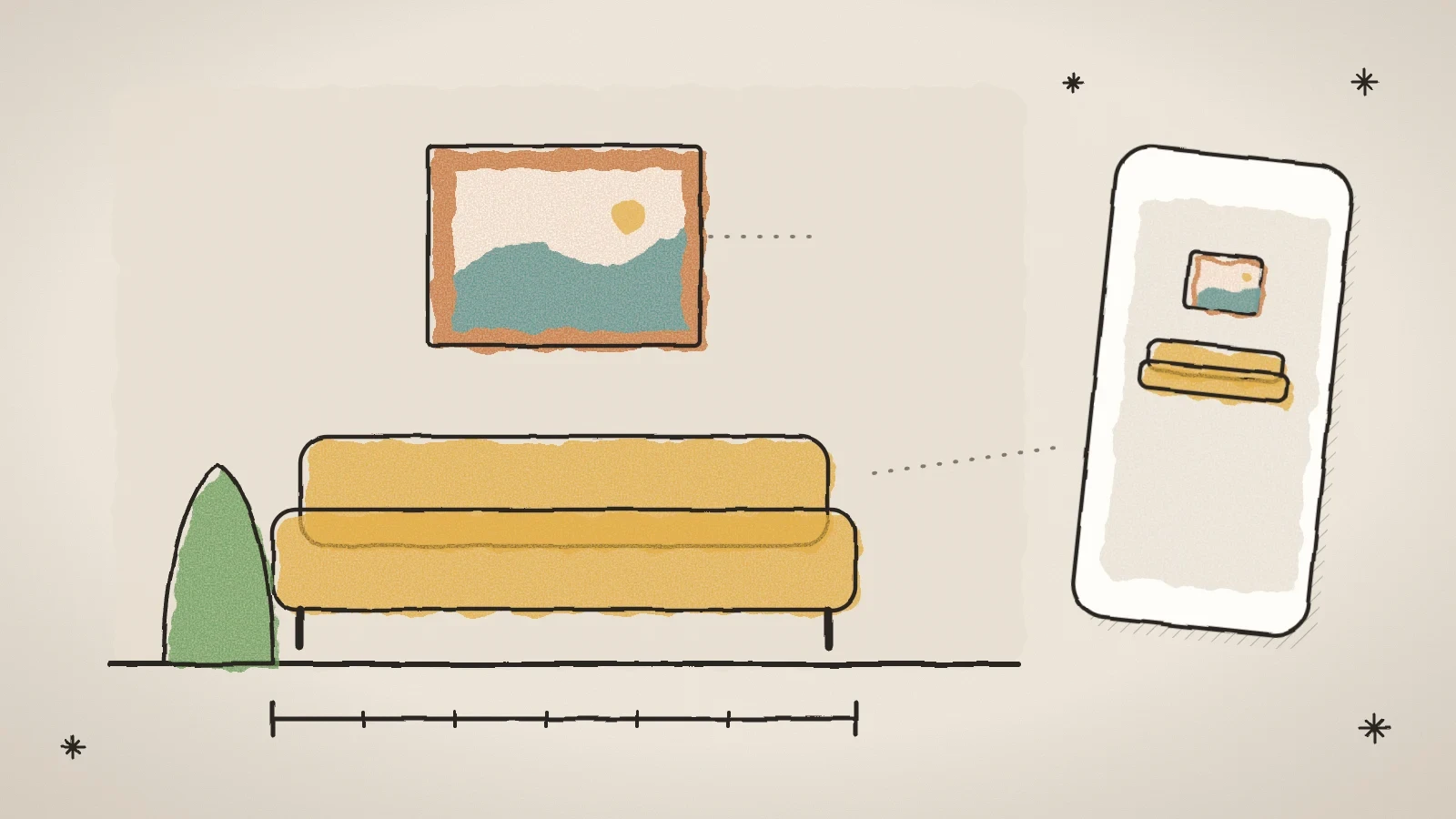
- View on your wall: on a phone the camera opens and the painting appears on the wall at its real size. On a computer the same button shows a QR code to go on with the phone. On many Android phones the view asks "Does the wall lean?", and the painting can be leaned so it lies flat on a leaning wall, such as an old log wall.
- View in a room: the painting on the wall of a drawn room, above a sofa, a sideboard or a bed at the same scale, with three wall colours.
- My wall: the visitor takes a photo of their own wall or picks one, sets the scale with an inside door, an A4 sheet or their own length, and drags the painting into place. The photo stays on their device.
When a work has a frame, the room view and My wall show it as a real frame: rails, corners, depth and light in the work's own colour. The finished picture can be saved or shared, for example sent to a family member.
An inquiry and an offer instead of a cart
The work page has the button Ask about this painting. When you switch on Visitors can make an offer for a work, it also has Make an offer. The Lowest offer (secret) stays hidden from the visitor and only marks your email when an offer was below it. A sold work has the button Ask about a similar work. You write the delivery and payment text once in the settings, and it shows under every work for sale.
An inquiry reaches your email, or the address you choose on the settings card Inquiries and offers, and the Inquiries tab, the Inbox and Customers. The number of new inquiries shows in red in the sidebar. You answer with Answer by email and record a sale with Record as sale.
Under the work page's buttons there is also a Share row: Facebook, Pinterest with the painting's photo, WhatsApp, X, email and Copy link, and on a phone also More. The buttons are plain links, so no script of those sites loads on the page. The row starts on, and you can switch it off on the Share buttons card under Artworks > Settings.
Husly can send the person who asked a short thank-you letter. It starts switched off: turn it on under Settings > Letter templates > Artworks.
A gallery: artists, series, exhibitions and a CV
A gallery site has the Artists tab: a name, a portrait, a story and links. In the work form you pick the artist from the list, and on the site each artist gets their own page with their works.
Series group works, for example "Sea 2024". Each series has its own page, and the work page links to its series. Exhibitions hold solo shows, group shows and art fairs with their place, year and works. The work page shows where the work has been, with the marks Now on or Upcoming. In a gallery the artist's CV is on their page; on a one-artist site it has its own CV page.
Put the works on your site and in the Gallery hall
The page builder has the group Artworks. The Artwork catalogue block shows the works in a grid, with filters by technique, size, availability, price and series. The block can also show only one series.
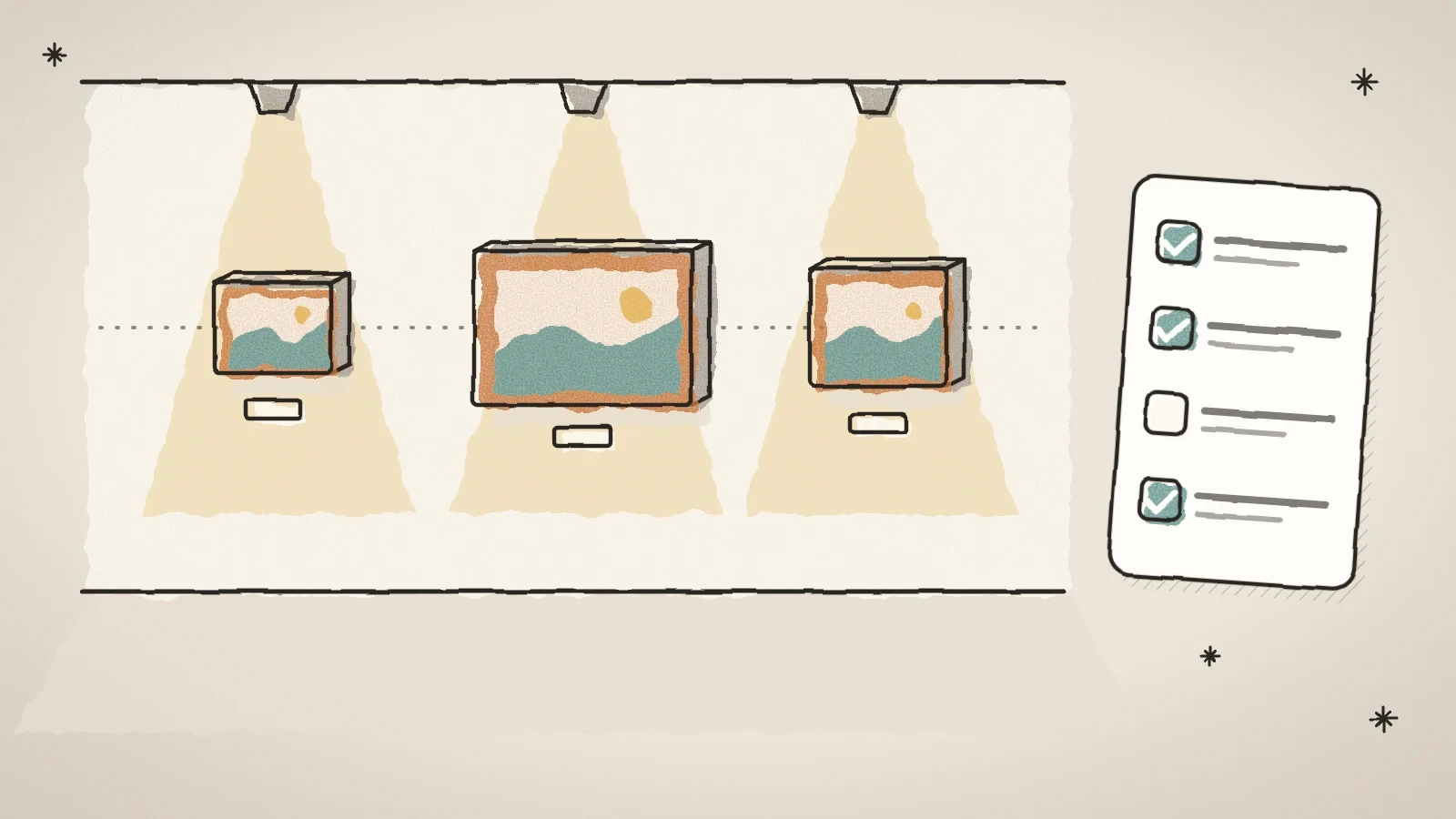
If you have the Gallery hall, choose Where the works come from > Artworks in its settings. Each work then hangs in the hall as in its 3D view: the canvas with its depth and edge, and its own frame. Paintings at their real size starts on, so a 50 x 40 cm painting is small on the wall and a 100 x 70 cm painting is twice as wide, as in a real gallery. The Works in the hall list has a tick for each work: by default every work hangs, and a new work joins by itself. The "View on your wall" button switch puts a button under the hall for the work the visitor stands in front of. It starts off.
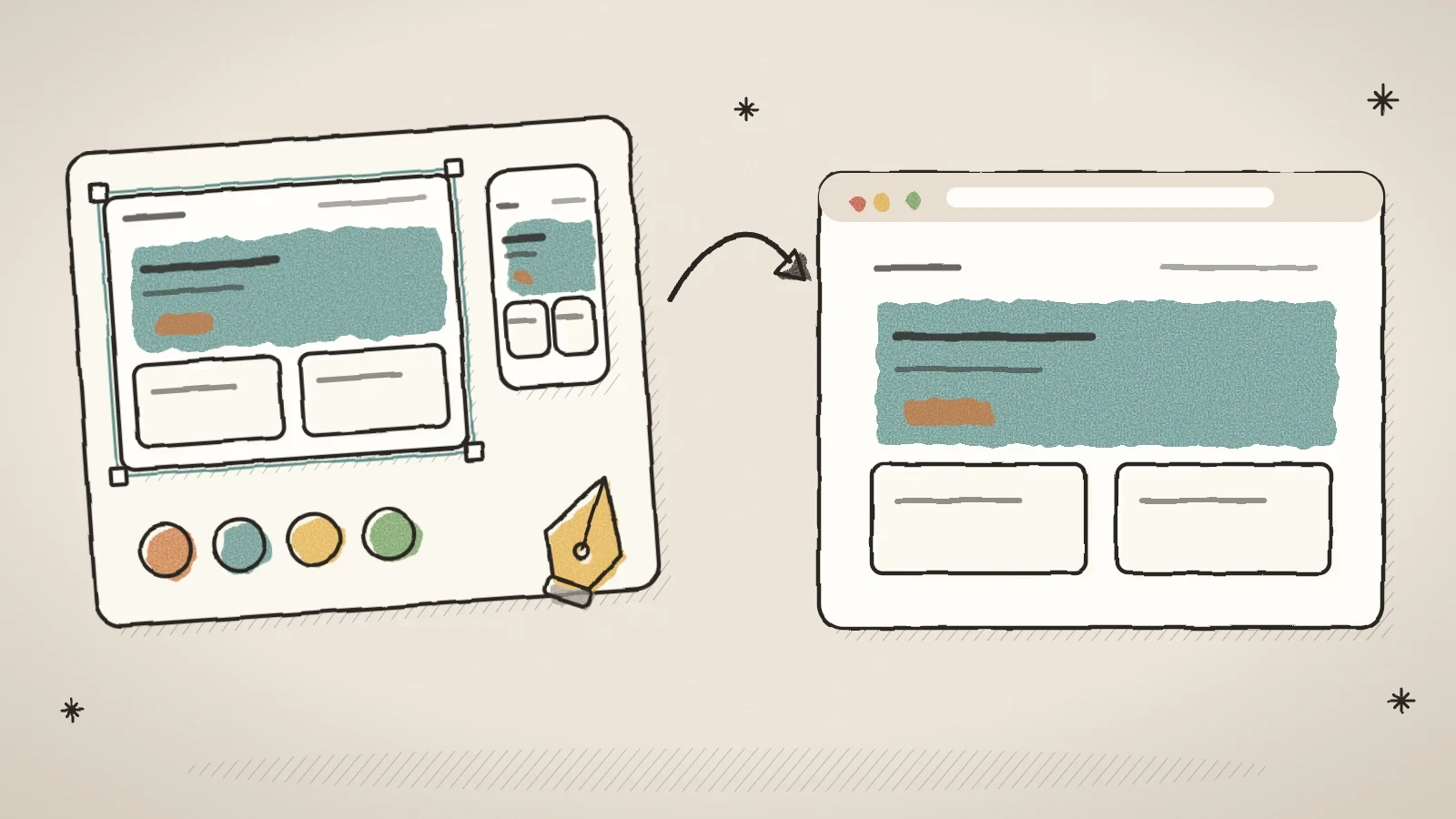
On the Work page tab you design the page of every work once in the builder, around the Artwork block. The template starts switched off, and until then the site uses the standard work page. In the settings you choose how the work address starts and the size units: centimetres, inches or both. Old addresses are sent on to the new ones by themselves.
Post a work to Etsy, Instagram and other places
A saved work has the Post card with five buttons. You connect each service's account once under Tools > Integrations.
- Post to DeviantArt: the photo, title, facts and a link to the work page, marked "not made with AI" and with the NoAI flag.
- Post to Pinterest: the picture on the board you chose, with a link to the work page.
- Post to Instagram: the photo and a text on your professional account. A very tall or wide painting gets a white border, it is never cropped.
- Send to TikTok: the photos go to your TikTok inbox as a draft, and you add music and post.
- Make Etsy listing: a listing in your Etsy shop with the photos, price, size and category, as a draft or on sale at once, as you choose on the Etsy card.
Etsy and the site keep the sale in step: a work sold on Etsy becomes sold on the site, and when a work is sold on the site its Etsy listing is stopped. So you never sell one painting twice. The work page can also show a Buy on Etsy button, which you switch on on the Etsy card.
When a work becomes available again, for example when a reservation ends, Husly does not make its Etsy listing active again. Do that on Etsy, because Etsy may charge a fee for it.
Sales, statistics, print sheets and protection from AI
- Sales: the buyer, price and day of a sold work, totals per year and a CSV file. It is only a record, not a payment or an invoice.
- Statistics: each work's page views, 3D, wall and room view opens, questions and offers over 30 or 90 days, without cookies.
- Print: a certificate of authenticity with a fixed number, a signature and a QR code, a price list of the chosen works, and wall labels, eight to a sheet.
- Product list for Google, Facebook and Pinterest: a file whose address you give these services, so your works show in their shopping catalogue.
- Protect from AI: tells AI training robots not to read the site and marks every new photo with a data mining refusal. Search engines go on reading the site. The switch starts off.
Works, artists, series and exhibitions are kept in restore points and backups.
Frequently asked questions
Yes. The choice is under Artworks > Settings. In gallery mode the Artists tab appears, and in the work form you pick the artist from a list.
They stay as they are. The data mining mark goes into photos you upload after the switch is on. The robot refusal and the page mark apply to the whole site at once.
No. The static export does not hold the work pages yet, so the 3D, wall and room views work on your Husly site.

Try Husly on your own business
Start free, no card needed. If you have questions first, write to us and we reply within one working day.