

Send quotes and invoices that customers accept and pay on your site
You can now write quotes and invoices yourself in Finance. The customer accepts a quote or pays an invoice on its own page on your site, reminders go by themselves, and your accountant gets a CSV, PDFs and e-invoices.
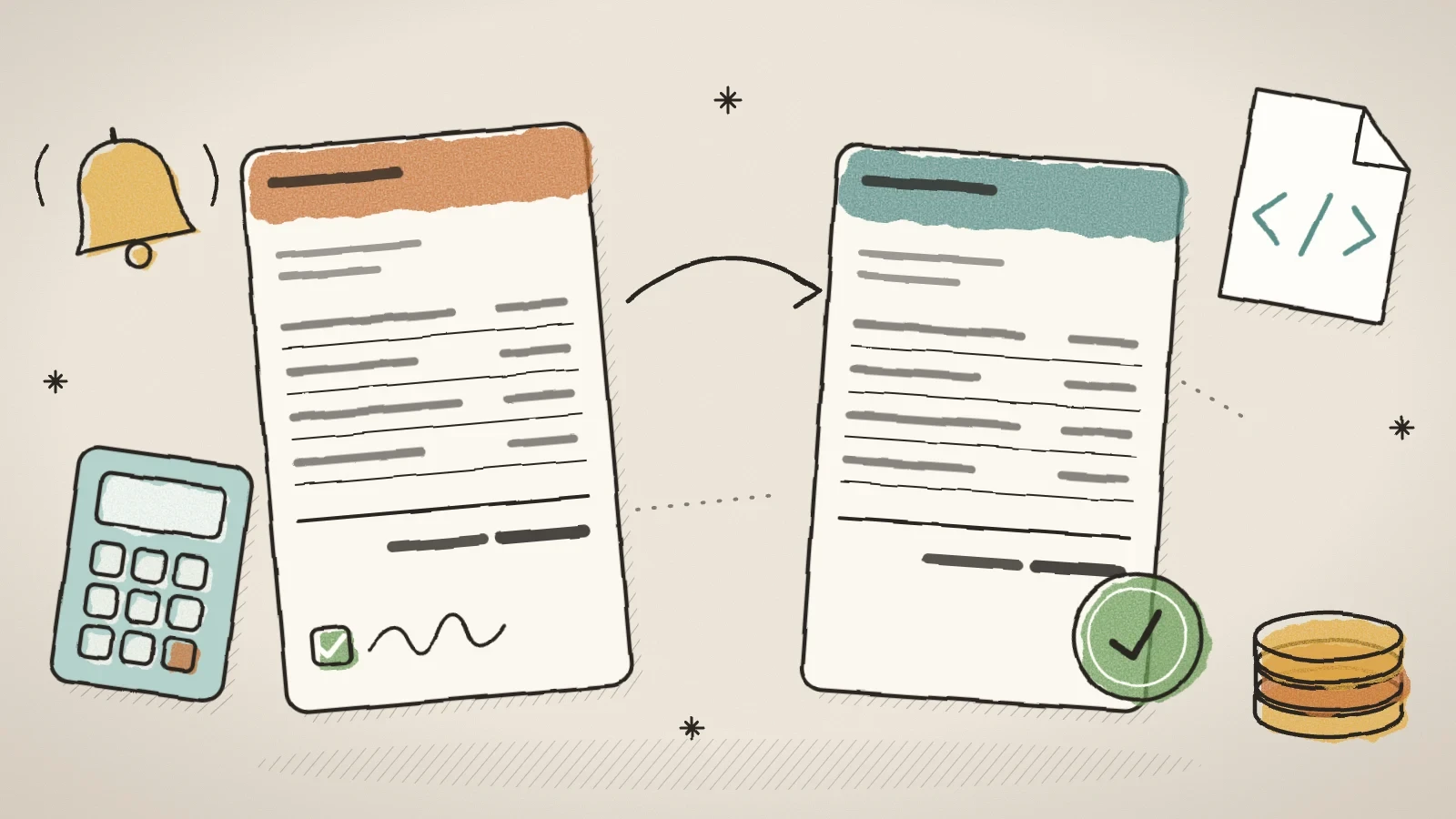
What this batch of updates covers
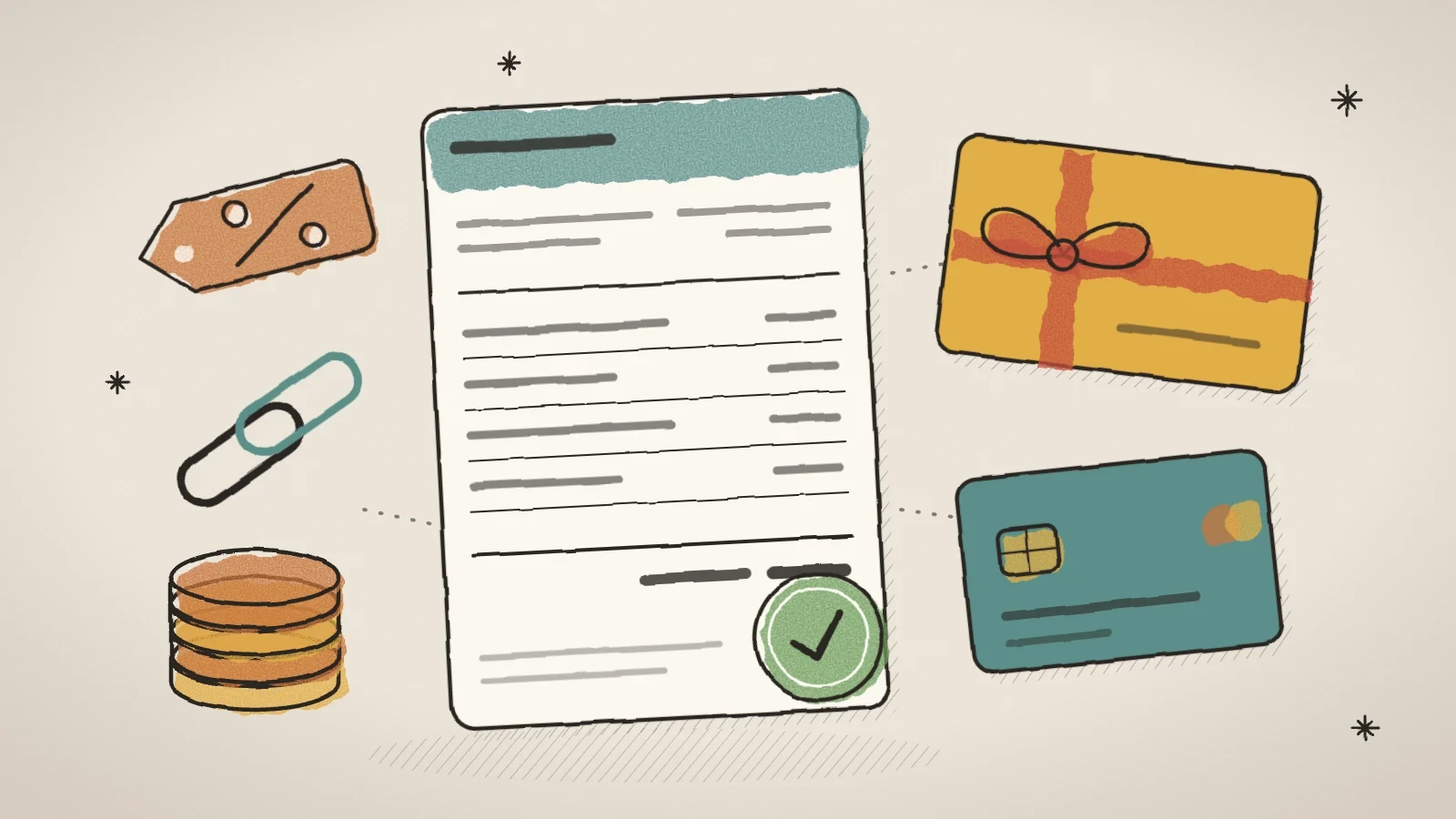
On 10 and 11 November Finance got its fourth version: quotes and invoices you write yourself. Until now Finance made an invoice only after an online payment. Now you can send a customer a price before the work and an invoice after it, also when they pay by bank transfer.
It is not a new module. The Finance page has a new Quotes tab, the Invoices tab has a New invoice button, and the settings are under Settings > Quotes and invoices, with five tabs. Finance comes with every paid plan. Everything that writes to your customers by itself starts off: payment reminders, the "Payment received" letter and the quotes from blocks wait until you switch them on.
Below are the six updates one by one: quotes, invoices by hand and paying online, reminders and letters, products and buyers, the accountant's files, and quotes that start on your site. A step-by-step guide is in the help center: Quotes and invoices.
Send a quote the customer accepts on its own page
On the Quotes tab, New quote opens the editor: the buyer, lines with headings, prices with or without VAT, a discount on a line or on the whole quote, a note, terms and an internal note that is never printed. A quote has a last day, 30 days from today by default, and an optional deposit in percent. A draft has no number yet, so a deleted draft leaves no gap in your numbers.
Every sent quote gets its own page on your site's address. The customer sees the lines, the totals and the terms there, and can accept the quote, decline it or ask a question. An acceptance keeps the typed name, the time and the version the customer read, so you have the proof. Until the customer answers, you can change the quote or withdraw it.
On the Quotes settings tab you choose what happens after an acceptance: Tell me only (the default), Make the invoice, I send it or Make and send the invoice.
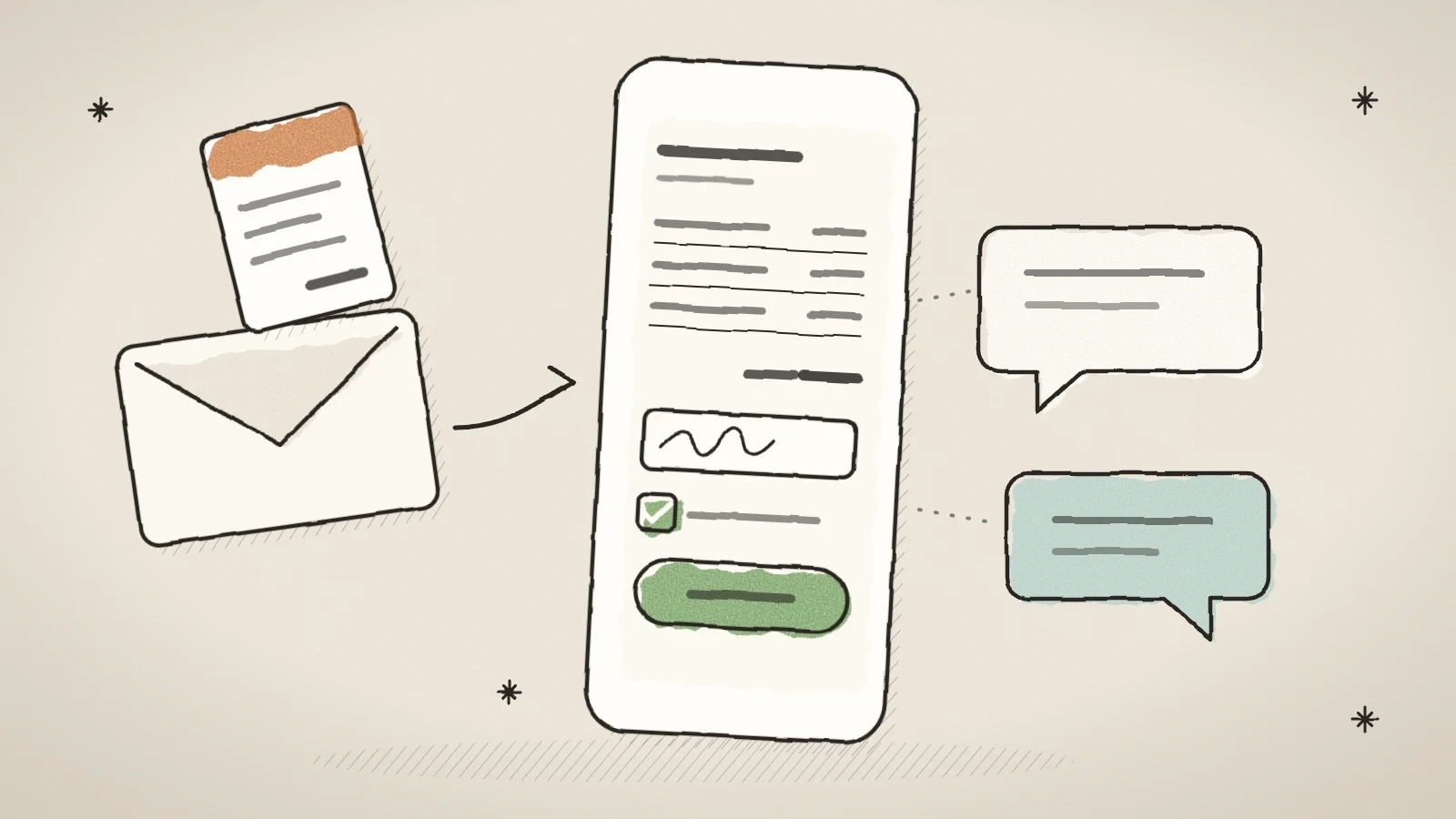
New quote
Fill in the buyer and the lines. Closing the panel saves a draft.
Send
The quote gets its number and its page, and the customer gets the PDF with a button to that page. "Send without a letter" makes the page, and you share the link yourself.
I accept the quote
The customer types their name, ticks the terms and accepts. You get a letter and a row in the Inbox.
Make invoice
An accepted quote becomes an invoice with one press. With a deposit, "Make deposit invoice" comes first and "Make final invoice" later takes the deposit off.
Write an invoice by hand and let the customer pay it online
On the Invoices tab, New invoice opens the same editor, with a payment term in place of the last day, 14 days by default. Issue only or Issue and send gives the invoice its number, a reference number for a seller in Estonia, and the PDF. An issued invoice cannot be changed: Cancel invoice makes a credit note for the whole sum.
Every invoice by hand has its own page on your site. The customer sees what is still to pay, your bank details with the reference number, and a PDF button. When Pay online is on for the invoice, the page also has pay buttons for the payment ways your site already takes: card, PayPal, bank link or Klarna. A new invoice starts with it on when at least one payment way works.
- Add payment marks money that came by bank transfer, cash or a card terminal. The list shows whether an invoice is waiting for payment, partly paid, late or paid.
- The switch Customer may pay part of the amount online adds an amount field to the invoice page, from 1.00 up to what is still to pay. It starts off.
- On the Look of documents card you choose the colour, a logo, a QR code and the paper size, A4 or US Letter, and the company details take two more bank accounts. If you never open the card, documents print as before: black and white, with no logo and no QR code.
The late payment text and the texts for lines with 0% VAT start empty, and an empty text prints nothing. Husly gives no legal wording for you, so ask your accountant for yours.
Let reminders and letters go by themselves
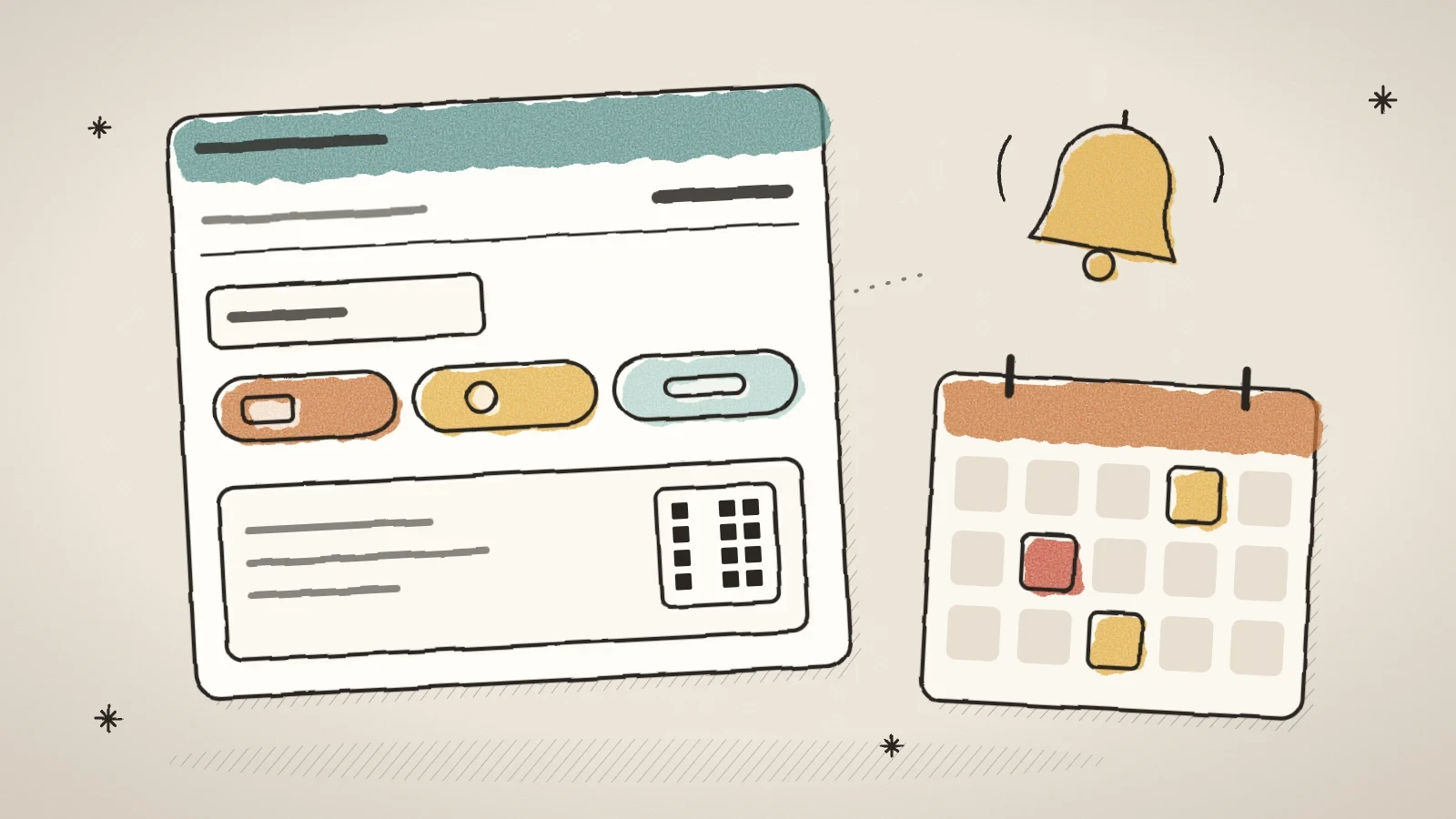
The new Payment reminders settings tab sends the customer a letter before the due day, on the due day, and 3, 10 and 30 days after it, each with its own switch, at an hour you pick on your site's clock. It is off on every site until you switch it on, because writing to your customers is your choice. A reminder asks for what is still to pay: after a part payment it asks for the rest, and a paid invoice gets no more letters. The Quotes tab has a matching switch, Remind the customer before the quote ends.
All letters of quotes and invoices are on the Letter templates page, in the group Payments and invoices. Each letter has its own words in Estonian and English, a preview and a test letter. You get a letter when a quote is accepted, declined or asked about, and when an invoice is paid online. The "Payment received" letter to the customer starts off.
Answers to quotes and online payments also reach the Inbox. Customers shows each person's quotes and invoices, and what they still owe.
Take lines from your own list and the buyer from earlier documents
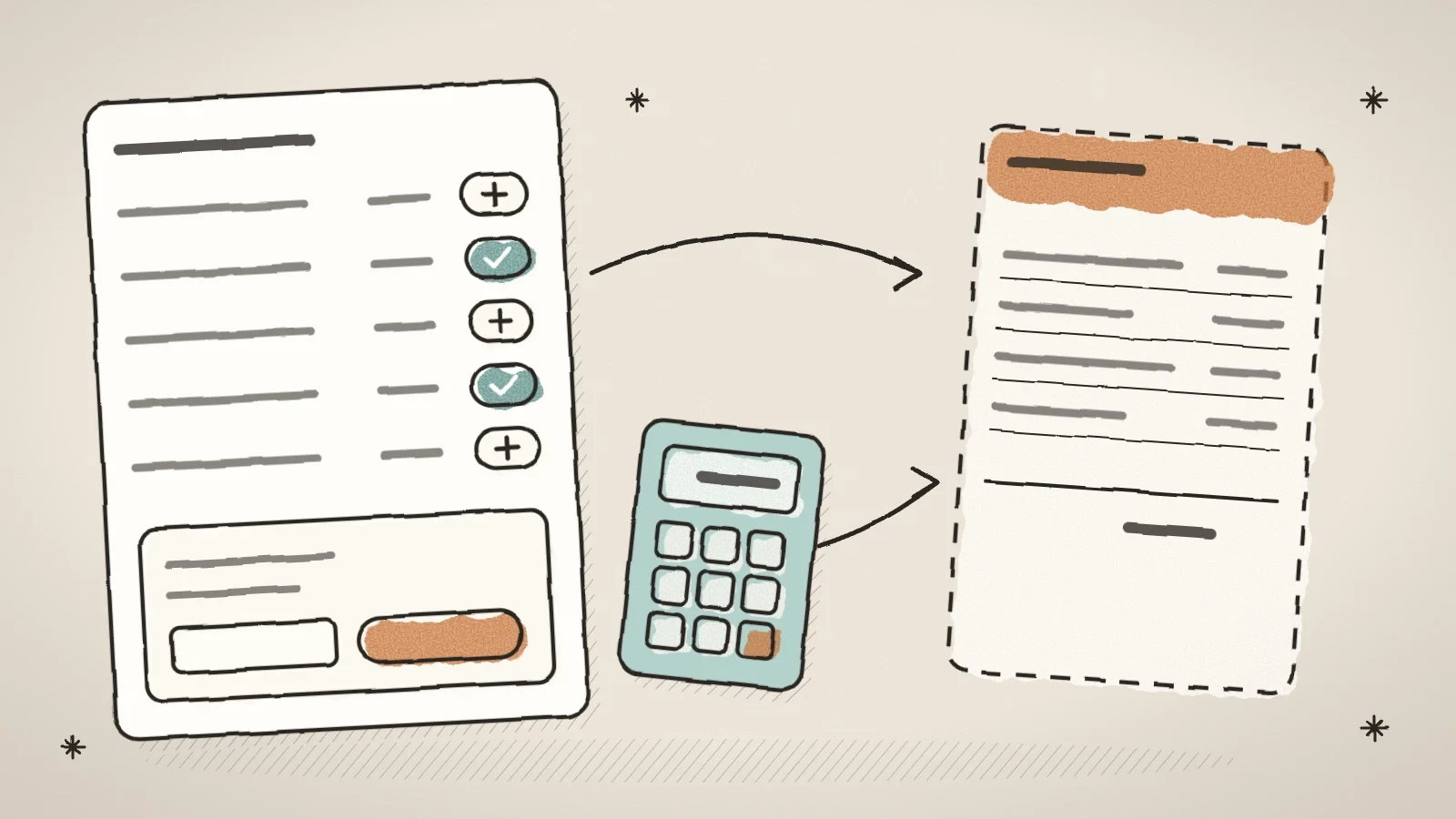
The Products and services settings tab keeps what you sell again and again: a name and text in both languages, a unit, a price, a code and VAT. A whole list comes in from a spreadsheet as a CSV file, and you see the rows before they are added. In the editor, Add from list offers this list and also what your site sells right now: appointment services, rentals, event tickets and artworks, at today's price. A line is a copy, so a later price change never reaches a sent document.
When you type the buyer's name, the editor suggests earlier buyers from your own invoices and quotes. The paid add-on Business register search also finds Estonian companies in the same field, by name or registry code, and fills the registry code, the VAT number and the address. A regular buyer can get a fixed reference number made from their registry code, so their bank payments are easy to match to the invoices.
A VAT-registered seller can let each line have its own VAT rate, also 0% with a reason (reverse charge, export or exempt), and write a text for each reason. A new document can start with prices with VAT or without, the way your customers are used to.
Give your accountant the files and connect Merit Aktiva
The Invoices tab has an Export button. Pick the period, the documents and their state, and download the CSV for the accountant with the amounts per VAT rate, PDFs as ZIP (up to 200 at a time) or E-invoices as ZIP (XML). Quotes are not in the export, because a quote is not an accounting document. The setting Copy of every invoice to the accountant sends each new invoice with its PDF to one address.
On every invoice and credit note, the E-invoice button gives an XML file in the European format EN 16931 (Peppol BIS Billing 3.0). Estonia's Accounting Act counts such an e-invoice as compliant since 1 July 2025. The file is made for a company with an Estonian registry code. For any other buyer, the button says why there is no file.
If your books are in Merit Aktiva, connect it under Tools > Apps with Merit's API ID and key. The switch Send new invoices to Merit sends every new invoice and credit note to Merit within a few minutes, and never twice. Merit can also send them on to the buyer as e-invoices, but that switch starts off, because Merit's operator may charge for each e-invoice. Merit's API needs its Pro or Premium package.
Let quotes start on your site
Four blocks bring Finance to your pages. Each option starts off and shows only on a site with Finance.
- Pay an invoice is a new block in the Finance group. The customer types the invoice number and the email or the reference number, and lands on the invoice page to pay. A wrong try always gets the same answer, so nobody can guess other people's invoices.
- Quote configurator: the option Quote in Finance makes a draft quote from the visitor's answers or sends the quote at once. The prices come from the block you saved, never from the visitor's browser. When something is missing, the quote stays a draft and the Inbox says why.
- Form: the switch Make a draft quote on the Advanced tab makes a draft from every answer, with the buyer filled in. You add the lines.
- Price book: the option Ask for a quote lets the visitor pick rows and amounts and send a request. You get a draft with those rows. It is not a cart: nothing is paid or held.
In the Artworks module, every question and price offer on the Inquiries tab has a Make a quote button. It makes a draft with the visitor as the buyer and the work as the line. When the invoice for a work is paid in full, the sale record fills in by itself and the work turns sold.
Frequently asked questions
No. Quotes, invoices by hand, reminders, the products list, the export, e-invoice files and the Merit Aktiva connection are part of Finance, which comes with every paid plan. Only the business register search is a separate paid add-on.
No. The invoices made after online payments work as before. If you do not open the new settings, documents print the same way as before, and your customers get no new letter until you switch it on.
No. You still reserve a work by hand. A work turns sold only when its invoice is paid in full.
Not yet. A quote or an invoice goes to one address of the buyer for now. Several recipients per document is a later step.
Try Husly on your own business
Start free, no card needed. If you have questions first, write to us and we reply within one working day.