

Find modules, add-ons and connections on one Apps page
The admin has a new Apps page. Your site's modules, the add-ons you can buy and the connections to other services are in one place, and the site toolbar now also reaches the newer screens.
What changed
The question "what can my site do?" had three different places in the admin until now: Settings > Modules for the site's own modules, the add-ons list on Plan & billing, and Tools > Integrations for connections to other services. Before you could search, you had to know whether a thing was a module, an add-on or an integration.
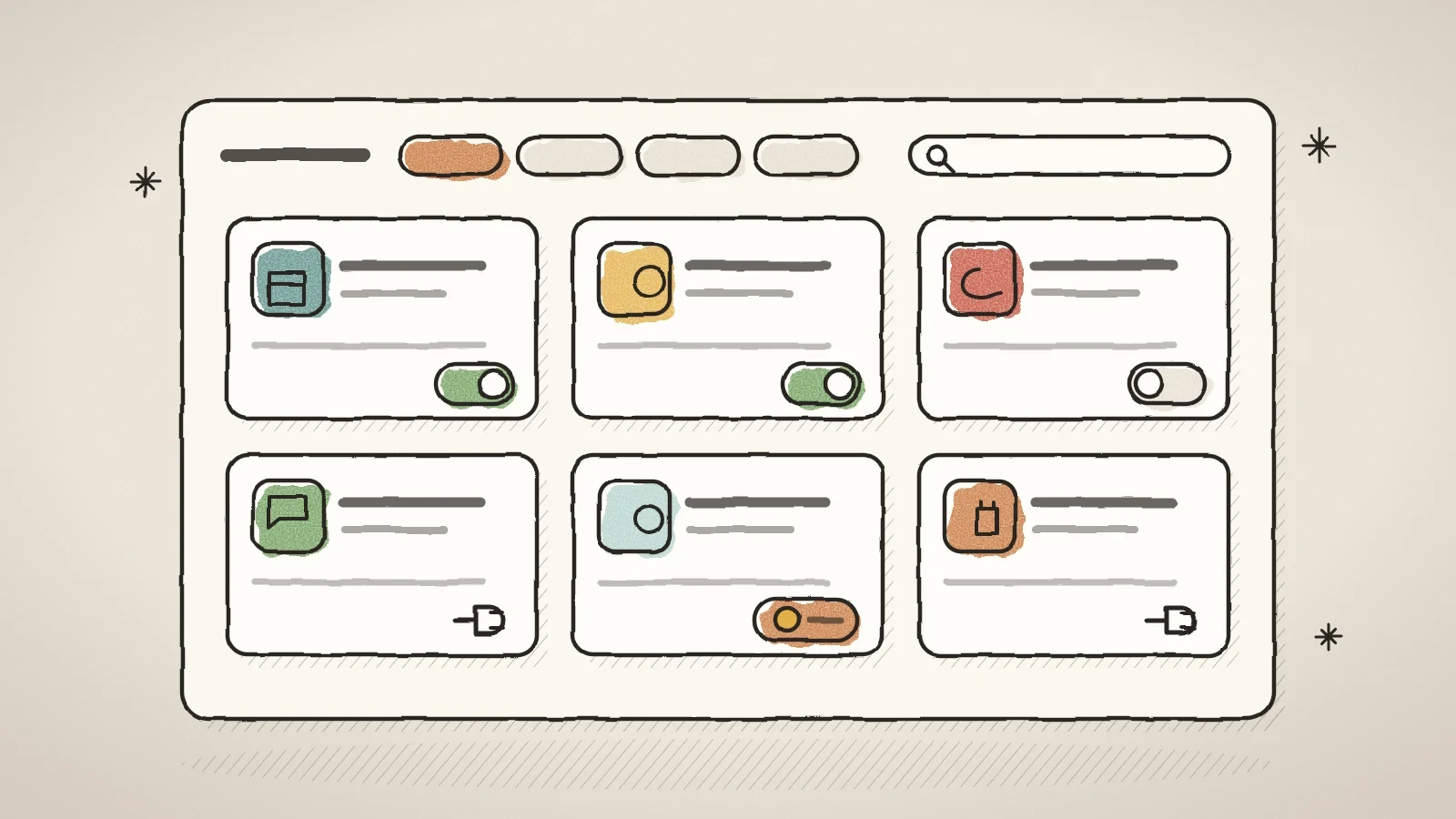
Now everything is on one page: Tools > Apps, the first row of the Tools group. Every thing is a card in one catalogue. The Husly half shows the site's modules: first Your modules (a switch and a Manage link), then You can add. The Connections half shows every service you can connect: card payments, Google, Mailchimp, Slack, calendars and the rest.
Your settings stayed the same. Each connection's settings panel is the one you know, and the old addresses forward to the new page, so bookmarks and the admin's buttons keep working.
How to use the Apps page
The page header has four tabs, with a toolbar under them. The chosen tab is part of the page address, so a link keeps it.
All, Husly or Connections
Choose whether you see the whole catalogue, only the modules or only the connections. One search box searches both halves.
All modules
Pick a module, for example Rentals, and the page shows that module's card and every connection it uses.
Sort and view
Sort by Recommended, Newest, Name A-Z or Z-A, and choose the grid or a compact list. The browser remembers the choice.
Installed
The fourth tab shows the connections you have set up and opens their settings. A connection card on the Connections tab opens its settings in the same place.
Buy an add-on right on its card
A module that is a paid add-on, such as Rentals or the business register search, shows its price and a Buy button on its card. It opens the same confirm dialog Plan & billing used, with the price and the proration note. A bought module moves to Your modules at once. There it has a Remove button, so you can stop an add-on where you started it. On the free plan the card points to the plans, because an add-on needs a paid subscription.
Plan & billing stays for the bill. It keeps only the extras that are about limits, not features: AI packs, an extra site, 10 GB of storage and priority support. A line under the list says where the module add-ons went.
On a wide screen the tabs sit in the title row, so on the Installed tab a connection's settings panel starts higher and its Save button stays in view. On a phone the tabs have their own row under the title.
The site toolbar reaches the newer screens
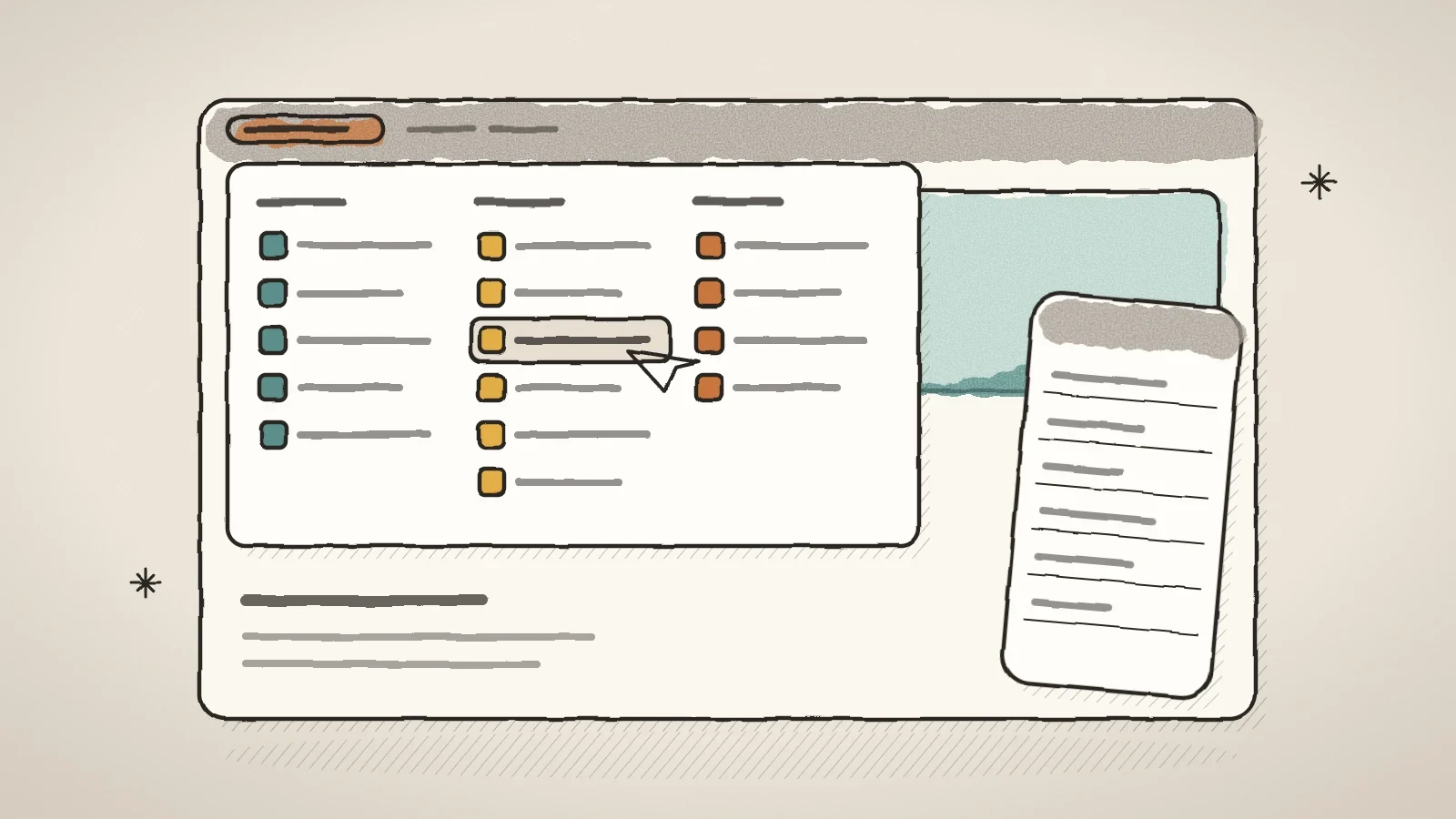
When you are signed in and look at your public site, there is a toolbar at the top of the page with a menu under the site's name. Until now it had seven rows. Now the menu has groups: the Dashboard and the Inbox, content (pages, posts, media, forms), modules, structure (themes, customize, header and footer, menus), tools (SEO and analytics) and settings.
Each row shows only when you may open that screen and the site really uses it. A module is in the menu when the platform has it on, the site's plan includes it and the site has it switched on. A blog editor sees a short column; the owner of a busy site sees the full menu. You still find and switch on a new module on the Apps page.
On a computer the groups stand in three columns side by side. On a phone they are one list with finger-sized rows, and a long menu scrolls.
Example: a rental shop sets up card payments
A small bike rental opens Tools > Apps and picks Rentals in the All modules filter. The page now shows only the Rentals card and the connections rentals use, among them card payments and calendar sync. There is no need to scroll past the other connections.
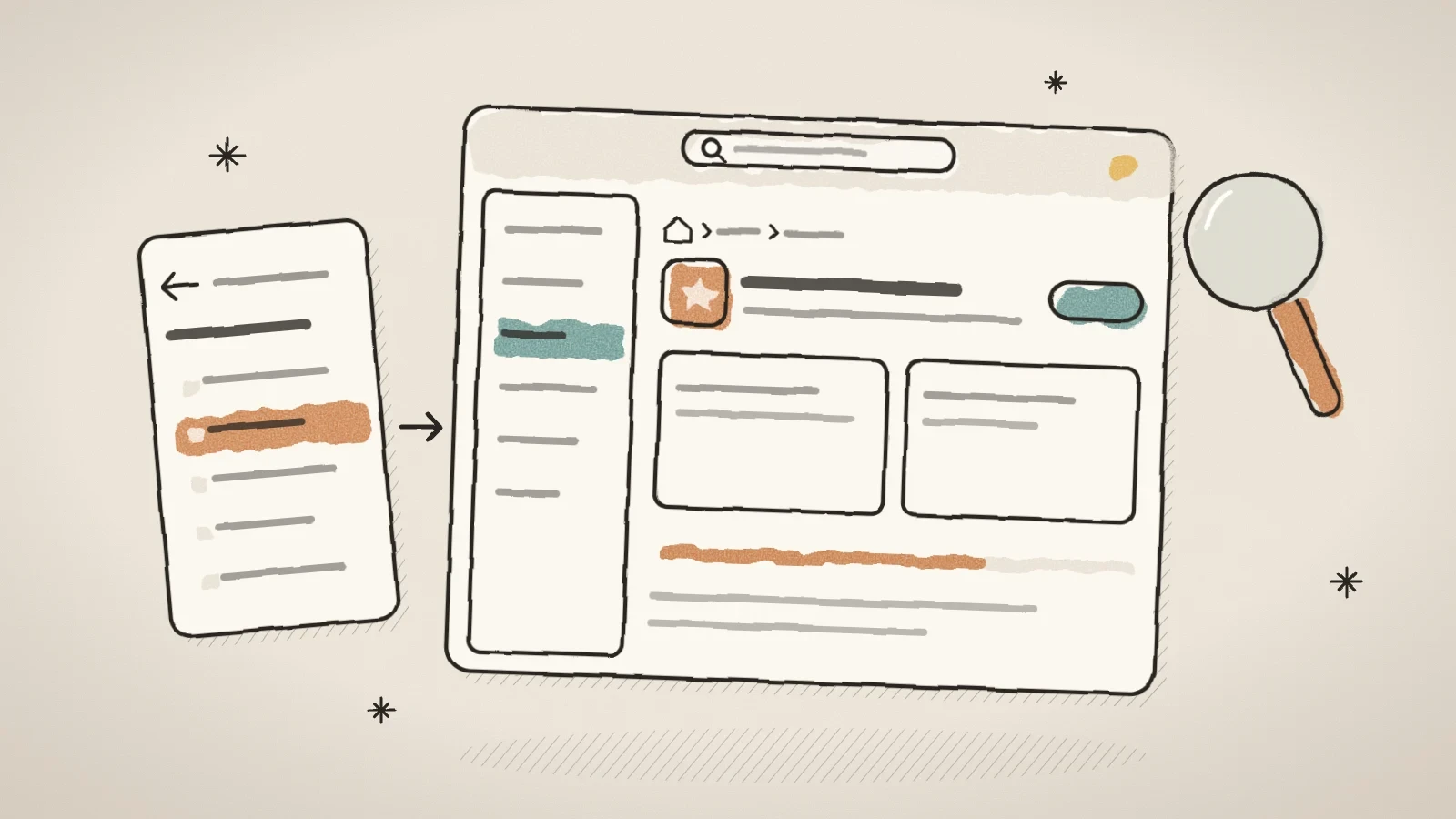
The owner opens the card payments card. Its settings open on the Installed tab, the Apps row in the sidebar is lit and the path above the title says the same. After saving, they go back to the catalogue, and the card payments card shows the connection as installed.
What we deliberately did not do
- The connections' settings panels and their texts stayed the same. Only the place you open them from changed.
- The toolbar menu has no platform operator screens, no people and roles screens, and no tools that are not about the page you look at, such as the autopilot, email, the WordPress import and A/B tests. Those are in the admin sidebar.
- We did not change the toolbar's "New" menu or the blog menu.
Frequently asked questions
Yes. Settings > Modules, Tools > Integrations and the old connection addresses forward to the same place on the Apps page. An old link to buy a module add-on also opens the Apps page now.
No. The add-ons are the same; only the place where you buy them changed. Plan & billing still shows your bills and the limit extras.
The menu shows only the modules your plan includes and your site has switched on, and only when you may open them. To switch a module on, open the Apps page.
Try Husly on your own business
Start free, no card needed. If you have questions first, write to us and we reply within one working day.