

Every Husly site now lets visitors pause motion and skip straight to the content
Every published Husly site got accessibility fixes: one button pauses all motion, the keyboard can skip straight to the content, the menu and forms work with a screen reader, and the focus no longer hides under the header or the cookie notice.
What changed and who it matters to
On 17 October we checked husly.app against the accessibility guidelines (WCAG 2.2). Many of the problems we found were not husly.app's own: they came from the platform, from the header, the menu, the form and the widgets. So they were on your site too. We fixed them in the platform, which means the fixes reached every published site at once.
Visitors who move through a page with the keyboard, use a screen reader or are bothered by motion on screen gain the most. You gain as well: the site is easier for everyone, and if your client is, say, a public body, these requirements are often already part of the tender.
Almost everything works by itself. There is one new switch for you, which we come to below.
One button pauses all motion
A page can have parts that move without end: a scrolling strip of words, a picture wall that drifts by itself, a glowing button or a background video. The guidelines say that anything that starts moving by itself and lasts longer than five seconds must be possible to stop. Until now only the photo slider had a pause.
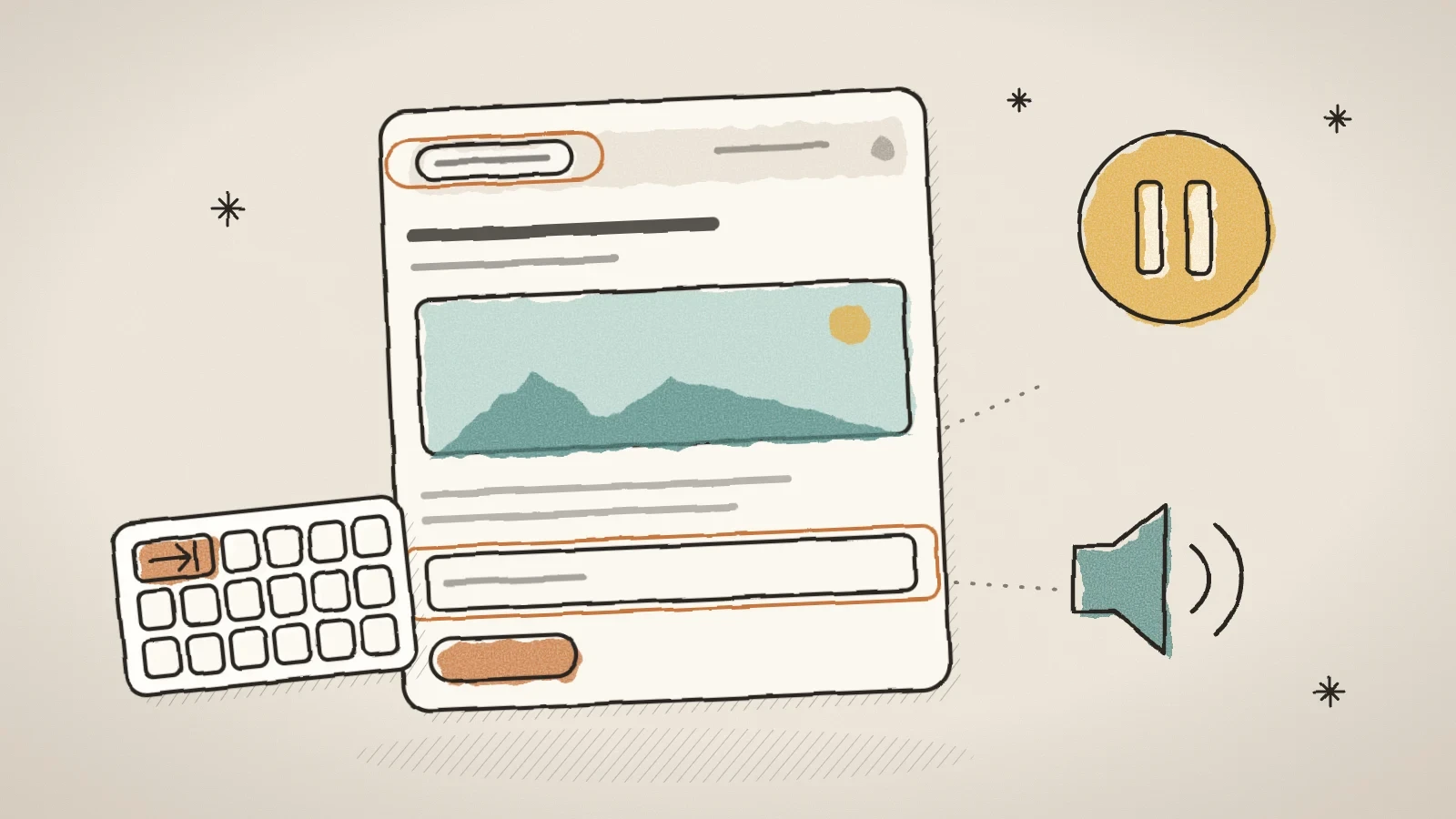
Now every published site has a Pause animations button. It sits in the footer next to the language and theme controls, and a copy of it meets a keyboard user right after the "Skip to content" link. One press holds every endless or long animation and every video that plays by itself. The button then reads "Play animations", and the site remembers the choice on every page until the visitor presses it again. A page where nothing moves by itself has no button.
For you, every widget has a new Do not move by itself switch in the block's settings, in the Accessibility group. When it is on, that block never moves by itself on the published site: a slider's autoplay stops, endless motion holds and a background video inside the block does not play. The visitor can still move the block by hand with arrows, dots and swipes. The switch is off by default, so no existing page changed.
Open the page in the site builder
Pick a block that moves by itself, such as a slider or a section with a moving background.
Find the Accessibility group
The block's settings have an Accessibility group with the "Do not move by itself" switch.
Switch it on and publish
Once published, the block no longer moves by itself. The text under the switch explains which requirement it covers.
A visitor can stop motion without it, with the button in the footer. The switch is for sites that must meet strict accessibility rules, for example in the public sector.
The keyboard focus is always in sight
A keyboard user used to pass the logo, every menu link, the language switcher and the theme toggle on every page before reaching the content. Now every published page starts with a Skip to content link. It is the first stop of the Tab key, it shows only when it has the focus, and it moves the focus straight into the page content.
- The header does not cover the focus. When a visitor goes up with Shift+Tab, the page keeps the header's height free at the top, so the focused element never ends up under the pinned header.
- The cookie notice does not cover the focus. While the notice is open, the page keeps its height free at the bottom, and if the focus still ends up under it, the notice moves to the top of the window.
- The phone menu is a real dialog. When it opens, the focus moves to the menu's first link, and Tab goes round inside the menu instead of into the page behind it. The menu ends with a "Close menu" button that a screen reader user on a phone finds by swiping. When the menu is closed, the focus goes back to the menu button.
For someone using a mouse or a finger, nothing changed on screen.
The contact form talks to screen readers
A screen reader used to say only "edit text" in a form field, because the field's name was just text above it. A blind visitor could not tell the name field from the email field. Now every field's name is tied to its field, a group of radio buttons carries the question as its name, and the checkbox and each option are tied to their own text.
The result of sending the form now reaches the screen reader too. The thank-you message is read out when the screen reader is free, and an error, such as a missing answer or a failed send, is read out at once. Before, a blind visitor pressed Send and never learned whether the message left.
The form also tells the browser what each field asks for: name, email, phone, company, address or website. The browser can fill them in for the visitor, and assistive tools can mark them. A field that is not about the visitor, such as a subject or a message, gets nothing.
Smaller fixes you can see
- Slider dots are bigger targets. The dots of the scroll gallery and the coverflow were 9 x 9 pixels and 9 pixels apart. Now each dot is a 24 x 24 pixel button with the same small dot inside it, so a finger hits it more easily.
- A notice box's button is readable. The button on the green and the amber notice box had white text that was hard to read. Now the button text is chosen the way it is everywhere else in the theme: white when it has enough contrast, dark otherwise.
- A banner with an empty gradient colour has its background back. When one of a banner's gradient colours was saved empty, the banner used to lose its background entirely while its text stayed white. Now an empty colour falls back to the brand colour and the banner gets its gradient back.
An example from a small business site
Take a cleaning company whose home page has a scrolling strip of client logos, a reviews slider that turns by itself and a price enquiry form. The company also works for local councils, whose tenders ask for an accessible site.
A keyboard user now skips to the content with the first press of Tab and can pause the motion with the second. A screen reader user hears the name of every field and, after sending, the thank-you message. The owner switches on "Do not move by itself" on the reviews slider, so it stays still until a visitor presses an arrow.
What we have not done yet
Someone using a mouse who is bothered by motion has to scroll down to the footer to reach the pause button. Keyboard and screen reader users find its copy at the top of the page.
Parts that move with the scroll only move when the visitor scrolls, so the pause leaves them alone. Making older widgets follow the browser's "Reduce motion" setting is a separate job.
Frequently asked questions
No. The pause, the skip link and the form and menu fixes work on every published site by themselves. Only "Do not move by itself" is a switch you turn on for a block if you want to.
These changes fix the platform's own parts: the header, the menu, the form and the widgets. Your own content, such as image alt texts, the order of headings and the colours you choose, is yours to decide and counts towards the result too.
The site's language. In English they read "Skip to content", "Pause animations" and "Play animations". In extra languages that the platform translates itself, the "Skip to content" link may be in English until it is translated again.
Try Husly on your own business
Start free, no card needed. If you have questions first, write to us and we reply within one working day.